
Write a client proposal for AI agents
Quote a client for AI agents run on Qoren with your platform cost and margin in view, then print a proposal under your own brand or save it as a PDF.
On this page
Proposals is where you quote a client for the agents you will run for them. You list the agents, Qoren works out what they will cost you on the platform, your margin sets the price, and the builder lays it all out as a client-ready document under your company's name. Your cost and profit stay on your side of the screen; the client only ever sees the document.
Everyone in your account sees the same proposals. Your clients never do: there are no client logins, and nothing leaves Qoren until you print or save the document yourself.
The proposals list#
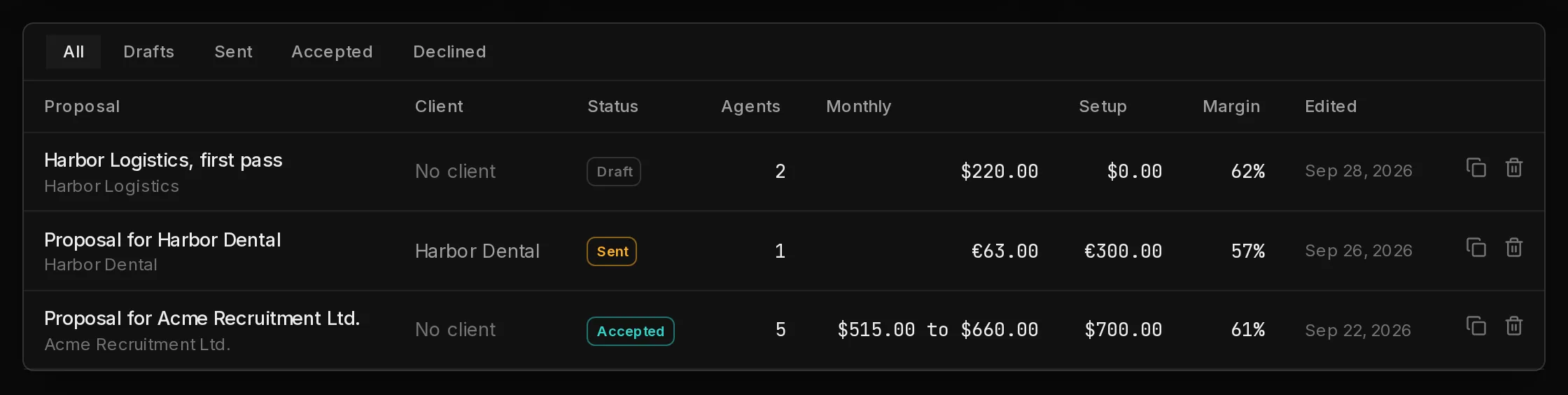
In the sidebar, open My Company and click Proposals. The top of the page counts your Open proposals (drafts and sent), how many are Accepted, and what the accepted ones add up to per month.
 1234
1234- The filters (1) show All, Drafts, Sent, Accepted or Declined proposals.
- Client (2) names the client a proposal is assigned to and links to the client's page, or says No client.
- Status (3) is the status you set in the builder.
- Each row shows the number of agents, the monthly price, the setup fee and your margin, as of the last time the proposal was saved.
- Duplicate (4) copies a proposal and opens the copy. The bin icon next to it deletes one, after you confirm with Delete.
Start a proposal#
There are two ways in:
- From the proposals list. Click New proposal at the top right.
- From a client's page. Open the client, click the Proposals tab, then New proposal. The proposal starts assigned to that client, with the client's name and contact email already on the document.
A new proposal opens in the builder, on the Agents tab. Your company name, website and contact line are filled in from your company details and from what you entered on your last proposal, so you rarely type them twice.
The builder saves as you type. The header says Saved once your changes are stored, and Unsaved changes while it waits.
The builder#
The left side is the editor. The right side is the Client document, live: every change shows there at once, and it is exactly what prints.
Above the tabs, a strip shows your Price / mo, Cost / mo, Profit / mo, Margin · markup, Setup and, for a fixed term, your profit over the whole term. It is marked "Internal. Never shown on the client document." The tabs run in the order you would fill them in: Your company, Client, Agents, Pricing, Document and Detailed pages.
Your company#
Who the proposal is from. Company name, Contact line and Website print at the top of the document. Business model and What your company does never print: they tell the AI writer who it is writing for. If your saved company details have something this proposal is missing, a Fill in button copies it across.
Under Branding, upload a Logo (PNG, JPEG or WebP; it replaces your company name on the document) and pick an Accent colour. Say the agents are hosted and run on Qoren adds "Agents hosted and run on Qoren" to the document's footer. Turn it off and the document does not mention Qoren at all.
Client#
Assigned client links the proposal to one of your clients, so it shows on the client's page and the client shows on your list. Pick a client, or choose New client… and click Create and assign to add one from what the proposal already says. Assigning fills in the client's name and email on the document only where they are blank, and changes nothing else.
Below it: the client's Contact name, Company and Email as the document shows them, and an Internal name that only appears on your list. Under Engagement, set the Date, Valid for (days) (0 hides the valid until date), Term (months) (0 means month to month) and the Currency. For a quote in EUR, enter EUR per 1 USD: platform costs are in US dollars, and this rate converts them.
Add the agents#
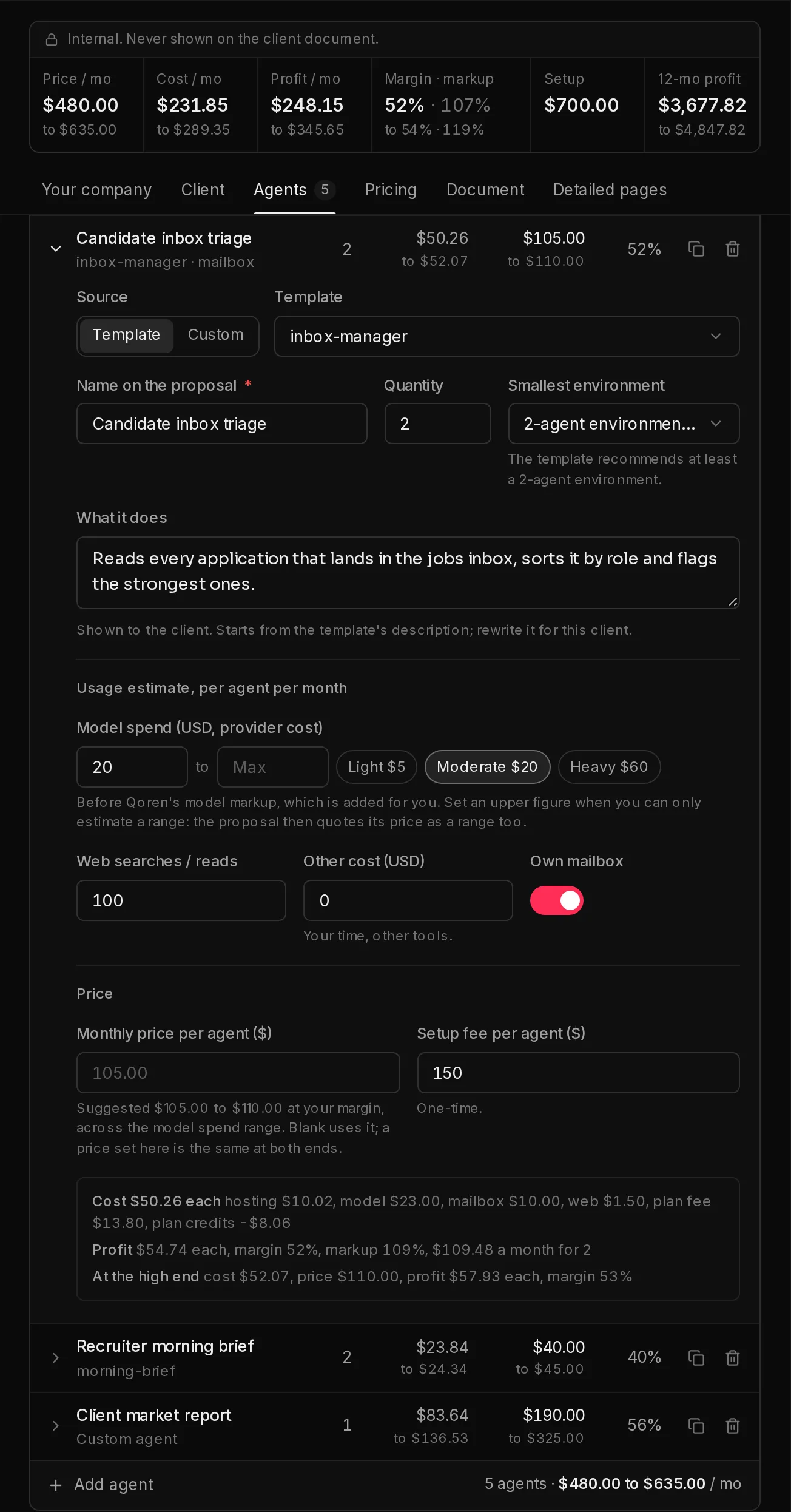
On the Agents tab, click Add agent. Each agent is one line; click it to open it.
 12345
12345- Keep an eye on the internal figures (1) as you go, and switch tabs with (2).
- Under Source (3), choose Template to base the agent on one of your templates, or Custom to describe it from scratch. A template fills in its name, its description and the smallest environment it needs.
- Set the Name on the proposal, the Quantity and, if it needs one, the Smallest environment.
- Write What it does. The client reads this, so write it for them.
- Estimate its usage per agent per month: Model spend (USD, provider cost) (4), with Light, Moderate and Heavy presets, then Web searches / reads, any Other cost (USD) such as your own time, and whether it gets an Own mailbox. If you can only estimate model spend as a range, type the low figure first and the high figure in Max. The proposal then quotes a range (see Quote a range).
- Leave Monthly price per agent (5) blank to use the suggested price at your margin, or type your own. Add a one-time Setup fee per agent if you charge one.
Under the fields, a line breaks down what one copy of the agent costs you (hosting, model, mailbox, web, plan fee, plan credits and other) and what it earns.
Set your margin and pricing#
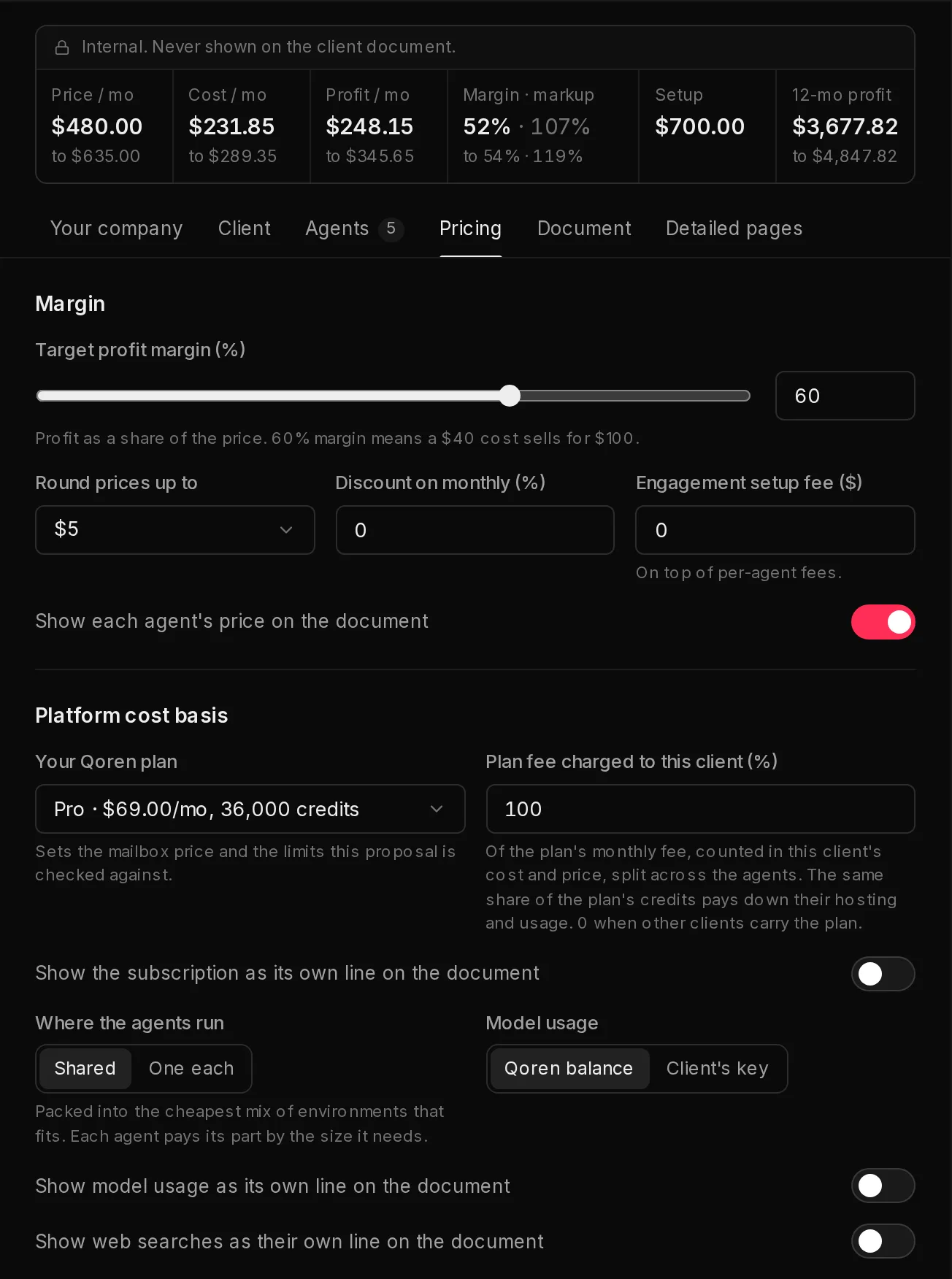
The Pricing tab holds the settings for the proposal as a whole.
 1234
1234- Set the Target profit margin (%) (1): profit as a share of the price. At 60%, a cost of 40 sells for 100.
- Pick what to Round prices up to, an optional Discount on monthly (%), and an Engagement setup fee on top of the per agent fees.
- Choose Your Qoren plan (2). It sets the mailbox price and the limits the proposal is checked against.
- Set Plan fee charged to this client (%) (3): how much of your plan's monthly fee this client carries. It starts at 100. Set it to 0 when your other clients already cover the plan.
- Choose Where the agents run: Shared packs them into the cheapest mix of environments that fits, One each gives every agent its own environment. Then choose how Model usage is paid: from your Qoren balance, or with the Client's key, which leaves model costs out entirely.
- Decide what the document shows (4): each agent's price, and whether the subscription, model usage and web searches appear as lines of their own.
Further down, Environments lists what the agents need, and Profit by agent shows each line's cost, price and monthly profit. Warnings appear under it: an agent priced below its cost, a discount that makes the proposal lose money, an agent that needs a bigger environment than your plan allows, or more environments than your plan includes across all your clients.
How the price is worked out#
- Costs come from the live rate card. Hosting, model usage (with Qoren's model markup), mailboxes and web searches are priced in credits at the current rates and valued at the retail credit price, what a top-up costs. Hosting is counted for a full month of running around the clock. Treat the cost as a ceiling: what you actually pay depends on real usage. See how credits work.
- Your margin sets the price. Each agent's suggested price is its cost divided by one minus your margin, then rounded up to your rounding step, so rounding never eats into your margin. A price you type by hand always wins.
- The plan fee passes through at cost. The share of your plan fee this client carries is split across their agents and added to both the cost and the price, with no margin on top. That is why the overall margin in the strip can sit below your target. The same share of your plan's monthly credits pays down the agents' usage, so usage inside the plan's grant does not add to the cost. The plan is counted at its list price.
- Separate lines move money, not the total. With Show the subscription as its own line on the document, the plan share comes out of the agents' prices and appears as Platform subscription. AI model usage and Web searches work the same way, priced at your margin. The monthly total and your profit stay the same, give or take rounding.
- Add-ons are extra. Optional add-ons on the Document tab are listed for the client to opt into and are not in the totals.
Quote a range#
When at least one agent's model spend has a Max, the proposal is priced twice: once with every agent at the low end of its model spend and once at the high end. Everything that depends on model usage becomes a range, such as $120.00 to $180.00. That covers the agent's price, the AI model usage line, the monthly fee, the total over the engagement, and your cost and profit in the internal figures. Figures that do not move, like the setup fee, stay as one number.
- A price you type by hand is the same at both ends, so only your cost and profit move.
- With the Client's key, model usage is not in the price, so there is no range.
- The client document adds a note that a range depends on how much AI model usage the agents need.
- The proposals list shows the monthly fee as a range too.
Draft it with AI#
Generate with AI, in the header, drafts any part of the proposal for you. The menu offers:
- Tweak what is here: describe a change and the writer revises what is already on the proposal. It is available once there is an agent or a detailed page to revise.
- Under Start over: The proposal (the agents, their sizes and usage, where they run, the opening and what's included), The detailed pages (the written pages and a delivery timeline about the agents already on it), or The entire document (both).
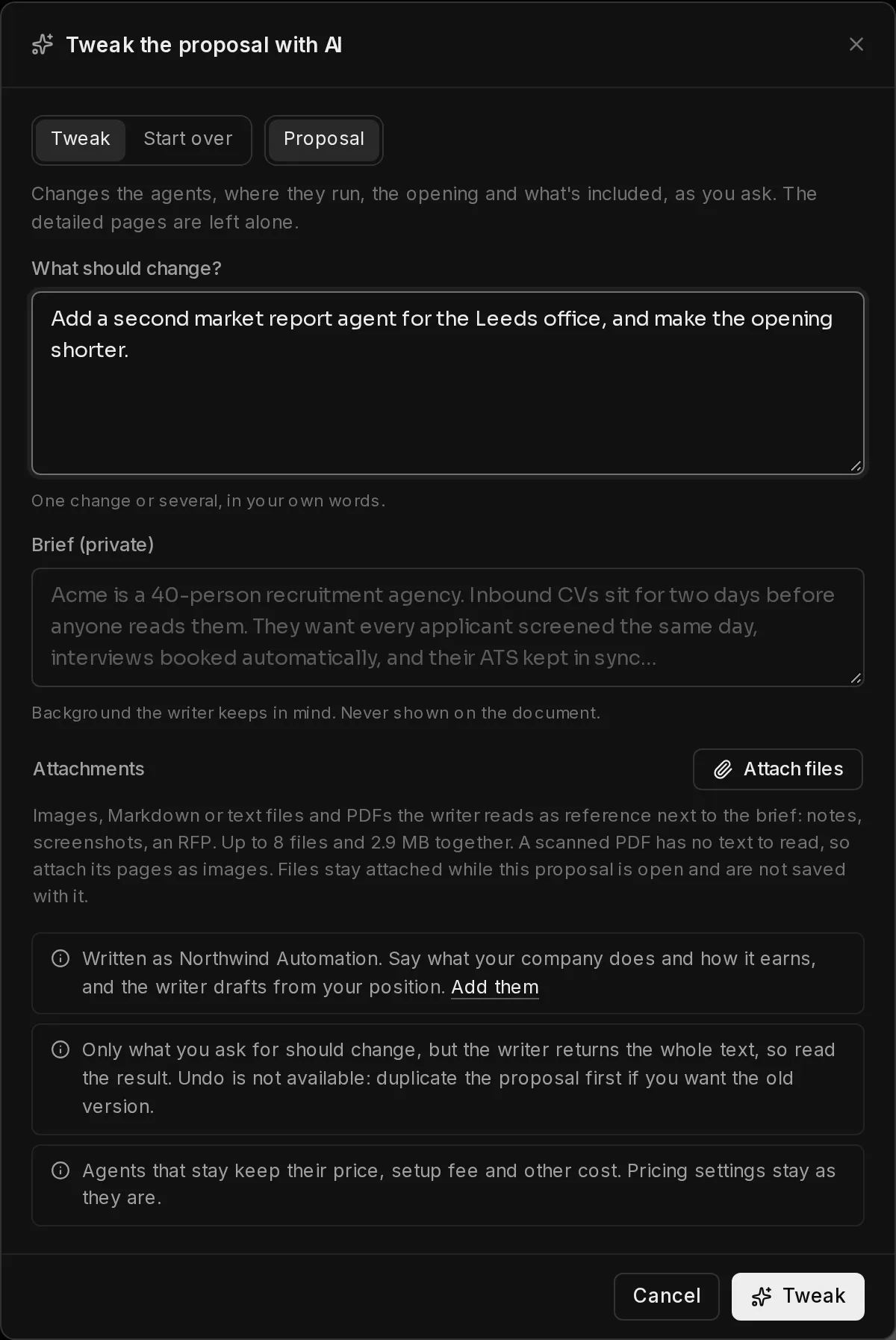
Choosing one opens a dialog.
 1234
1234- Switch between Tweak and Start over (1), and pick the part to work on (2).
- For a tweak, write What should change? in your own words.
- Fill in the Brief (private) (3): discovery notes, the client's goals, constraints and current tools. Drafting the proposal from scratch needs a brief, since the agents are drafted from it; writing only the detailed pages needs at least one agent on the proposal. The brief is saved with the proposal and never printed.
- Optionally click Attach files (4) to add images, Markdown or text files, or PDFs, such as meeting notes or the client's request for proposal. They stay attached while the proposal is open and are not saved with it.
- Click Generate or Tweak. You can hide the dialog and keep working while it runs, or Stop it. The proposal changes only when the writer finishes.
The writer drafts as the company on your Your company tab. It never sets a price: it proposes agents and their usage, and the prices follow from your costs and margin. It estimates model spend as one figure; a range you set survives a tweak as long as the writer leaves the low figure as it was. Pricing settings stay as they are, and agents that survive a tweak keep their price, setup fee and other cost. Starting over replaces what it writes, including any agent prices you typed and pages you edited. There is no undo, so duplicate the proposal first if you want to keep the old version. Always read the result before it goes to a client.
Write the document#
The Document tab holds the words around the pricing: the Opening the client reads first, What's included in the monthly fee, Optional add-ons (each Per month or One-time), and Terms and next steps.
The Detailed pages tab adds pages after the pricing page: an opening page with a title and summary, as many written pages as you like, and a Delivery timeline of phases with their deliverables. Click Add pages to write them yourself, or Write with AI to have them drafted, then edit them like any other text. Without detailed pages, the document is the pricing page on its own.
Print it or save it as a PDF#
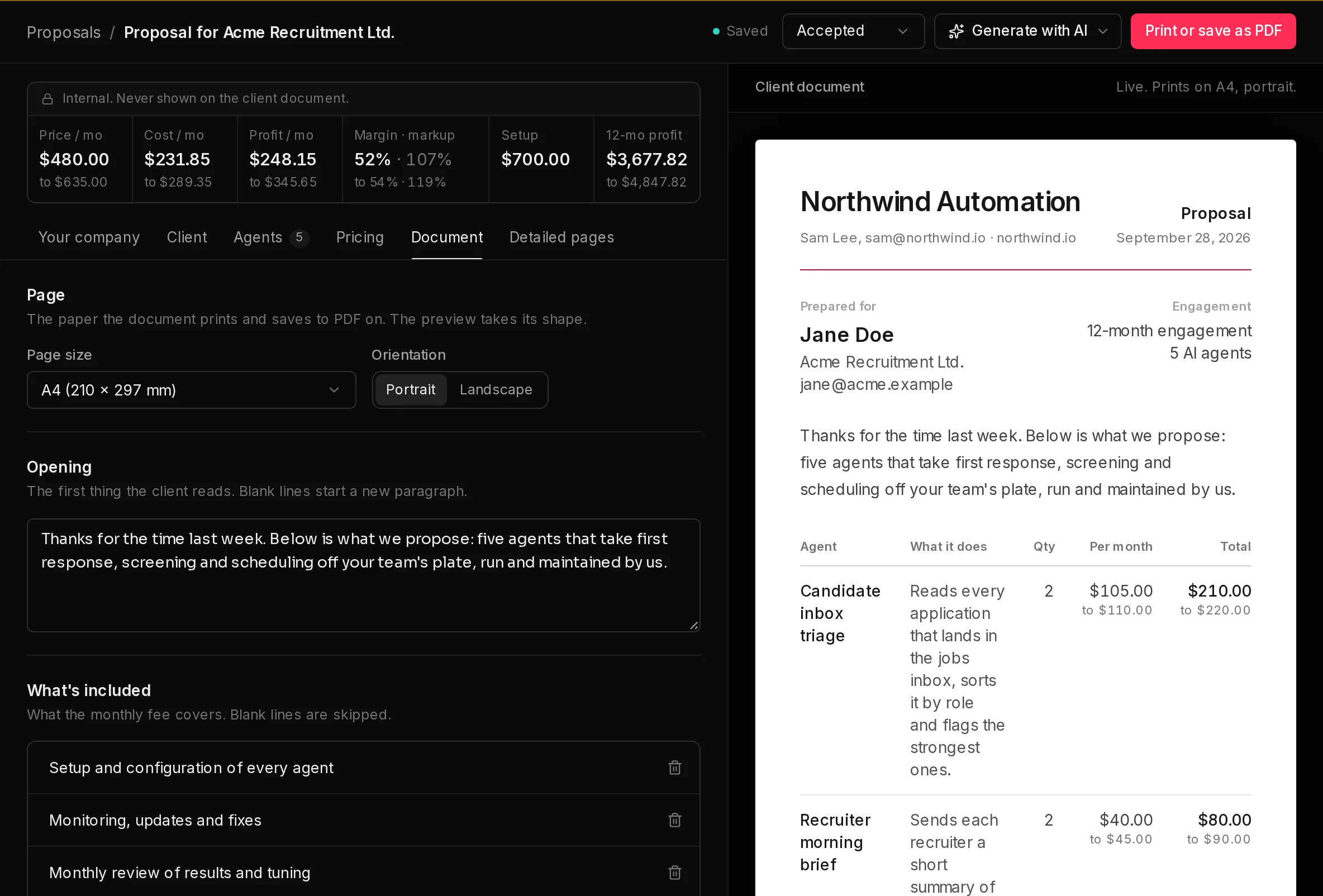 1234
1234- On the Document tab, choose the Page size (3), from A4, US Letter, US Legal, A3 or A5, and the Orientation. The preview (4) takes the page's shape.
- Click Print or save as PDF (2). Your browser's print dialog opens, set to print only the client document. Print it, or choose to save it as a PDF.
- Send the document to your client the way you normally would.
- Set the proposal's status in the header (1): Draft, Sent, Accepted or Declined. The status is your own bookkeeping, used by the filters and the totals on the list.
Let an agent work on proposals#
An agent can read and write your proposals too, through the Proposals group of the platform MCP. Switch the group on for the agent's environment, and the agent can list proposals, draft new ones, change agents and pricing settings, price a change before saving it, and set a proposal's status or client. Its proposals are priced exactly as they are here, and show on your list like any other. Deleting one waits for your approval.
What Proposals does not do#
Proposals prepares the quote; the rest stays with you.
- It does not send the proposal, email the client or track whether they opened it.
- It does not collect signatures, take payment or send invoices. For what each client actually costs you once the agents run, see cost per client.
- It does not create agents or environments. When the client says yes, you set them up and assign them to the client as usual.
Want a quick, one-off proposal without an account? The free AI automation proposal generator makes a simple, unbranded one in the browser. For how agencies use Qoren end to end, see Qoren for agencies.
Frequently asked questions#
Can my client see the proposal in Qoren?
No. There are no client logins. The client sees only the document you print or save and send them yourself.
Does the document show my cost or margin?
No. Your cost, profit and margin appear only in the builder's internal strip and on the Pricing tab. The document shows prices, setup fees and totals.
Can the AI writer change my prices?
No. It proposes agents and their expected usage; the prices come from your costs and your margin, or from the prices you typed. Check the usage it estimates, since that drives the cost.
Why is the margin in the strip lower than my target?
The share of your plan fee this client carries is passed through at cost, with no margin on it, and rounding and prices you typed by hand also move it. Set Plan fee charged to this client (%) to 0 if other clients carry your plan.
Can I quote in euros?
Yes. Set the currency to EUR on the Client tab and enter the exchange rate you want to use. Platform costs are converted at that rate.