
Chat with an agent from Telegram, Slack or Discord
Reach your agent where you already talk. How chat channels work, where to add Telegram, Slack or Discord, and which runtimes and settings they need.
On this page
The console chat is one way to talk to an agent. A chat channel is another: the agent gets its own bot in Telegram, Slack or Discord, and you message it there like a colleague. It can also send its scheduled results there, so a morning brief lands on your phone instead of waiting in the console.
Each agent signs in with its own bot, so you create one bot per agent. That keeps who said what clear, and lets you change one agent's channels without touching the others.
Before you start#
- An agent that has finished setting up. The Connections section stays locked, with the hint "Available once setup finishes", until then.
- An agent on the Hermes or OpenClaw runtime. Codex agents have no chat channels yet: the form is shown, but a Codex agent does not sign in to them. Use the console chat, triggers or an email inbox instead. See runtimes for the differences.
- An account with the chat app, and permission to create a bot there (in Slack and Discord, often a workspace or server admin).
Where channels live#
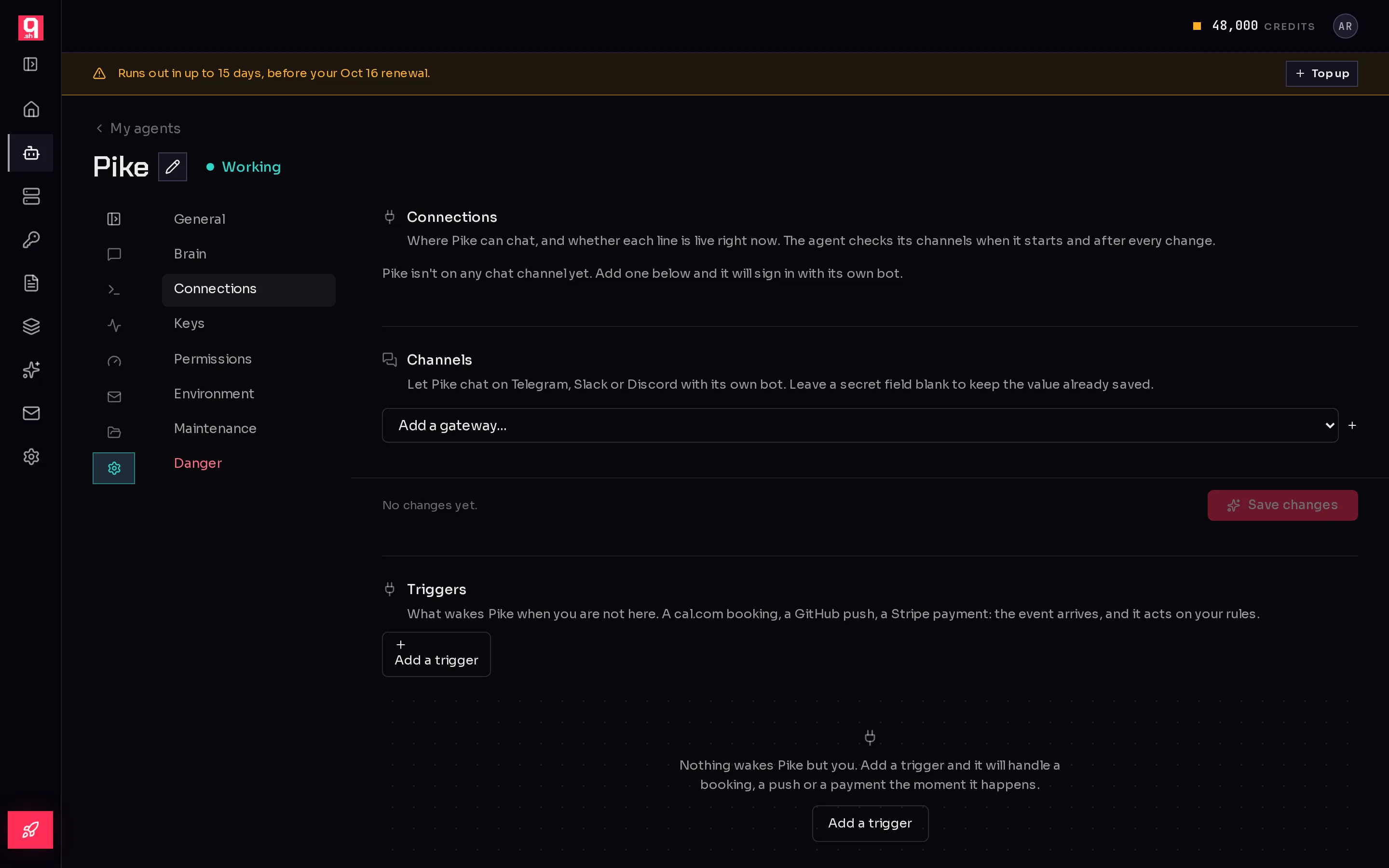
- Open the agent and click Settings (1).
- Choose Connections (2). The section has three parts: Connections (the channels already set up, and whether each is live), Channels (the form), and further down Triggers and Mailbox.
- Pick a chat app from Add a gateway… (3). Its fields open underneath.
- Fill them in, then click Save changes (4).
 1234
1234The picker offers Telegram, Slack and Discord, plus Matrix and a few apps marked experimental (WhatsApp, Microsoft Teams, Signal). An experimental app may need a manual step such as linking a device or a public webhook, and the form says so.
What happens when you save#
Saving starts a short background change on the agent. You see Applying your changes…, and you can leave the page while it runs. When it finishes, the panel says Saved and the agent signs in to its channels. Click Make another change to go back to the form.
The agent checks each channel when it starts and after every change, then reports back. Under Connections each channel shows one of these:
| Status | What it means |
|---|---|
| Connected | The bot is signed in. Where there is one, the bot's name shows under it. |
| Connecting | The agent is signing in to the channel right now. |
| Needs attention | The agent could not sign in. The reason is shown underneath. |
| Off | Set up, but not running. |
| Not reported yet | Saved. The agent reports on the channel the next time it starts up. |
If a channel needs attention, a red banner appears on every tab of the agent with a Review messaging setup button that takes you straight back here.
Keep bot tokens in the vault#
Every secret field (a bot token, an app token) has a Use vault button. It lets you pick a key you already saved in the Vault instead of pasting it again. The field then shows the key's name and from vault. The token then lives in one place instead of being pasted into every agent that uses it.
When you come back to a saved channel, secret fields read "•••• set (leave blank to keep)". Leave them blank to keep the saved value, or type a new one to replace it.
Remove a channel#
- In Channels, click the × (Remove gateway) next to the chat app's name.
- Click Save changes. The agent stops using that app, and its token is taken off the agent.
Other ways in#
Chat apps are for talking. Two other connections wake an agent without anyone typing:
- Triggers let another service wake the agent the moment something happens, such as a new booking, a pull request or a failed payment. See let an event wake your agent.
- An email inbox gives the agent its own address, and new mail wakes it. See give an agent its own email inbox.
Pick a chat app to set up:
Frequently asked questions#
Can several agents be on the same chat app?
Yes. Each agent needs its own bot, so create one bot per agent in the chat app and give each agent its own token.
Do chat channels work on every runtime?
They work on Hermes and OpenClaw agents. Codex agents do not have chat channels yet; reach them through the console chat, triggers or email.
Why does my channel say Not reported yet?
The settings were saved, but the agent has not checked the channel since. It checks when it starts and after every change, so the status updates shortly after the save finishes.
Where do I change a bot token later?
In the same place: Settings, Connections, Channels. Type the new token over the "set" placeholder and click Save changes. If the token lives in the vault, update it there instead.