
Find your way around the Qoren console
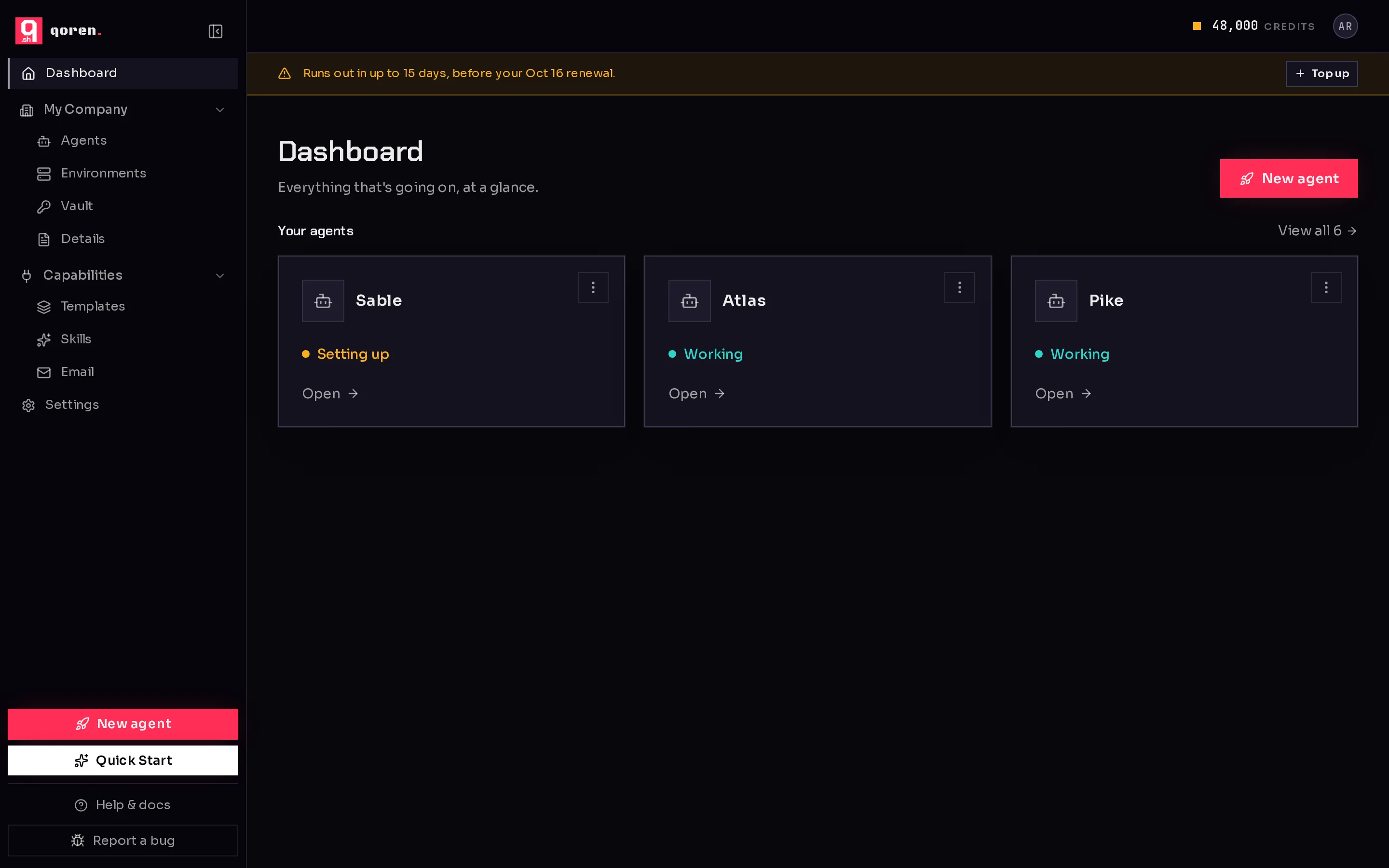
A map of the Qoren console: the sidebar groups, the credit balance and Top up, your account menu, Report a bug, the product tour, and the menu on your phone.
The console is where you hire, watch and manage your agents. Every page shares the same frame: a sidebar on the left and a top bar with your credit balance and your account menu. This page shows what is where.
 12345678910
The sidebar#
Dashboard (1) is your home page: your most recent agents at a glance, with their status and a New agent button. If your agents are paused because credits ran out, it says so here too.
Everything else sits in two groups. Click a group's name to fold it away or open it again; the console remembers your choice.
My Company (2) holds what you own and run:
- Agents: every agent you have hired. Open one to chat with it, watch its activity and change its settings. See Chat with an agent.
- Environments: the private computers your agents live on. See What an environment is.
- Clients: only if you run agents for clients and Clients is turned on for your account. See Clients.
- Vault: the API keys and passwords your agents use, stored encrypted. The page is called Keys & passwords. See Keys and passwords.
- Details: your business details and the default region for new environments. See Company details.
Capabilities (3) holds what you can give an agent:
- Templates: ready-made agents to start from, and your own. See Templates.
- Skills: reusable instructions you can add to any agent. See Skills.
- Email: the email inboxes your agents send and receive from. See Give an agent an email address.
Settings (4) holds your profile, password, notifications, billing and more. See Your profile and notifications.
At the foot of the sidebar:
- New agent (5) starts creating an agent.
- Quick Start (6), when it is available on your account, interviews you about your business and proposes a starting team. See Quick Start.
- Help & docs opens this documentation in a new tab, and Report a bug (7) sends a problem straight to the Qoren team. See Report a bug.
The button at the top of the sidebar folds it down to a narrow column of icons, to give the page more room. Hover an icon to see its name. On an agent's page, the sidebar folds on its own to make room for the agent's tabs.
The top bar#
Your credit balance (8) is always in the top right. Hover it to see how many credits your running environments use per hour. Click it to open billing. While everything is fine, a Top up button sits next to it.
When your balance needs attention, a strip (9) appears under the top bar with the reason and the fix, for example:
- Runs out in up to a number of days, before your renewal date: at the current rate, your balance runs dry before your plan adds more. Click Top up.
- Out of credits. Agents are paused until you top up. Click Top up.
- Monthly budget reached. Agents are paused until you raise it or the period renews. Click Raise budget.
See Top up your credits and Spend controls.
Your account menu#
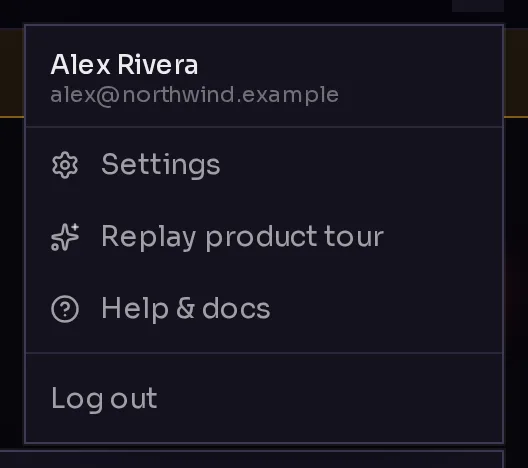
Click your avatar (10) in the top right to open the account menu. It shows your name and email, and:
- Settings (1): your profile, password, notifications and billing.
- Replay product tour (2): the short tour you saw on your first sign-in, any time you want it again.
- Help & docs (3): this documentation, in a new tab.
- Log out (4).
 1234
1234On your phone#
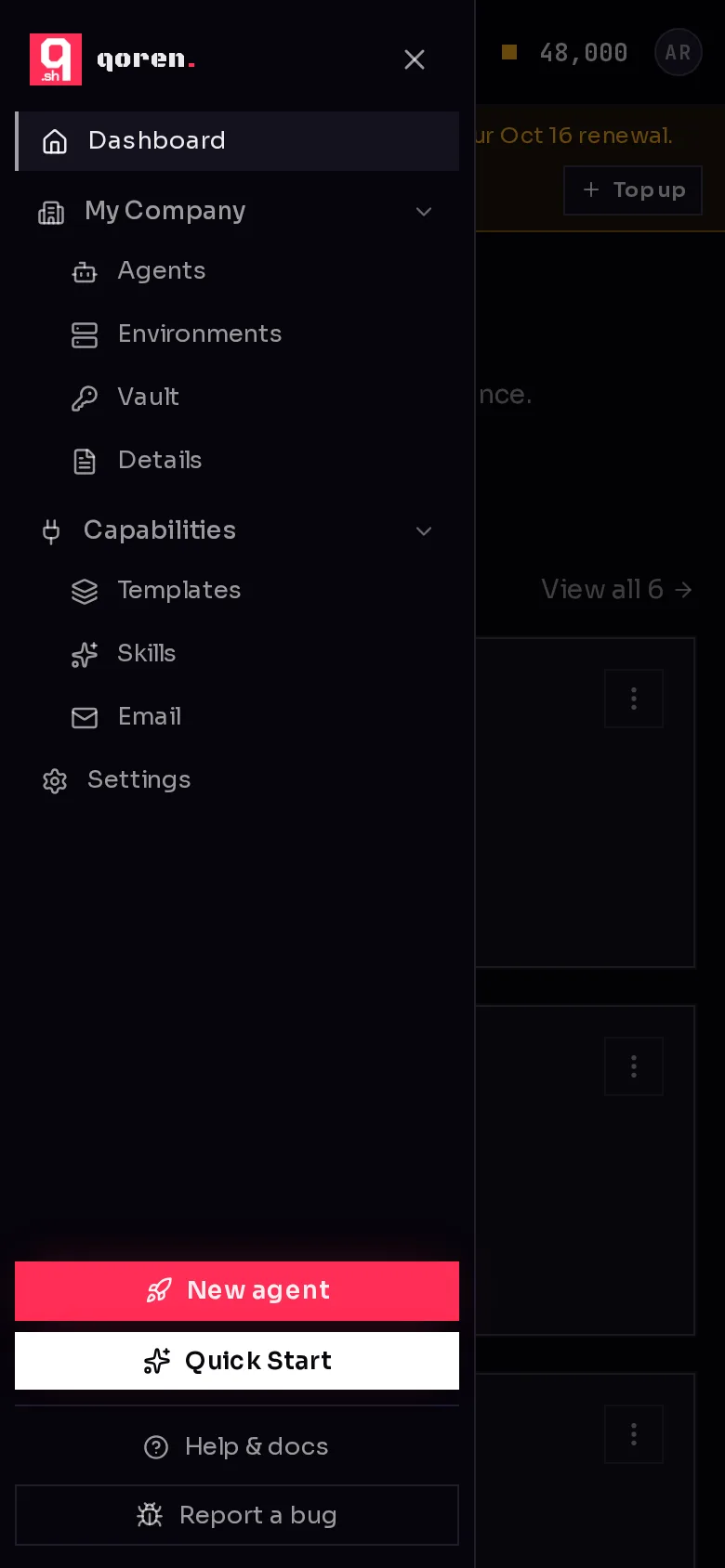
On a phone or a small tablet, the sidebar tucks away to leave room for the page. Tap the menu button at the top left to slide it in. It has everything the desktop sidebar has, including New agent, Quick Start and Report a bug. Tap the close button (1) or anywhere outside the menu to close it. Picking a page closes it too.
 1
1The top bar stays visible on a phone, with your balance and your avatar.
Frequently asked questions#
What does the number in the top bar mean?
It is your credit balance: the credits you have left to spend on hosting and the work your agents do. See How credits work.
Can I see the product tour again?
Yes. Click your avatar in the top right and choose Replay product tour.