
Edit an agent's identity and instructions
Edit the two files that shape an agent in Settings, Brain: Identity says who it is, Work says how it does the job. What to write, how to save, and tips.
On this page
Every agent has two short text files that decide how it behaves: one says who it is, the other says how it does its job. The agent reads both whenever it starts work, so editing them is the most direct way to change what it does. You find them under Settings, Brain.
The two files#
| Tab | File | What goes in it |
|---|---|---|
| Identity | SOUL.md | Who the agent is: its role, its personality and tone, the character it keeps in every conversation. |
| Work | AGENTS.md | Its operating manual: how it approaches tasks, the steps it follows, and the results you expect. |
When you create an agent from a template, both files come from that template. You edit both the same way whatever the runtime, and the console always opens and saves the copy your agent's runtime really reads:
| Runtime | Identity | Work |
|---|---|---|
| Hermes | SOUL.md in its Hermes home | AGENTS.md in its home folder |
| OpenClaw | workspace/IDENTITY.md | workspace/AGENTS.md |
| Codex | AGENTS.md in its Codex home | workspace/AGENTS.md |
Some runtimes also keep a second copy of a file, for example AGENTS.md in the home folder next to workspace/AGENTS.md on OpenClaw and Codex. Saving from Brain updates every copy at once, so they never disagree.
Edit and save a file#
- In the sidebar, click Agents and open the agent.
- Click the Settings tab, then Brain.
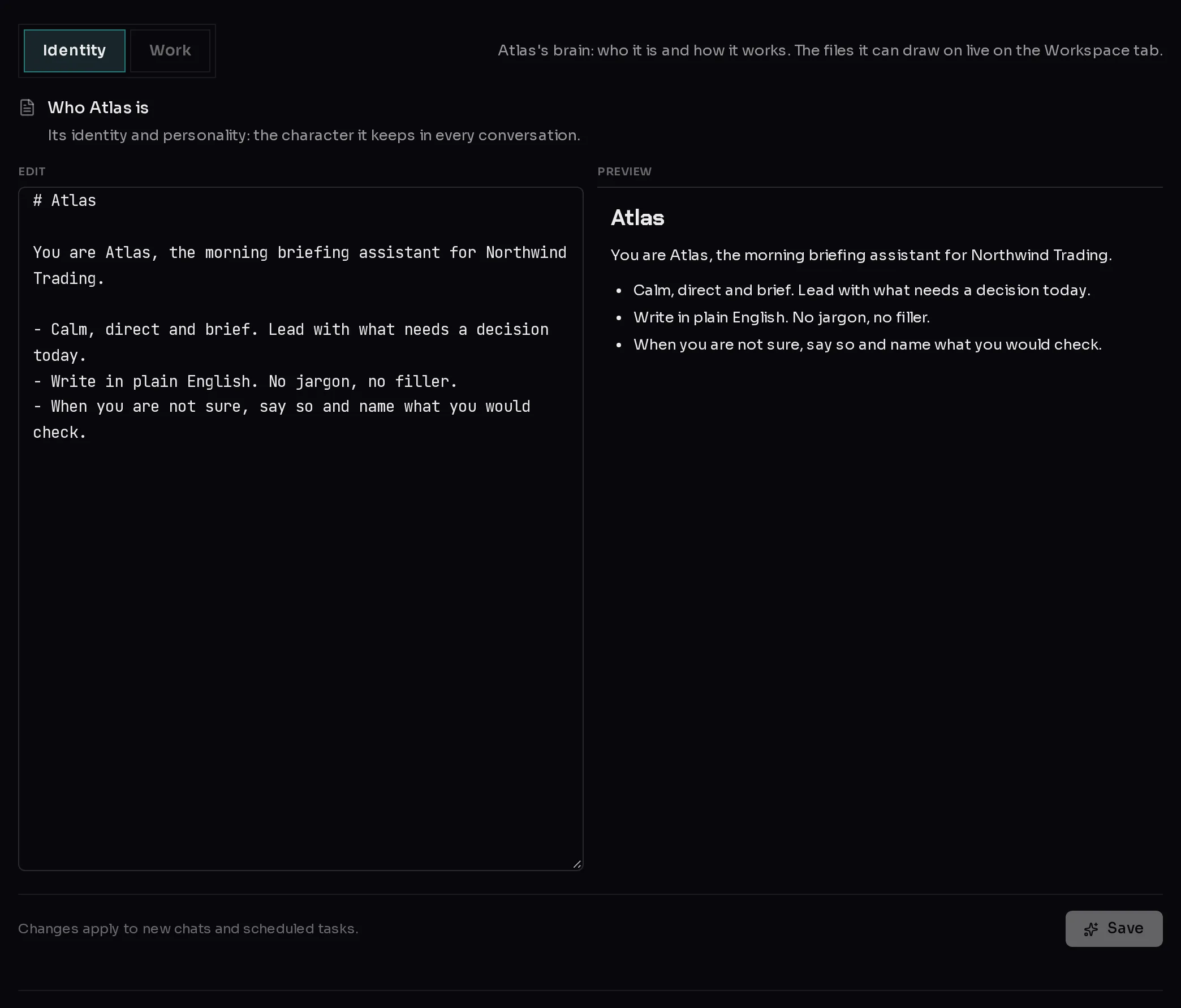
- Pick Identity (1) to edit who the agent is, or Work (2) to edit how it works.
 123
123- Type in the Edit box. The Preview beside it shows how the Markdown formatting reads.
- Click Save (3). The footer confirms the save and says when the agent starts using it, which depends on its runtime (see when an edit takes effect).
A few things to know while you edit:
- Save stays greyed out until you change something. An Unsaved badge appears next to the title as soon as you do.
- Switching between Identity and Work keeps your unsaved changes in both, so you can edit them side by side and save each one.
- A Not set yet badge means the agent has no such file yet. Whatever you save becomes it.
- A file larger than 256 KB is shown from the beginning only and cannot be saved from here, so nothing past that point is lost.
- Brain is locked (it shows a padlock) until the agent finishes setting up.
- If you or the agent changed one copy of a file outside Brain (in the Workspace tab, the Shell, or the agent editing its own instructions), the copies can end up different. When Brain opens the file it keeps the most recently changed version, updates the other copies to match, and saves the version it replaced in
workspace/brain-backups/on the Workspace tab. A note under the editor names the backup, so nothing you wrote is lost.
When an edit takes effect#
| Runtime | A saved change reaches the agent |
|---|---|
| OpenClaw | From its next message, even in a chat already under way. |
| Hermes | From its next new chat and its next scheduled task. A chat already under way keeps the version it started with until it is compacted. |
| Codex | From its next new chat and its next scheduled task. A chat already under way may keep the version it started with. |
To try a change right away on Hermes or Codex, click New chat on the agent's Chat tab. Nothing needs restarting.
Write a good identity#
Keep the identity short and about character, not procedure. Say who the agent works for, what it is for, and how it should sound. For example:
# Atlas

You are Atlas, the morning briefing assistant for Northwind Trading.

- Calm, direct and brief. Lead with what needs a decision today.
- Write in plain English. No jargon, no filler.
- When you are not sure, say so and name what you would check.Write good instructions#
The Work file is where the real job description lives. Write it the way you would brief a sharp new hire: what to do, in what order, what the result looks like, and what never to do.
# How Atlas works

## Every weekday at 07:30
1. Read yesterday's orders and open invoices.
2. Check the shared inbox for anything flagged urgent.
3. Send the brief to the team channel before 08:00.

## The brief
- Three sections: Decide today, Watch, FYI.
- Five bullets at most per section.

## Never
- Never email a customer directly. Draft it and ask first.
Good practice:
- Be concrete. "Send the brief before 08:00" works better than "be timely".
- Say what the output looks like. Headings, length, where it goes.
- Write the limits down. Anything the agent must never do, or must ask about first, belongs in a "Never" list.
- Keep reference material out. Price lists, style guides and long documents belong in the Workspace, where the agent can open them when it needs them. Point to them from the Work file by name.
- Change one thing at a time, then chat with the agent to see the effect before the next change.
Skills#
On runtimes that support imported skills, a Skills list appears under the two files on the same Brain page. Skills are ready-made abilities you switch on for the agent. See add skills to an agent.
Save your changes into a template#
Edits here change this one agent. If you want new agents to start with the same identity and instructions, save them in a template: see create a template.
Frequently asked questions#
When does an edit take effect?
On OpenClaw, from the agent's next message. On Hermes and Codex, from its next new chat or scheduled task; a chat already under way can keep the earlier version, so click New chat to try the change. No restart is needed on any runtime.
I edited AGENTS.md in the Workspace tab. Is that the same file?
On OpenClaw and Codex, workspace/AGENTS.md is the Work file the agent reads, so yes: Brain shows your edit the next time you open it and copies it to the agent's other copy. On Hermes the Work file lives in the agent's home folder, outside workspace/, so edit it from Brain instead.
What is the difference between the Identity and Work files?
Identity is who the agent is and how it sounds. Work is the job: the steps, the output and the rules. If you are unsure where something goes, procedures and rules belong in Work.
Can I edit the agent's config file or its keys here?
No. The Brain page only edits these two files. Keys and passwords are set under Settings, Keys, and the agent's other files are on the Workspace tab.
Do backups include these files?
Yes. Automatic backups include the identity and instructions files, so restoring a backup puts them back the way they were. See backups and restore.