
Remove an agent, or bring a removed one back
Remove an agent from its environment with a final backup kept, then bring it back later from Deleted agents on the My agents page, on any environment.
On this page
Removing an agent takes it and everything it set up off its environment and frees its slot. It is not the end of the agent: Qoren takes a final backup first, so you can bring it back later with its files and memory.
Remove an agent#
- In the sidebar, click Agents and open the agent.
- Click the Settings tab, then Danger.
- Click Remove agent (1).
 1
1- Read the confirmation, then click Yes, remove it (1). To back out, click Keep agent.
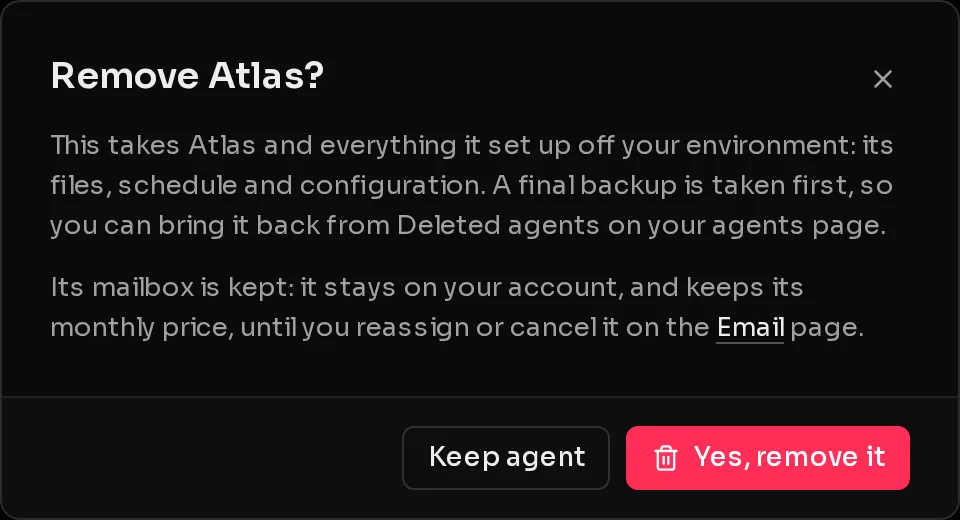 1
1The agent page shows that the agent is being removed while Qoren takes the final backup and clears it off the environment: its files, schedule and configuration.
What is kept#
- A final backup. Always taken, even if nothing changed since the last automatic backup.
- Its mailbox. If the agent had an email inbox, it stays on your account and keeps its monthly price until you reassign or cancel it on the Email page. See agent email.
- Your Vault. Keys and passwords stored in the Vault stay there for your other agents. See secrets.
Find a removed agent#
Removed agents are listed at the bottom of My agents:
- In the sidebar, click Agents.
- Scroll to Deleted agents and click Show *n* (the number of removed agents) to open the list.
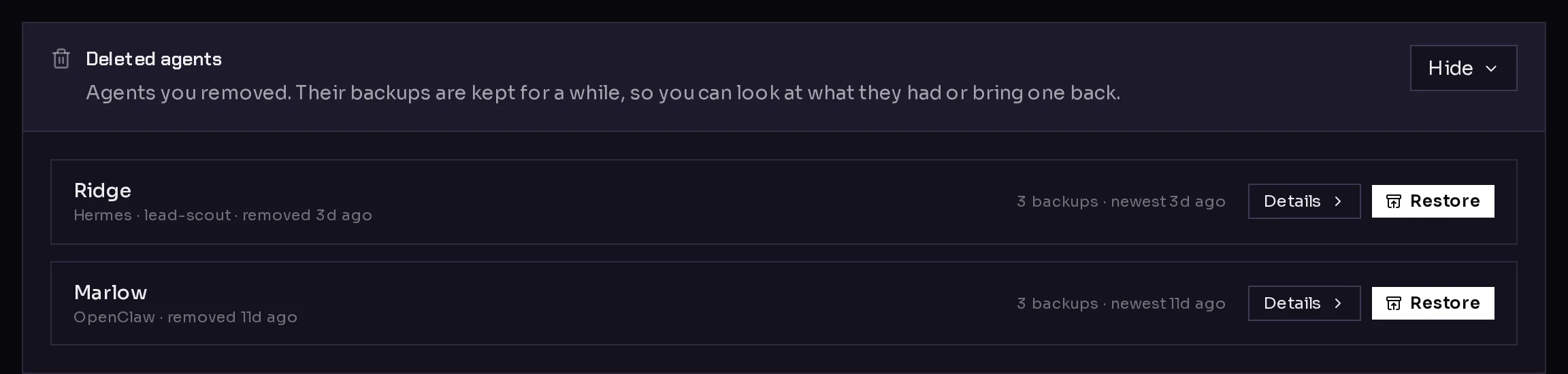 1
1The section only appears when there is something in it. Each row shows the agent's runtime, its template, when it was removed and how many backups it left. Click Details to see what it was set up with (Environment, Model, Template, Skills, MCP servers, Messaging and Approval mode) and to download any of its backups.
Bring a removed agent back#
- In Deleted agents, click Restore (1) on the agent.
- Pick where it should live. The environment it used to live on is marked where it used to live if it still exists. Environments with no free slot are marked full.
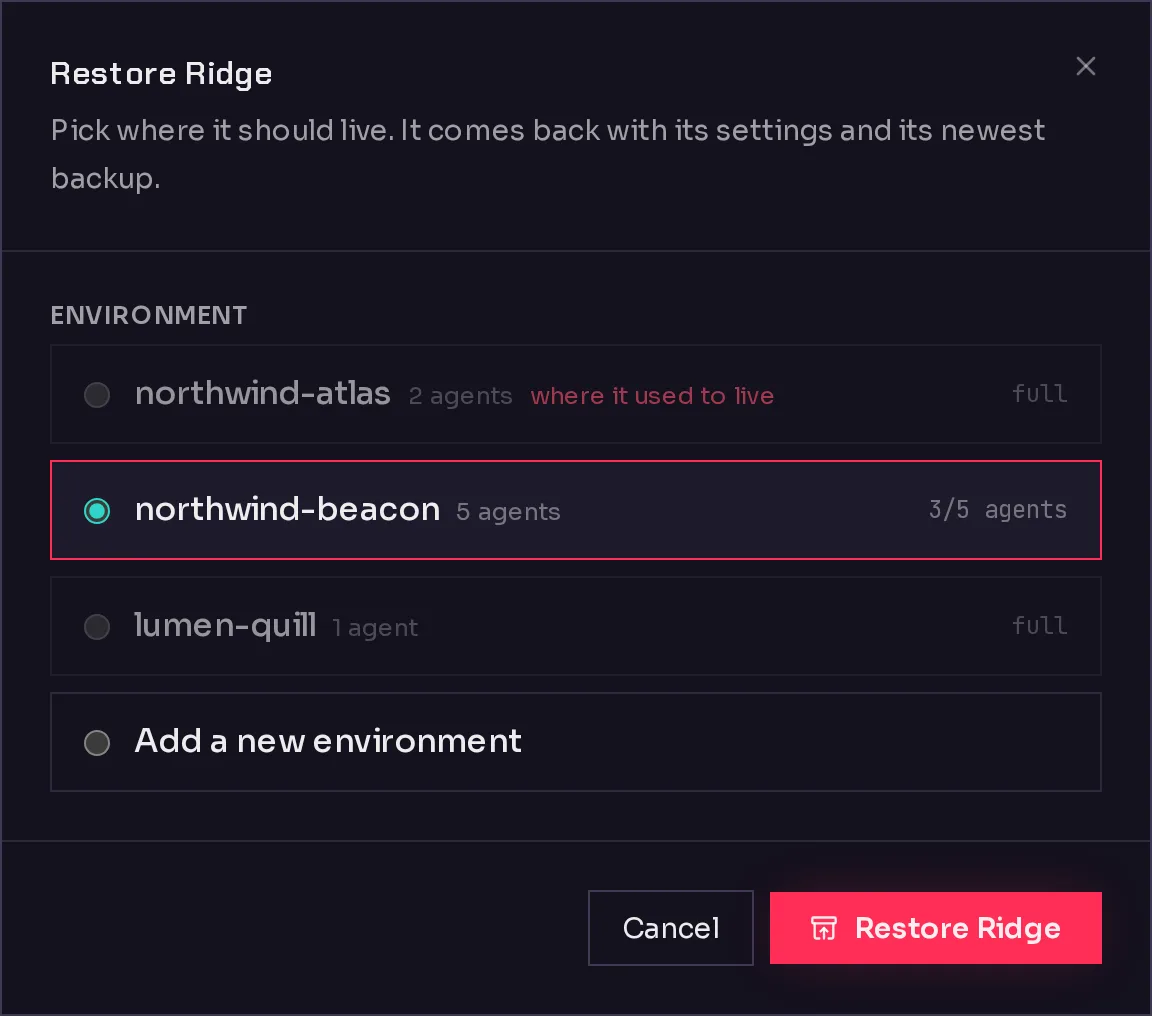 1
1- To put it on a fresh environment instead, choose Add a new environment (1) and fill in its details. If your plan's environment limit is reached, this option says plan limit reached.
- Click Restore *agent name*.
If you chose a new environment, Qoren sets that up first, then restores the agent onto it. Each stage shows its progress in the dialog. When the dialog says Restore finished, click Done. The agent is back on your agents list.
What comes back#
The agent comes back with its settings and its newest backup: its identity and instructions, memory, conversations, skills, scheduled tasks and workspace files. Keys it used from your Vault are attached again.
Chat channel tokens you typed straight into the agent, such as a Telegram bot token, are not kept in backups. Connect those channels again under Settings, Connections; see chat channels.
Bringing an agent back needs an active plan. Without one, the Restore buttons are hidden and the section links to your plan. Backups can still be downloaded.
Frequently asked questions#
Can I undo a removal right away?
Yes. As soon as the removal finishes, the agent appears under Deleted agents and you can restore it from its final backup.
Why is Restore greyed out for one of my removed agents?
It has no backup to come back from. That happens when its data could not be saved before it was removed, for example when its environment was already unreachable. Its details are still listed.
Does removing an agent stop its costs?
It frees its slot on the environment and stops its model and search usage. A mailbox keeps its monthly price until you reassign or cancel it on the Email page. The environment itself is billed separately; remove it too if nothing else runs on it.
Can I restore it under a different name?
It comes back under its original name. If the environment you pick already has an agent with that name, the restore is refused; pick another environment or rename the other agent first.