
See what an agent is doing on its Activity tab
The Activity tab answers what an agent is doing now, what it will do next and what it did in the last day, with its teammate messages and full log.
On this page
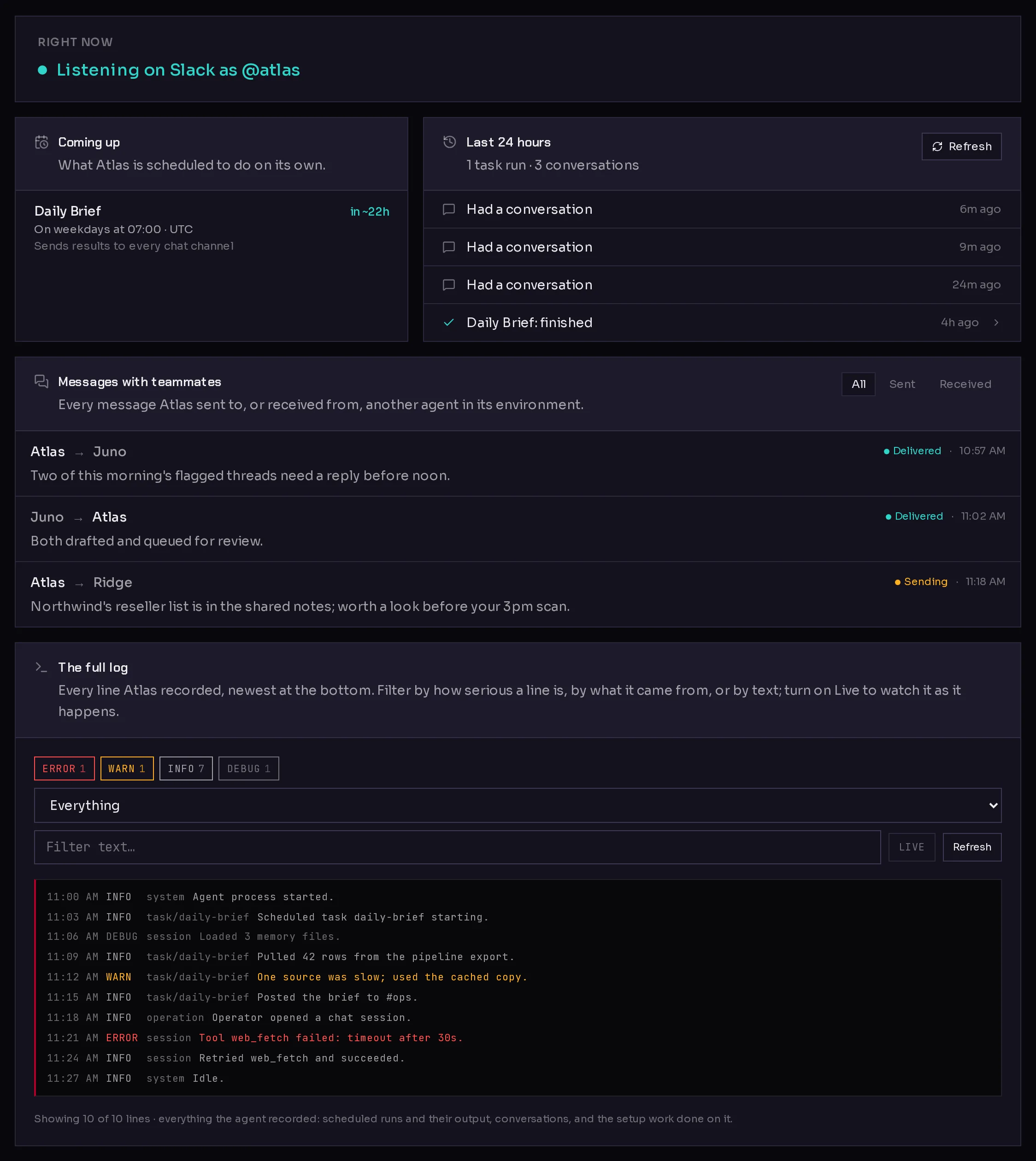
The Activity tab is where you check on an agent without asking it. It answers three questions in plain language: what is it doing right now, what is it going to do next, and what has it done lately. Underneath, the full log holds every line the agent recorded, for when the summaries are not enough.
Open the agent and click Activity in its tab rail.
 12345
12345Right now#
Right now (1) says in one line what the agent is doing, for example:
- Ready and waiting for you, or Resting. Nothing scheduled recently. when it is idle.
- Listening on Slack as @atlas when a chat channel is connected and waiting for messages, or Replying on Slack while it answers there.
- Setting up or Applying your changes while Qoren installs or reconfigures it.
- Just finished: and the name of the task it last completed.
- Needs attention, Can't be reached right now, or Its last task ran into a problem when something is wrong.
- Paused. This month's usage budget is used up. when your account's budget has stopped work. See spend controls.
If it needs attention, my agent is not responding walks through the fixes.
Coming up#
Coming up (2) lists what the agent is scheduled to do on its own, soonest first. For each scheduled task you see:
- Its name and when it runs next, such as "in ~22h".
- How often it runs, in words, with the time zone.
- Where its results go, such as "Sends results to every chat channel", and "Set up by (agent name)" when the agent created the task itself, for example after you asked it for a daily reminder.
- A warning line if the task is unhealthy.
If the list says no Qoren-managed tasks are scheduled, the agent only works when you or a connection asks it to. To add or change schedules, see schedules.
Last 24 hours#
Last 24 hours (3) lists the scheduled task runs and conversations of the past day, with a count at the top such as "1 task run · 3 conversations". A problem is flagged and counted as "to look at".
Click a task run to open its record: what the agent said, what went wrong if anything, when it started, how long it took, and where the result was sent. Click Refresh to load the latest.
Messages with teammates#
When several agents share an environment and teamwork is on, they can message each other to hand off work. Messages with teammates (4) shows every message this agent sent to, or received from, another agent, with whether it was delivered. Use All, Sent and Received to filter. See agents working together.
The full log#
The full log (5) is everything the agent recorded, newest at the bottom: scheduled runs and their output, conversations, and the setup work done on it.
- Click the level buttons, ERROR, WARN, INFO and DEBUG, to show or hide lines of that level. Each shows how many lines it has.
- Use the source menu to show Everything, or only Scheduled work, Conversations, Behind the scenes, or Setup & maintenance.
- Type in Filter text… to show only lines containing that text.
- Click Live to watch new lines arrive as they happen. It starts off; click Refresh to load the latest lines by hand.
Frequently asked questions#
Why is Coming up empty when my agent has a schedule?
Coming up lists tasks scheduled through Qoren. If the list cannot be loaded, it says "Could not load this agent's schedule." Try again later, and check the task on schedules.
How far back does the Activity tab go?
The summary covers the last 24 hours. The full log shows the recent lines the agent recorded. For spending over longer periods, use the Usage tab, which goes back up to 90 days.
Why does the log mention setup steps I did not start?
Qoren sets up, updates and checks agents in the background, and records that work in the log under Setup & maintenance.