
Give an agent its own email inbox
Buy a mailbox, connect it to an agent, and read what it sends and receives. Mailbox statuses, moving a mailbox between agents, and cancelling one.
On this page
A mailbox gives an agent an email address of its own. It can send and receive mail like anyone else on your team: answer enquiries, chase invoices, reply to suppliers. New mail wakes the agent, so it does not have to keep checking.
Mailboxes belong to your team, not to one agent. You can move one from agent to agent, and it outlives any single agent. An agent uses one mailbox at a time.
Before you start#
- A plan that includes mailboxes. If yours does not, the Email page says "Mailboxes aren't part of your plan yet" and has no button to add one. See plans and the trial.
- Credits for the monthly charge. A mailbox is paid in credits: once when you buy it, then at the start of each billing period. The rate depends on your plan and is on the pricing page; the rate card below shows it live.
| Environment size | Credits per hour | About per month, always on |
|---|---|---|
| 1 agent | 26 | ~$19 |
| 2 agents | 40 | ~$30 |
| 5 agents | 67 | ~$50 |
| 10 agents | 122 | ~$91 |
| Other usage | Rate |
|---|---|
| Managed model usage | Model cost plus 10% |
| Web search | 25 credits per search |
| Agent email inbox | 8,000 to 10,000 credits a month, depending on your plan |
1,000 credits are worth $1. These rates are live from the same rate card the pricing page uses.
Buy a mailbox#
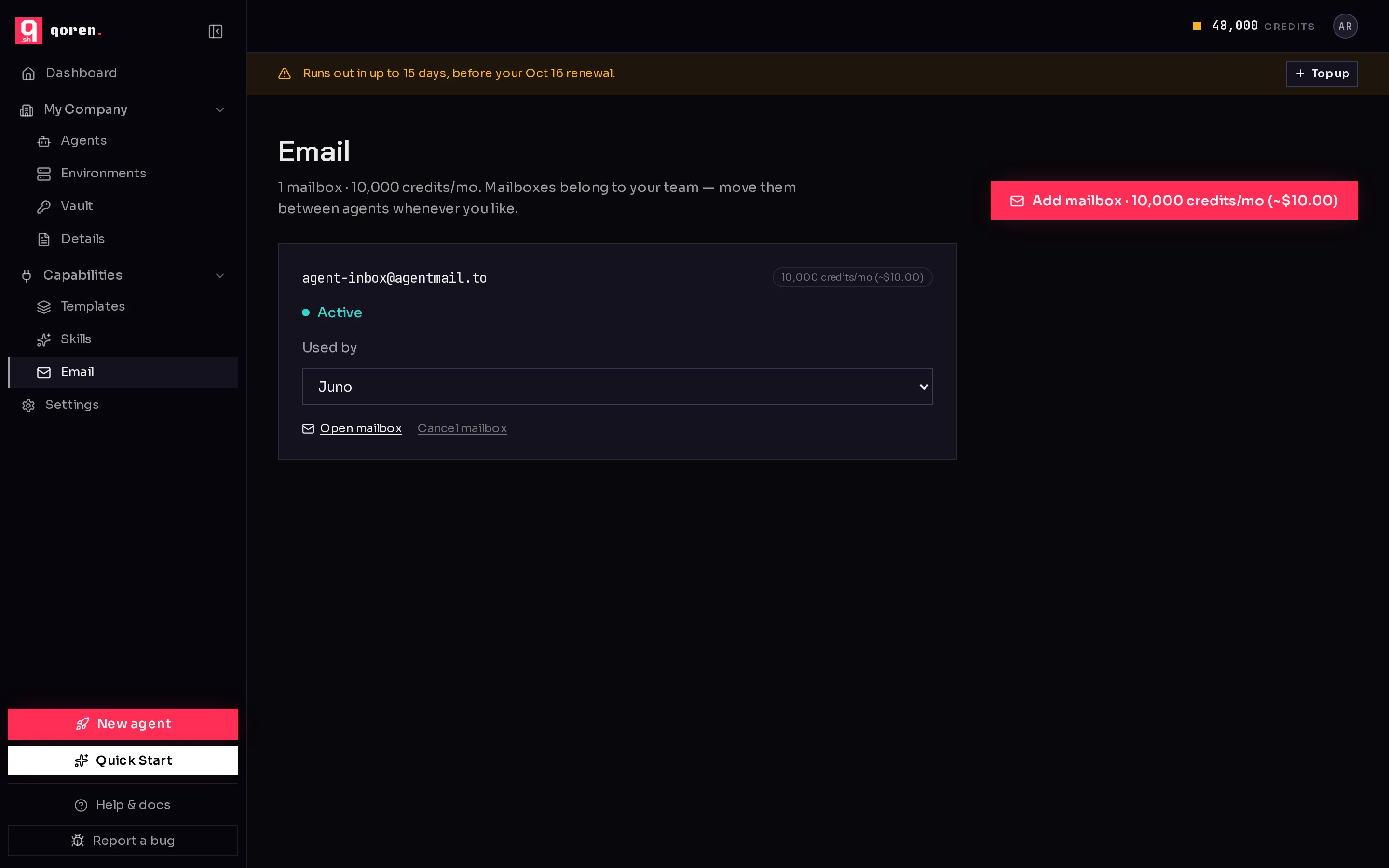
- In the sidebar, under Capabilities, click Email.
- Click Add mailbox (1). The button shows the monthly price.
 12345
12345- The first mailbox for your team goes through a short checkout. After that, a new mailbox is added straight away.
- The address appears on the card once the mailbox is ready.
You can also buy one while you create an agent. At the bottom of the create form, Email inbox offers No email inbox, any spare mailbox your team already has ("Use" and its address), or Add a new inbox. A new inbox is bought and connected right after the agent is created. If that step fails, the agent is kept: click Try the inbox again, or Continue without the inbox and add one later.
If mailboxes are at capacity, the page says so and hides the button. Check back later.
What the statuses mean#
Each mailbox card shows its status (2):
| Status | What it means | What to do |
|---|---|---|
| Active | Ready. It sends and receives mail. | Nothing. |
| Awaiting payment | The checkout has not finished. | Finish the checkout. If you closed it, cancel this mailbox and start over. |
| Setting up | Paid; the address is being created. | Wait a moment; the address appears on the card. |
| Past due | The monthly charge could not be covered at renewal, so it is paused. The address and its history are kept. | Top up your credits to restore it. |
Connect a mailbox to an agent#
From the Email page:
- On the mailbox card, pick the agent in Used by (3).
- The change applies straight away. Pick No agent (keep unassigned) to take it off the agent.
An agent that already holds another mailbox shows as having one and cannot be picked. A mailbox that is not connected to any agent keeps its address, its history and its monthly price until you connect it or cancel it.
From the agent:
- Open the agent and click the Mail tab.
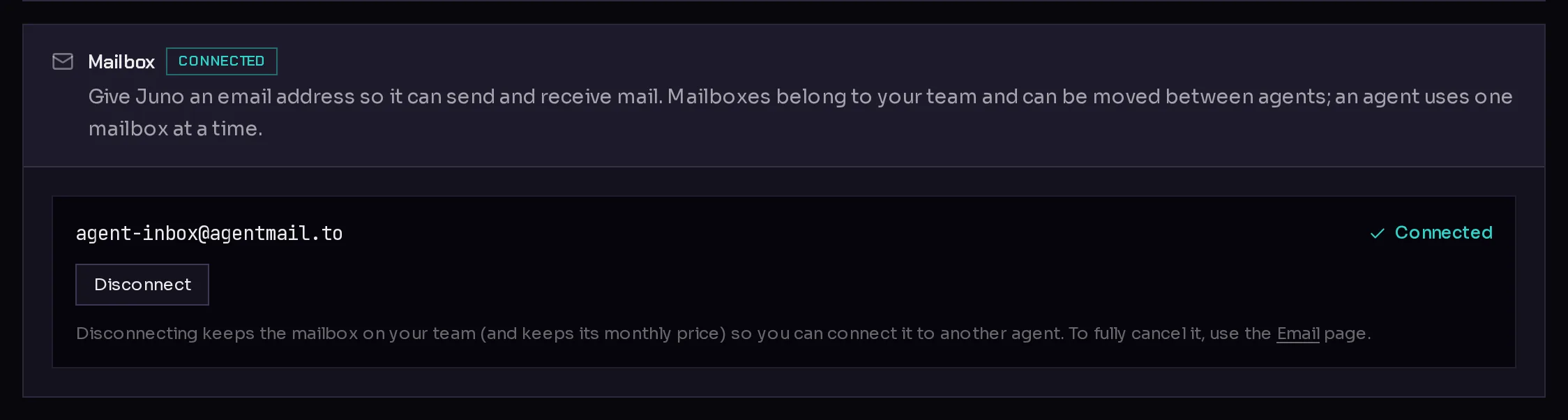
- In the Mailbox section, click Connect next to a spare mailbox. A mailbox another agent uses shows Move here and says which agent it moves off.
- To take it off this agent, click Disconnect (1). The mailbox stays on your team, still billed, ready for another agent.
 1
1When a mailbox is connected, the agent gets tools to read and send from it, and a trigger named Email received (AgentMail) appears in its triggers. That trigger wakes the agent each time mail arrives, with the sender and subject up front. Qoren manages it for you: it comes and goes with the mailbox, and there is no URL to copy.
Read the agent's mail#
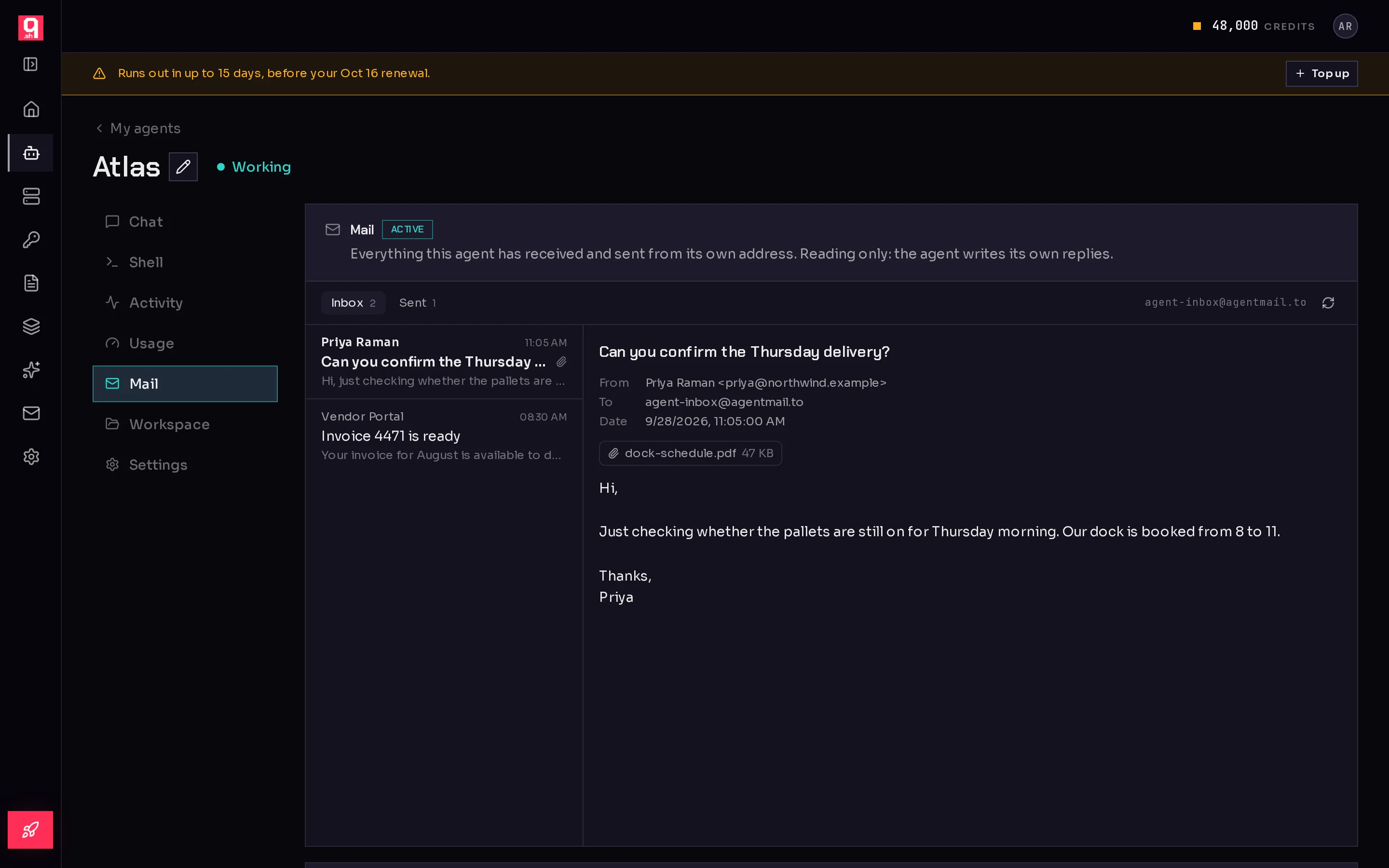
You can read everything the agent receives and sends, but not write: the agent writes its own replies.
- On the agent, open the Mail tab (1). Switch between Inbox (2) and Sent (3), and click a message to open it.
- On the Email page, click Open mailbox on a card to read it there.
 123
123Messages open as plain text when there is a text version. Images in formatted mail are blocked until you choose to load them, the way a desktop mail client treats tracking pixels.
Cancel a mailbox#
- On the Email page, click Cancel mailbox on the card.
- Confirm. The confirm button warns that the address is gone for good. Click Keep it to back out.
Cancelling stops the monthly charge. The address cannot be recovered, so if you might want it again, disconnect it from the agent instead.
Deleting an agent does not cancel its mailbox: the mailbox is just left unassigned, and keeps billing until you cancel it here.
Frequently asked questions#
How much does a mailbox cost?
A flat monthly charge in credits, which depends on your plan. See the pricing page or the rate card above. It is charged when you buy the mailbox and at the start of each billing period.
What happens to the mailbox when I delete the agent?
It stays on your team, unassigned, with its address and history. It keeps its monthly charge until you connect it to another agent or cancel it.
Can I reply to mail from the console?
No. The mail views are for reading. The agent writes and sends its own replies; tell it how in its instructions or in chat.
Why is my mailbox Past due?
Your credit balance could not cover the monthly charge when the billing period rolled over. Top up and the charge is taken again, which restores it with its address and history.