
Browse and use agent templates
Find a ready-made agent in the Qoren template gallery. Search, filter by category, star favorites, then deploy a template as is or customize a copy.
On this page
A template is a ready-made agent: its job description, personality, schedule, starting files and tools, packaged so you can set up a working agent in a few clicks. The template gallery in the console lists every template you can use, including the ones you made yourself.
To browse the templates without signing in, see the public agent template gallery.
Find a template#
In the sidebar, under Capabilities, click Templates.
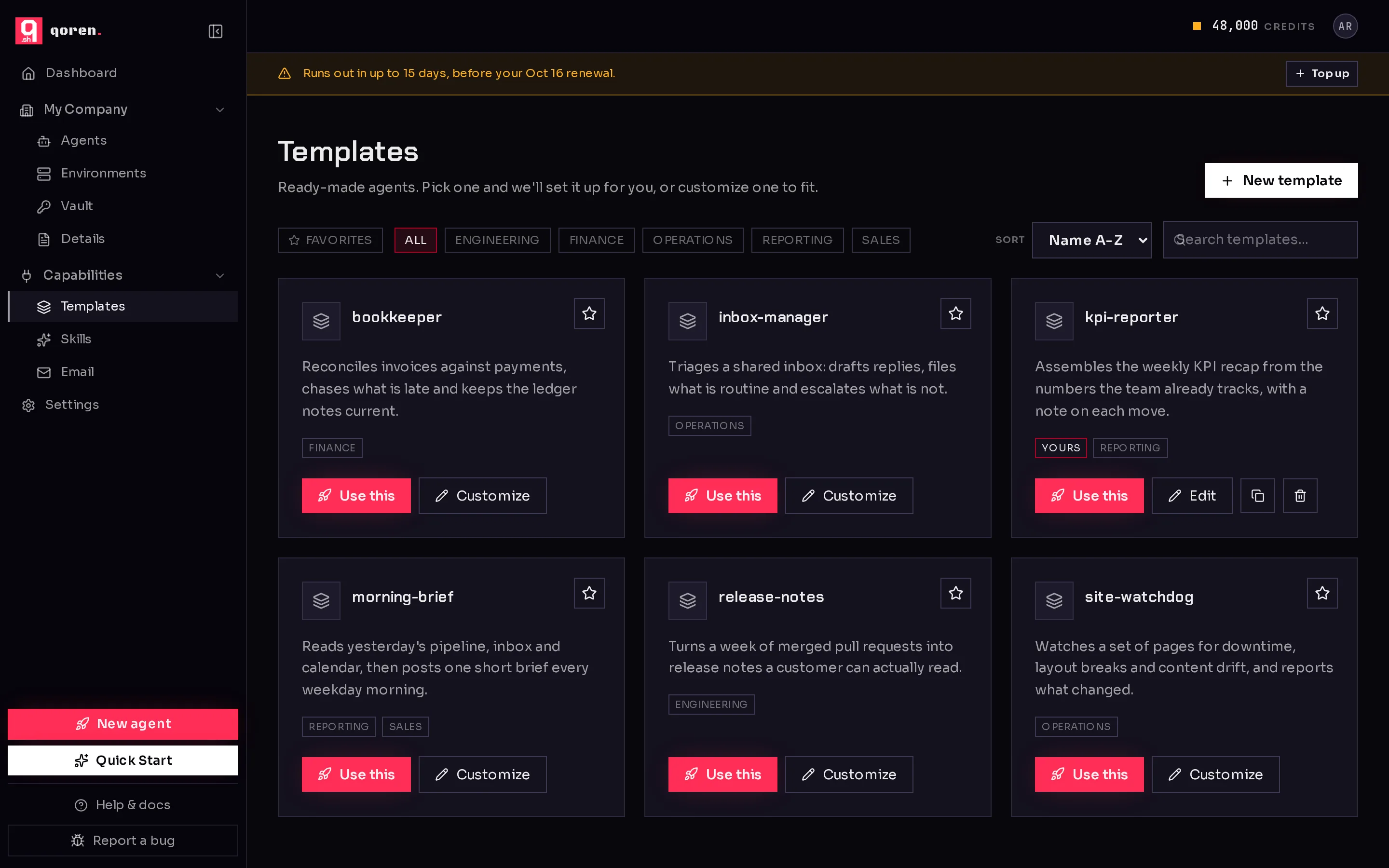 1234567
The toolbar above the cards narrows the list:
- Favorites (1) shows only the templates you starred.
- Category filters (2): click All or a category such as Finance or Sales. Click the active category again to clear it. Only categories that some template uses are shown.
- Sort (3): Name A-Z or Name Z-A.
- Search templates… (4) matches a template's name or description. Partial words work too: "sal" finds "sales". While you search, the best matches come first.
While a filter or search is active, a counter such as "3 of 8" shows how many templates match.
Each card shows the template's name, a one-line description, and its categories. Templates you made carry a Yours badge.
Star your favorites#
Click the star (5) on a card to add it to your favorites; click it again to remove it. Favorites always sort to the front and get a highlighted border, and the Favorites filter shows only them.
Favorites are saved in your browser, so they do not follow you to another browser or computer.
Use a template as is#
- On the card, click Use this (6).
- Qoren opens the new agent form with that template picked. Give the agent a name, choose where it runs and fill in any keys the template asks for.
The full walkthrough is in create an agent. Keys the template needs can come straight from your vault, so you do not have to paste them again.
Customize a template#
When a template is close but not quite right, make your own copy:
- On the card, click Customize (7).
- The template editor opens on a copy, named after the original with
-copyat the end. - Change what you need, such as the instructions, the schedule or the files, and click Save template.
The original stays as it was. Your copy appears in the gallery with the Yours badge, ready to use. Every step of the editor is explained in create a template.
Your own templates#
On templates you made, the card offers more than Use this:
- Edit changes the template itself.
- The copy button makes a duplicate you can change separately.
- The bin deletes the template.
Templates that come with Qoren cannot be edited or deleted, only customized into your own copy.
Frequently asked questions#
Are the templates free to use?
Using a template costs nothing extra. The agent you create from it runs on your plan like any other agent, using credits for hosting and model use. See pricing.
Can I change a Qoren template?
Not directly. Click Customize to make your own copy, then change the copy however you like.
Why do my favorites disappear on another computer?
Favorites are stored in your browser. Star them again on the other computer or browser.
Does editing a template change agents I already created from it?
Your agents keep running as they are. A template is the starting point for new agents; to change a running agent, use its own settings.