
Get a starting team with Quick Start
Quick Start interviews you about your business, proposes a starting team of agents priced in credits, and builds the one you approve. Reuse earlier runs too.
On this page
Not sure which agents you need? Quick Start asks you a few questions about your business, then proposes two or three possible starting teams, each priced in credits before anything is created. Pick one, adjust it, and Quick Start builds the environments and agents for you.
If you already know the one agent you want, Deploy your first agent is quicker.
Before you start#
- Quick Start sits in the sidebar, under New agent. If you do not see it, it is not available on your account yet.
- Anyone can run the interview and see the proposals. Building a team needs an active plan; see Plans and the free trial.
Check what Quick Start already knows#
- In the sidebar, click Quick Start.
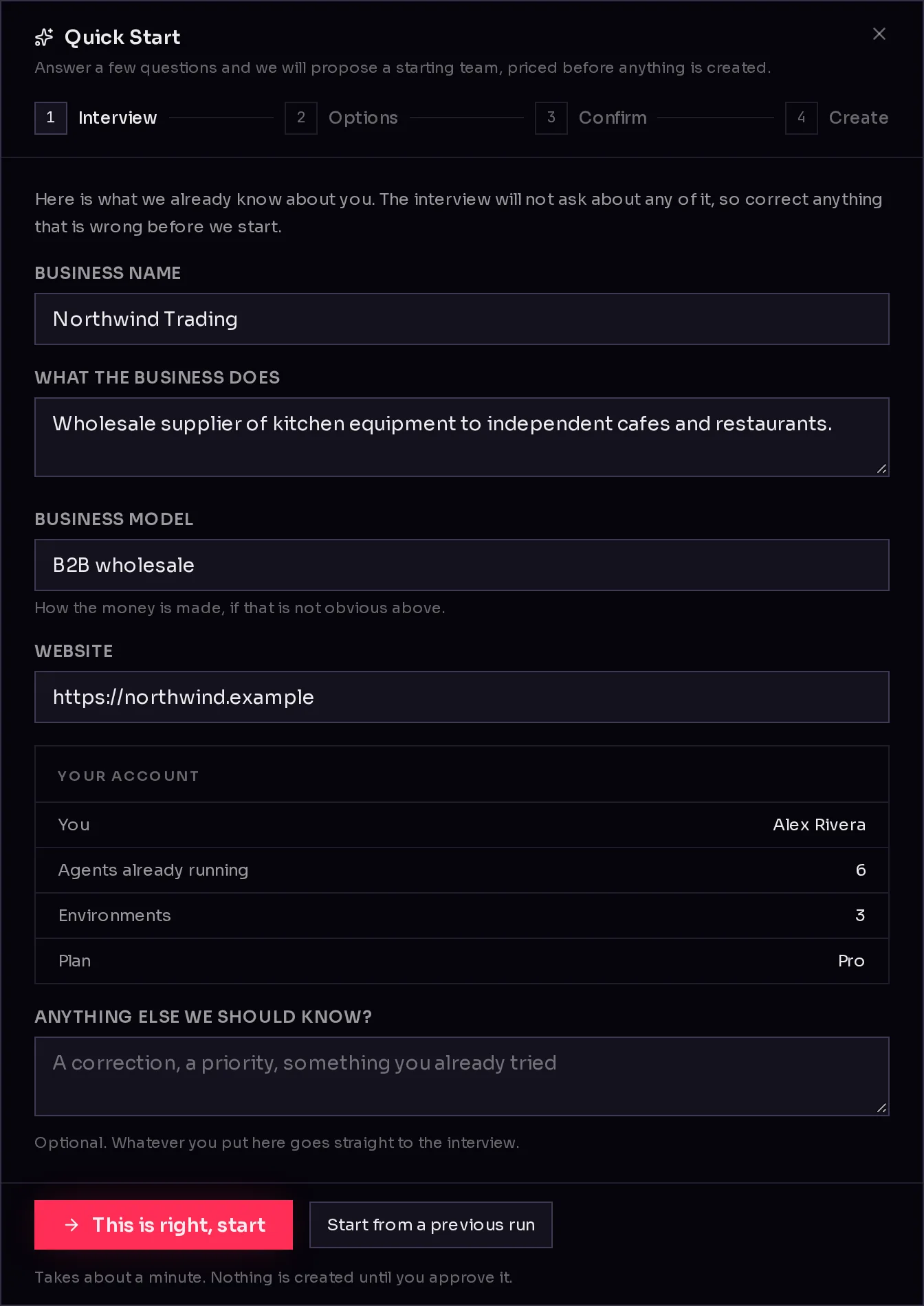
- Quick Start opens on what it already knows about you: your business details (1) and your account, such as how many agents and environments you run and your plan. The interview does not ask about any of it, so correct anything that is wrong here. Your corrections are saved to your Company details.
- Add anything else it should know under Anything else we should know? (2), such as a priority or something you already tried.
- Click This is right, start (3). If you changed a detail, the button reads Save and start.
 1234
1234Only the account owner can edit the business details here. Anyone else can still use the box below them to say what is wrong.
Answer the interview#
Quick Start asks up to three questions at a time. Each question comes with answers you can click, and Write your own answer… if none fits. Some questions let you pick several answers.
- Answer the questions. Leave one blank to let Quick Start decide.
- Click Continue. Quick Start asks more, or moves on to its proposals.
- Had enough questions? Click Skip remaining & suggest to get proposals from what you have said so far.
The whole interview usually takes about a minute. Start over throws the answers away and begins again.
Compare the options#
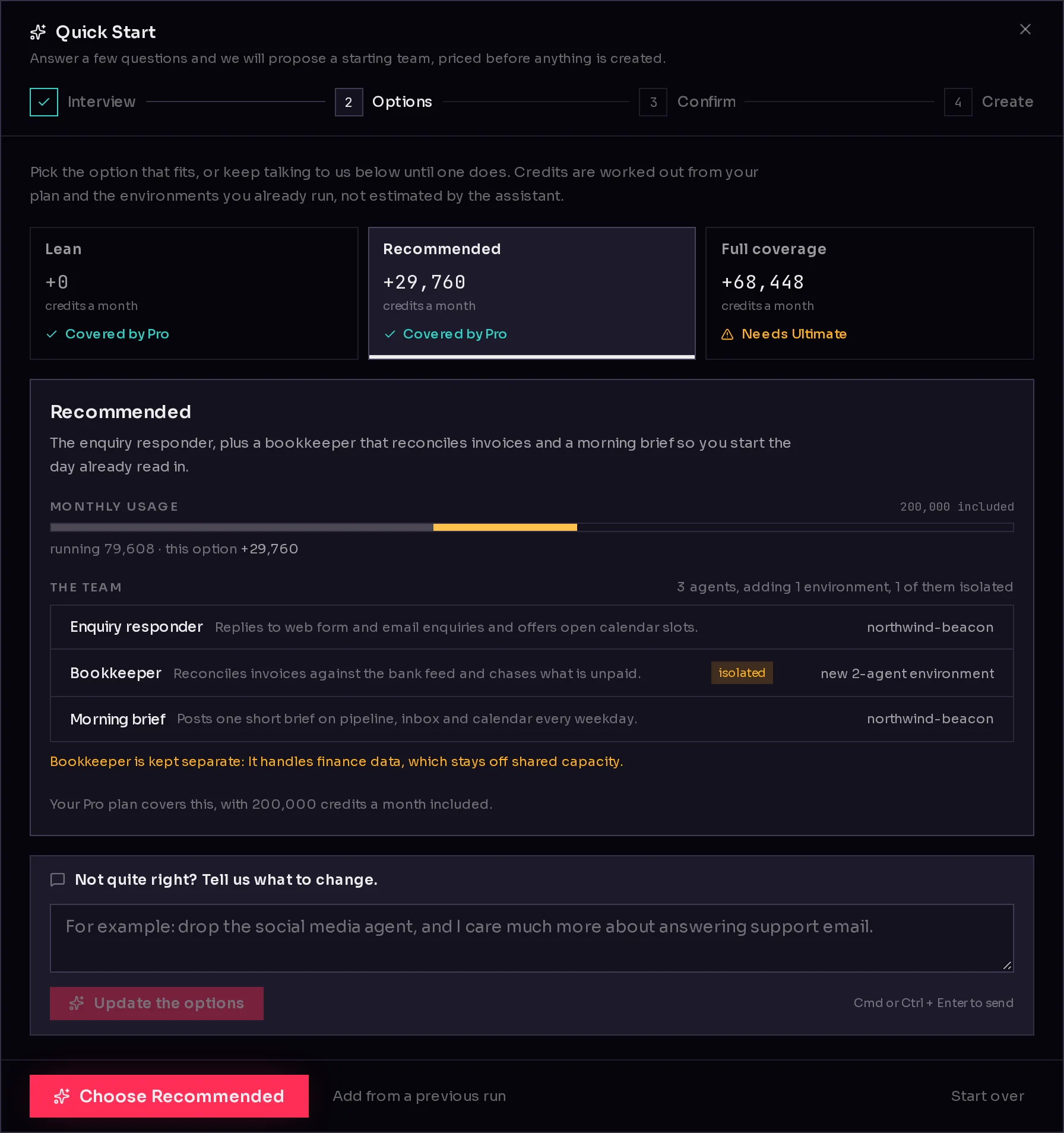
Quick Start proposes a few teams, for example a lean one and a fuller one. Along the top (1), each option shows how many credits it adds to your month and whether your plan covers it.
 1234
1234- Click an option to see it in full: what it does, how it changes your monthly credit use, and the team (2). Each agent row says which environment it goes on, either one you already have or a new one Quick Start creates.
- An agent marked isolated gets an environment of its own, with the reason written under the team.
- Not quite right? Describe what to change in the box (3), such as "drop the social media agent", and click Update the options.
- When one fits, click Choose followed by the option's name (4).
Credit figures come from your plan and the environments you already run, not from a guess by the AI. If an option needs a bigger plan than yours, it says which one, and the button to build it is replaced by a link to that plan. See How credits work.
Confirm the team#
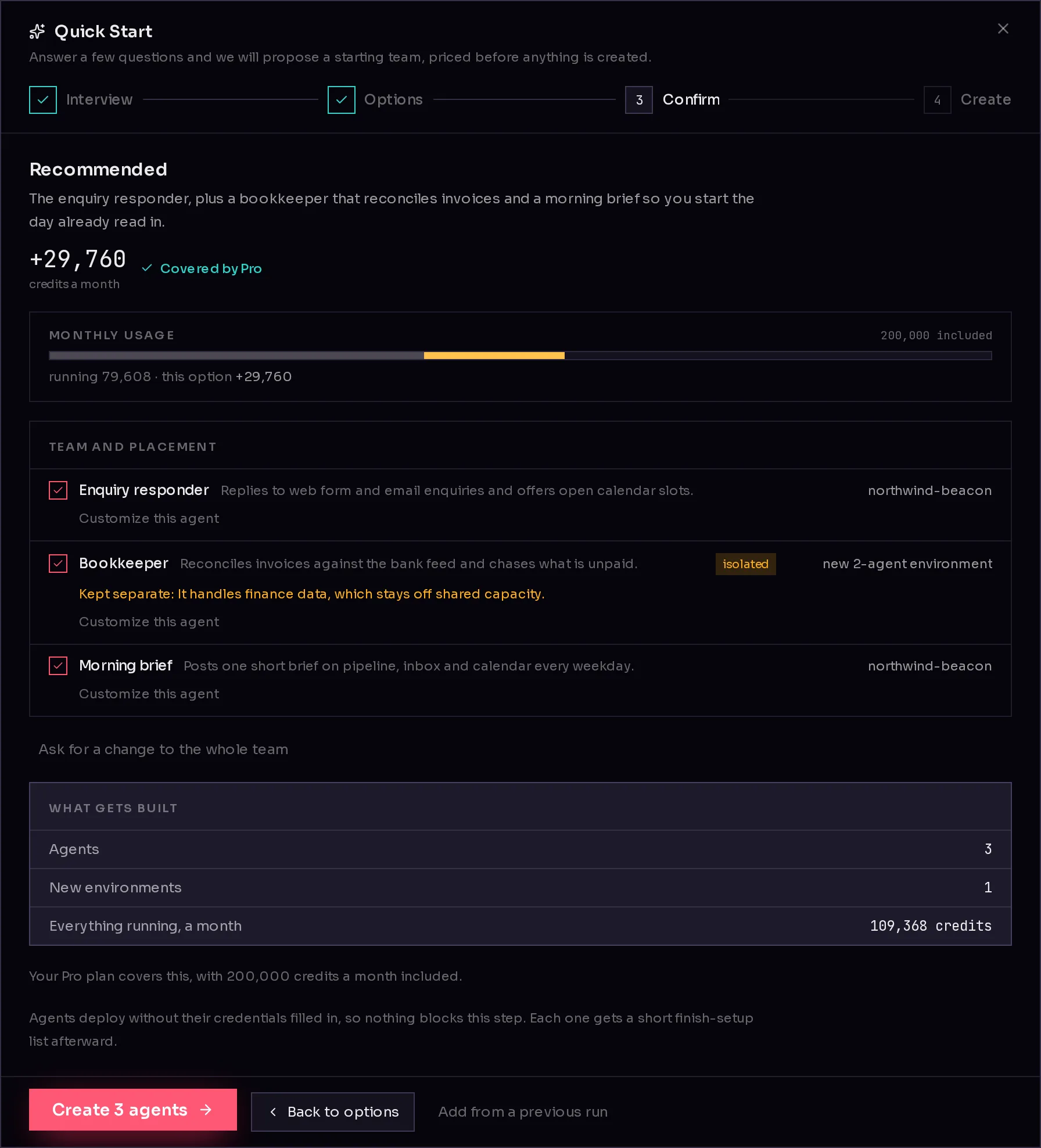
The Confirm step lists every agent in the team you chose.
- Untick an agent (1) to leave it out. The totals update straight away.
- To change one agent, click Customize this agent (2), describe the change, and click Update this agent. To change the whole team, click Ask for a change to the whole team and then Update this team.
- Check What gets built (3): how many agents, how many new environments, and the credits everything uses in a month once it is running.
- Click Create followed by the number of agents (4). Without a plan, the button reads Subscribe to create and opens the plans instead.
 1234
1234Agents are created without their keys filled in, so a missing key never holds up the build. Back to options returns to the other proposals.
Watch the team being built#
The last step shows each environment and agent as it is created, with the step it is on. While it builds:
- Paste any keys the agents need under Add credentials while we deploy. Keys you add before an agent is created go in with it; after that, click Apply, or Apply all for every agent at once. These keys are not stored by Quick Start.
- You can close the dialog and carry on. The build keeps running, and reopening Quick Start brings you back to this screen.
- If the team includes a new environment, the first agent on it also installs its runtime there, so the build can take up to 30 minutes.
When it finishes, Quick Start says Your team is on its way. and links to each new agent. Agents that still need keys are listed under Finish setup; see Finish setting up an agent. If some steps failed, each shows the reason and a Retry button. Click Done to close.
Reuse an earlier run#
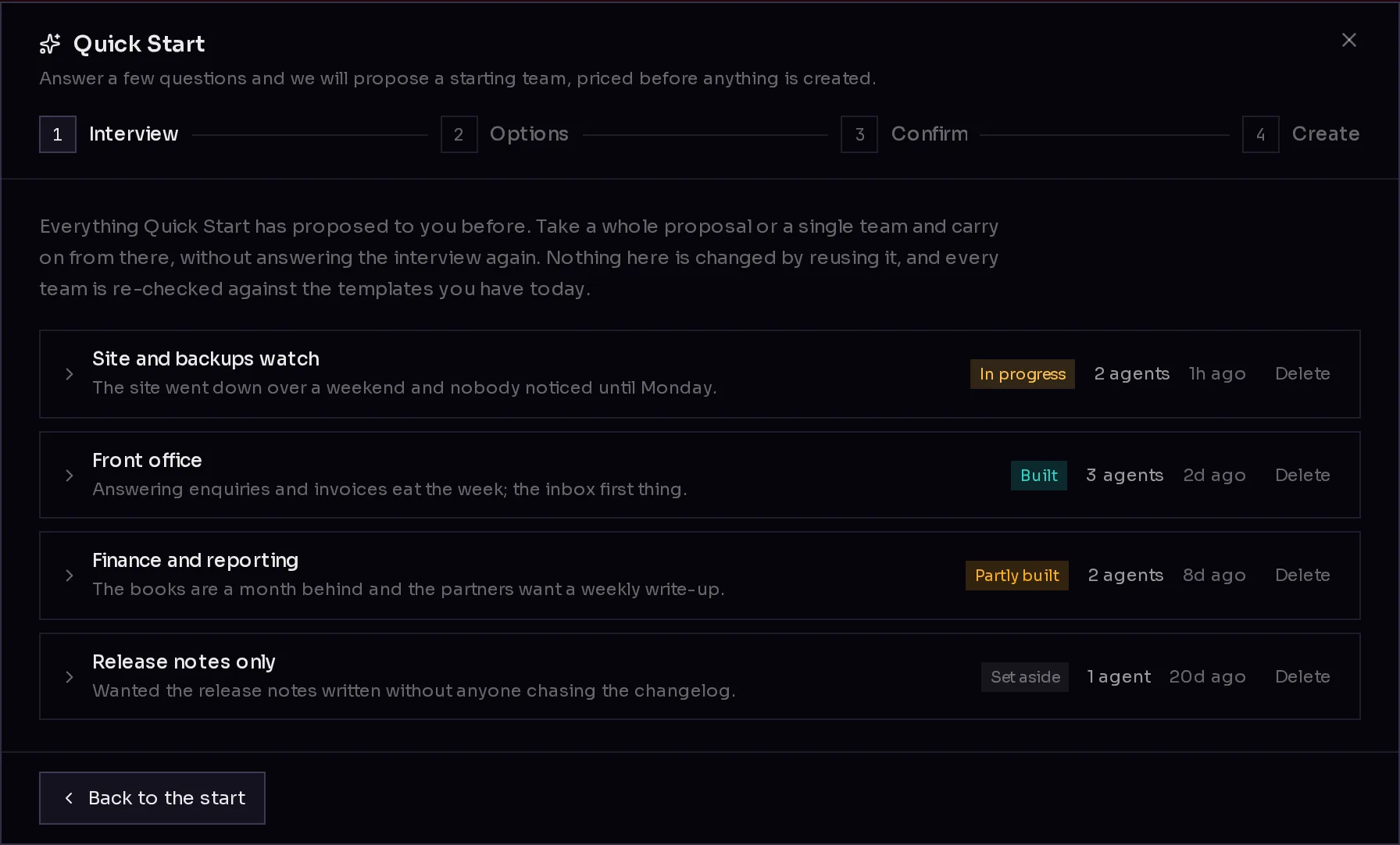
Quick Start keeps every run you have been through. Once you have one, open them with Start from a previous run on the first screen, or Add from a previous run on the options and confirm steps.
 12
12Each run shows its title (1), what you told Quick Start, and a status (2): In progress, Built, Partly built, Did not finish or Set aside. Open a run with the arrow to see what it proposed, then:
- Use this proposal to start a new run on its options, without the interview.
- Use this team to go straight to the confirm step with that team.
- Or pick single agents and click Add these agents to add them to the team you are working on.
Reusing a run never changes it. Every team is checked against the templates you have today first. To remove a run, click Delete, then confirm.
Frequently asked questions#
Does Quick Start create anything before I approve it?
No. The interview and the proposals are free to look at. Nothing is created until you click the Create button on the Confirm step.
What happens if I close Quick Start halfway?
Your progress is kept. The next time you open Quick Start, it picks up the run where you left it, on the same step.
Why does Quick Start show credits and not money?
Everything on Qoren runs on one credit balance that your plan fills each month. Quick Start shows how many credits a team uses, and whether your plan covers it. Prices are on the pricing page.
Do I need Quick Start to create agents?
No. It is one way to get started. You can always create agents one at a time.