
Connect Slack to an agent
Put an agent in your Slack workspace. Create a Slack app in socket mode, copy its bot and app-level tokens into Qoren, invite the bot and test it.
On this page
Connect Slack when your team already lives there: the agent joins as a bot, answers when it is mentioned or messaged directly, and can post in the channels you invite it to.
Qoren connects Slack apps in socket mode. The agent opens the connection to Slack itself, so you do not need a public web address or a request URL.
Before you start#
- A Hermes or OpenClaw agent that has finished setting up. Codex agents cannot use chat channels yet.
- Permission to create and install apps in your Slack workspace. On many workspaces that means a Slack admin.
Create the Slack app#
You build the app on Slack's side first. Slack's own references are creating an app, socket mode and token types.
- Go to api.slack.com/apps, click Create New App, choose From scratch, name it and pick your workspace.
- Open OAuth & Permissions. Under Bot Token Scopes, add
chat:write,app_mentions:read,channels:history,channels:readandim:history. Addgroups:historytoo if the agent should work in private channels. - Open Socket Mode and turn it on. Slack asks you to create an App-Level Token: give it the
connections:writescope and copy the value that starts withxapp-. - Open Event Subscriptions, turn it on, and under Subscribe to bot events add
app_mentionandmessage.im. - Install the app to your workspace (Install App, at the top of OAuth & Permissions) and approve it. Copy the Bot User OAuth Token, which starts with
xoxb-. - Optional: the Signing Secret under Basic Information. Socket mode does not need it.
Connect the app in Qoren#
- Open the agent, click Settings, then Connections.
- Under Channels, pick Slack from Add a gateway….
- Paste the
xoxb-token into Bot token (xoxb-) (1). - Paste the
xapp-token into App-level token (xapp-) (2). - Leave Signing secret (3) blank unless you have one you want to keep with the agent.
 123
123- Click Save changes at the bottom of the page.
Each token field also has Use vault, to pick a token you saved in the Vault instead of pasting it. The form checks each token's prefix as you type: a bot token must start with xoxb- and an app-level token with xapp-, or you see "Not in the expected format."
Invite the bot and test it#
- Wait for the panel to say Saved. Under Connections, Slack should turn to Connected (1), with the bot's name underneath.
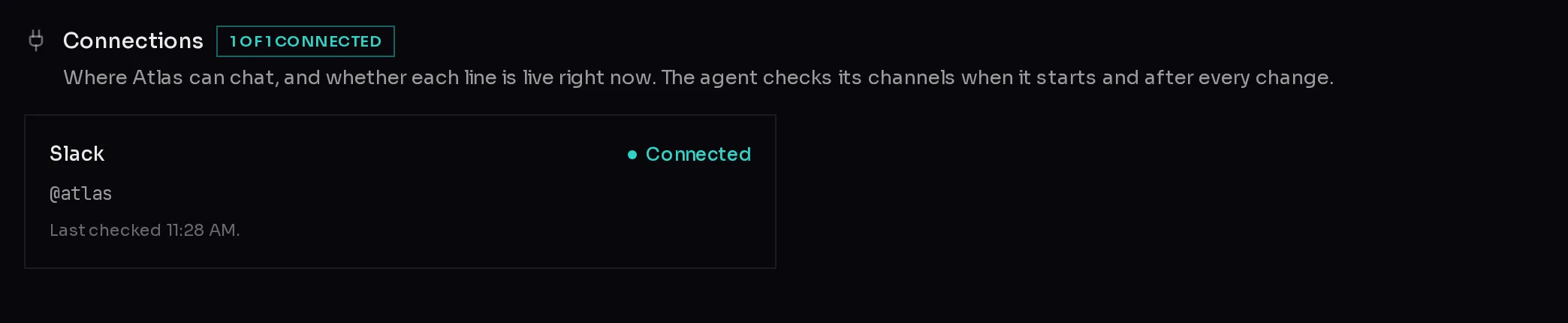 1
1- In Slack, open each channel the agent should work in and run
/invite @your-bot-name. A bot only sees channels it has been invited to. - Mention the bot in that channel, or send it a direct message. The reply comes from your agent.
Troubleshooting#
- Needs attention. The agent could not sign in to Slack; the reason is on the card. The usual causes are a token copied from the wrong place (the two tokens swapped, or a user token instead of the bot token), or an app-level token without the
connections:writescope. Paste fresh tokens and click Save changes. - Connected, but silent in a channel. Invite the bot to that channel with
/invite, and check the app has the scopes and theapp_mentionevent from the steps above. If you added scopes after installing, Slack asks you to reinstall the app before they take effect. - Answers direct messages but not channel posts. With the events above, the bot is woken in a channel when someone mentions it. Mention it by name.
For anything else, see what to do when an agent is not responding.
Frequently asked questions#
Do I need a public URL or a request URL for Slack?
No. Qoren uses socket mode, where the agent connects out to Slack. That is also why the signing secret is optional.
Can one Slack app serve two agents?
Give each agent its own Slack app. Each agent signs in with its own bot, and a separate app keeps their messages apart.
Where are my Slack tokens stored?
In the agent's private environment. The console never shows them again: a saved token reads "set". Keep them in the Vault if you want to manage them in one place.
How do I remove Slack from an agent?
Open Settings, Connections, click the × next to Slack under Channels, and click Save changes. To remove the app from Slack itself, uninstall it from your workspace's app settings.