
Connect Discord to an agent
Run an agent as a Discord bot. Create the application, turn on the Message Content intent, invite the bot to your server and paste its token into Qoren.
On this page
Connect Discord when your community or team works in a Discord server. The agent runs as a bot in that server, and you talk to it there.
Before you start#
- A Hermes or OpenClaw agent that has finished setting up. Codex agents cannot use chat channels yet.
- A Discord account, and the Manage Server permission on the server you want to add the bot to.
Create the bot in Discord#
Discord bots are applications in the Discord Developer Portal. Discord's own guides are getting started with apps and privileged intents.
- Open the Discord Developer Portal and click New Application. Name it.
- Open Bot and click Reset Token. Copy the token. Treat it like a password.
- On the same Bot page, turn on Message Content Intent. Without it the bot cannot read what people write.
- Open OAuth2, then URL Generator. Tick
bot, then the permissions it needs: at least Send Messages and Read Message History. - Open the generated URL, pick your server and authorize. The bot joins the server, shown as offline for now.
Optional: to keep the bot to one server, copy that server's id. In Discord, turn on Developer Mode (User Settings, Advanced), then right click the server and choose Copy Server ID.
Connect the bot in Qoren#
- Open the agent, click Settings, then Connections.
- Under Channels, pick Discord from Add a gateway….
- Paste the token into Bot token (1), or click Use vault to pick a token you saved in the Vault.
- Optional: paste the server id into Server (guild) id (2) to restrict the bot to that one server.
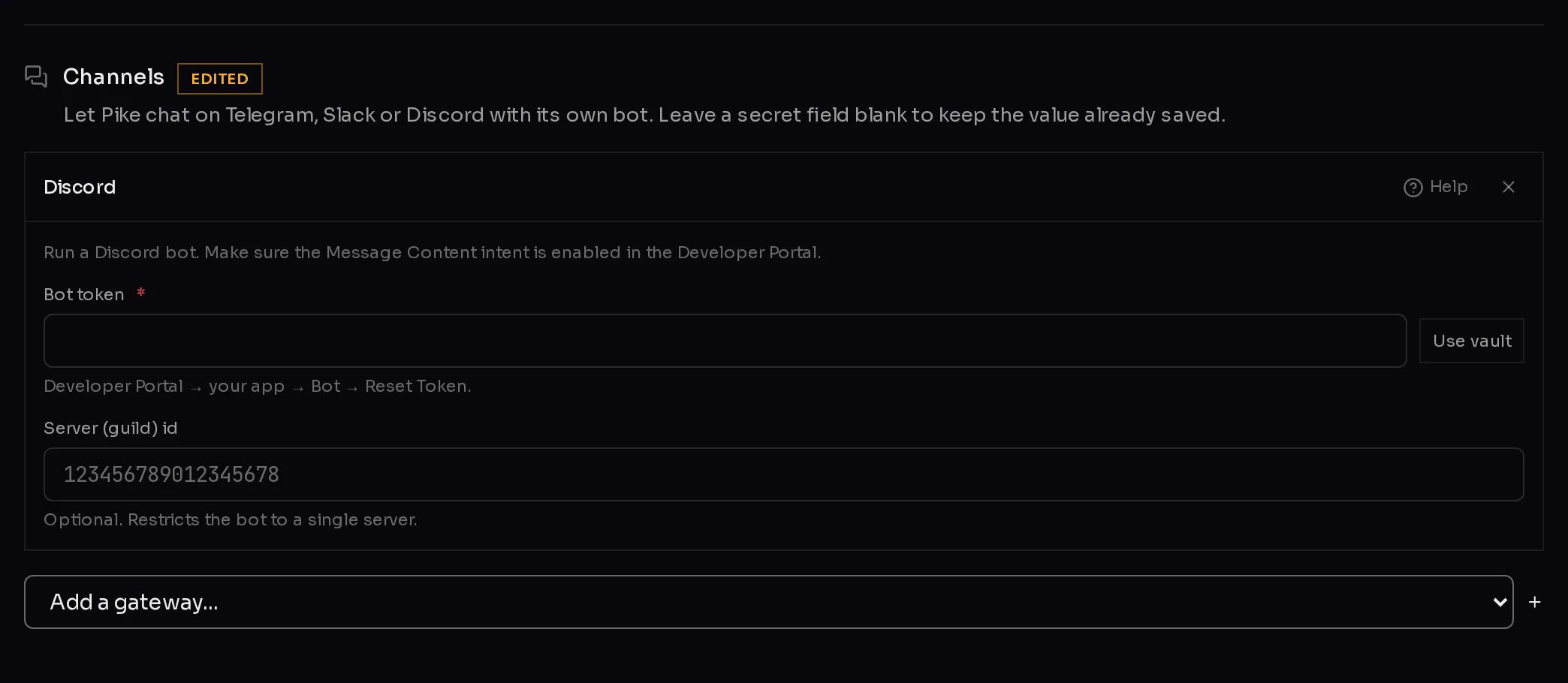 12
12- Click Save changes at the bottom of the page.
The form checks both values as you type. A server id is 15 to 20 digits; anything else shows "Not in the expected format."
Test it#
- Wait for the panel to say Saved. Under Connections, Discord should turn to Connected.
- In your server, the bot should now show as online in the member list.
- Send it a message in a channel it can see. The reply comes from your agent.
Troubleshooting#
- Needs attention. The agent could not sign in. Most often the token was reset in the Developer Portal after you copied it; every reset makes the old token useless. Reset it once more, paste the new one and click Save changes.
- Online, but it ignores messages. Check Message Content Intent is on for the bot, and that the bot can see the channel and has Send Messages there.
- It is not in my server. Open the URL from URL Generator again and authorize it for the right server. If you set Server (guild) id, it must be that server's id.
For anything else, see what to do when an agent is not responding.
Frequently asked questions#
Why does Qoren need the Message Content intent?
Discord leaves the text out of most messages it sends to a bot unless that intent is on. Direct messages and messages that mention the bot are the exceptions, which is why a bot without it can seem to half work.
What does the server id do?
It restricts the bot to that one server. Leave it empty and the bot works in any server it has been invited to.
Can I run two agents in the same Discord server?
Yes. Create one Discord application per agent, invite each bot, and connect each agent with its own token.
How do I remove Discord from an agent?
Open Settings, Connections, click the × next to Discord under Channels, and click Save changes. To remove the bot from your server, kick it in Discord.