
Finish setting up a new agent
What a new agent shows while it installs, which parts unlock when setup ends, and how to use the Finish setting up checklist to connect a channel and keys.
A new agent needs some time to install before it can work, and a couple of things are worth doing once it does: connecting it to a chat app, and giving it the keys its tools need. This page explains what you see while an agent sets up, and the Finish setting up checklist that appears once it is running.
While the agent sets up#
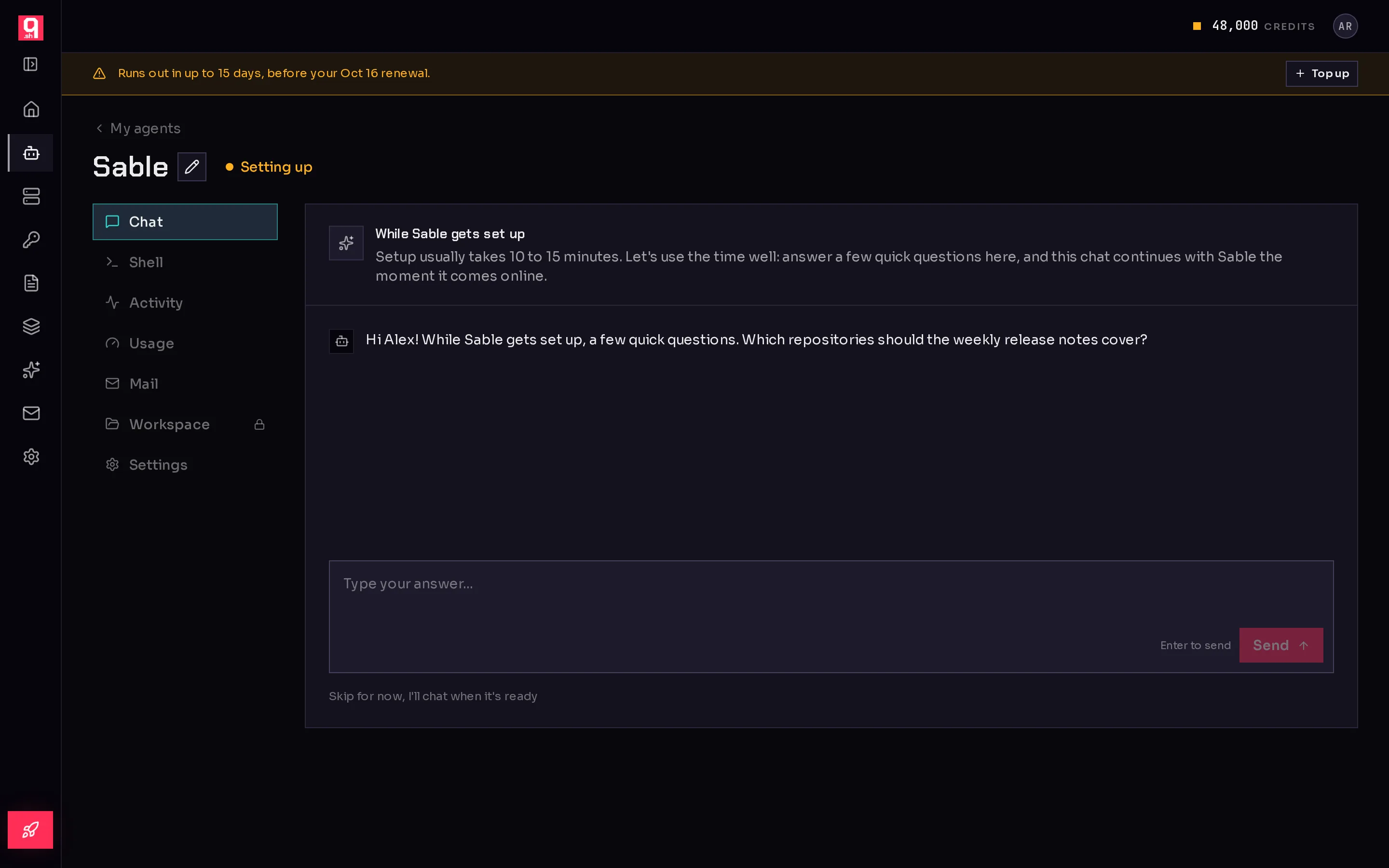
Right after you create an agent, its page opens with the status Setting up (1) next to its name. While a setup job is running, the header also says which step it is on, how far through it is, and how long the step has taken. The longest step installs the agent software, and it waits for any other setup already running on the same environment, so it can stay quiet for several minutes. That is normal.
 12
12While the agent sets up:
- The Chat tab runs a short setup interview, so you can tell the agent about the job before it comes online. See chat with an agent.
- The Workspace tab (2) shows a lock. Hover it and it says it is available once setup finishes.
- In Settings, the Brain, Connections and Keys sections are locked for the same reason. General, Permissions, Environment, Maintenance and Danger stay open. Under General, the model shows "You can change the model once setup finishes."
- Shell, Activity, Usage and Mail can be opened, though there is little to see yet.
The locked parts open when the agent's status changes to Working, or to Needs attention if setup ran into a problem. They are locked so that a change made halfway through cannot clash with the setup job. If setup takes much longer than expected, see setup is taking long.
Use the Finish setting up checklist#
Once the agent is working, a Finish setting up card appears above the chat on its Chat tab. It lists the steps still open and says how many are left. Both steps live in Settings, so you can come back to them any time.
 123
123- Connect a chat channel: so people can reach the agent on Telegram, Slack or Discord, not only in the console. Click Connect (1) to open Settings, Connections. See chat channels.
- Add the keys its tools need: if its tools call services that need an API key, add them. Click Add keys to open Settings, Keys. See keys and secrets.
A step ticks itself off when it is done: the chat step once the agent has a chat channel configured, the keys step once the agent holds a key that you or your vault gave it.
Not every agent needs both. Click Skip (2) on a step it does not need; the step is crossed out. To hide the whole card, click the Dismiss button (3) in its corner. The card also goes away on its own once every step is done or skipped.
Frequently asked questions#
Why is the Workspace tab locked?
The agent is still setting up. The Workspace tab, and the Brain, Connections and Keys sections of Settings, open as soon as setup finishes, so your changes cannot collide with the setup job.
I dismissed the checklist by mistake. How do I get it back?
You do not need it: both steps live in the agent's Settings, under Connections and Keys. The card itself is remembered as dismissed in this browser.
Does a Codex agent need a chat channel?
Codex agents cannot use chat channels yet, so skip that step and talk to the agent on its Chat tab. See runtimes.