
Back up an agent and restore it to an earlier point
Qoren backs up every agent automatically. Take a backup on demand, download a copy, or restore an agent to how it was when a backup was taken.
On this page
Agents change as they work: they write notes, update files and learn from conversations. Backups let you undo a bad day. Qoren backs up every agent automatically, and you can take a backup yourself before a risky change, download one to keep, or put the agent back the way it was.
What a backup contains#
A backup is a copy of the agent's own state:
- its identity and instructions files,
- its memory, conversations, skills and the runtime's own files,
- its logs,
- the files in its workspace.
A backup never contains the agent's keys and passwords. They stay in your Vault and on the agent itself, so restoring a backup keeps the keys the agent has now.
When backups are taken#
- Automatic: about every four hours. If nothing about the agent changed since its last backup, no new one is made, so a quiet agent does not fill its list with copies of the same day.
- On demand: whenever you click Back up now. It is skipped too if nothing changed since the newest backup.
- Before removal: one final backup when you remove the agent, always, even if nothing changed. That is what lets you bring a removed agent back.
Qoren keeps the newest 42 automatic and on-demand backups for each agent and deletes older ones as new ones arrive. At the normal pace that is about a week of history.
See an agent's backups#
- In the sidebar, click Agents and open the agent.
- Click the Settings tab, then Maintenance.
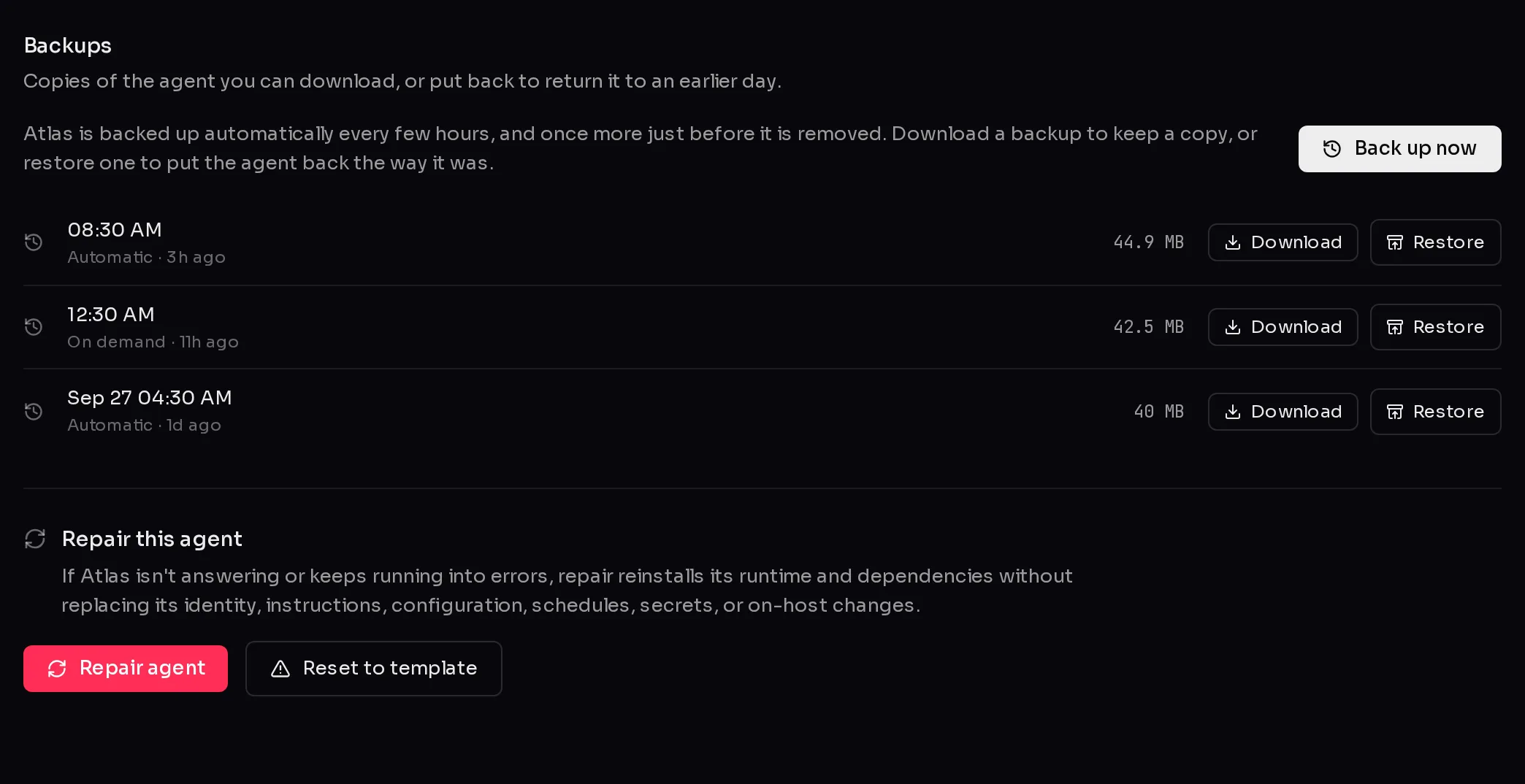 123
123Each backup shows when it was taken, how it came about (Automatic, On demand or Before removal), and its size.
Take a backup now#
Click Back up now (1). The backup runs in the panel; click Done when it finishes. Do this before you make a big change to the agent's instructions or files, so you have a clean point to return to.
Download a backup#
Click Download (2) next to a backup. Qoren prepares a short-lived download link and your browser saves the archive. Downloads work even without an active plan.
Restore an agent from a backup#
Restoring puts the agent's files back the way they were when the backup was taken.
- Click Restore (3) next to the backup you want.
- Check the backup in the dialog and read the warning.
- Click Restore *agent name* (1).
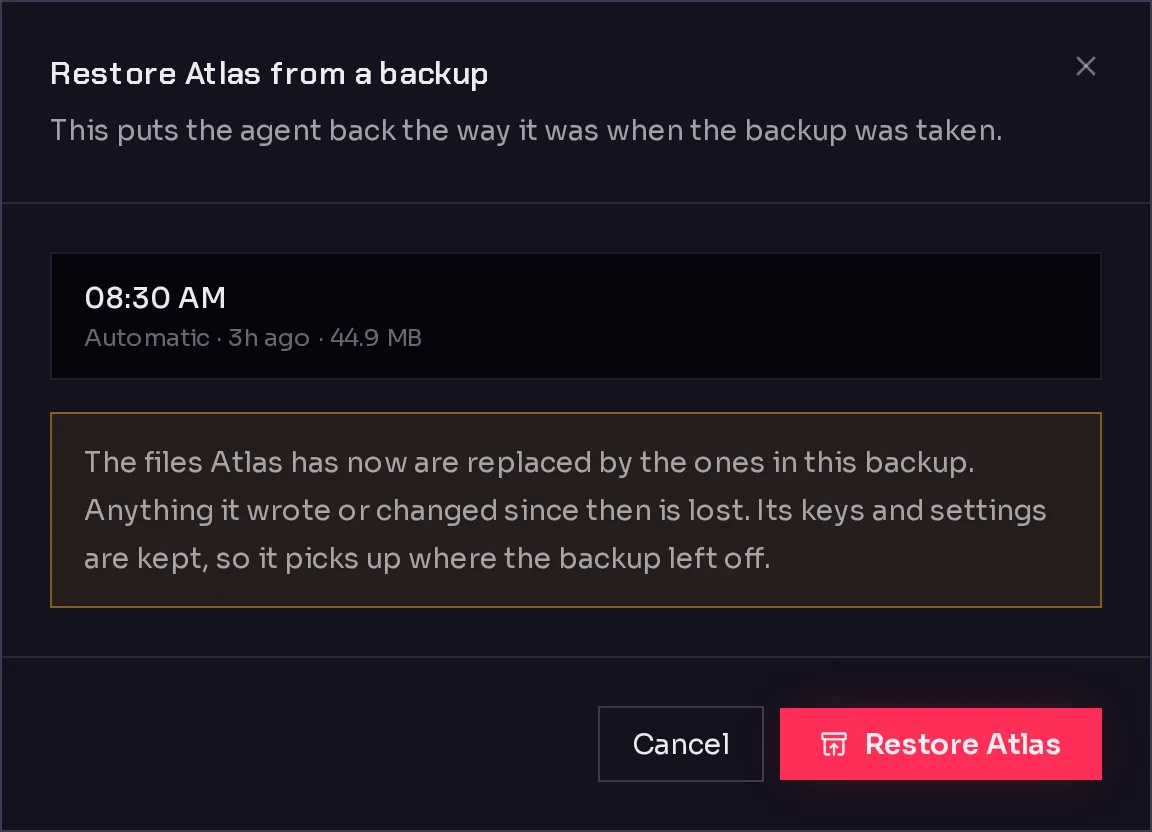 1
1The restore runs in the dialog. You can close it and come back; it carries on either way. When it finishes, the dialog says the agent is back on that backup.
The agent must be running or switched off to be restored, not in the middle of setup or a move. Restoring needs an active plan; without one, the Restore buttons are hidden and a note links to your plan.
Frequently asked questions#
How often are agents backed up?
About every four hours, when something changed. You can also take one at any time with Back up now, and a final one is always taken when you remove an agent.
Why is there no new backup after I clicked Back up now?
Nothing changed since the newest backup, so there was nothing new to save. The existing backup already matches the agent.
Does restoring bring back old keys?
No. Keys and passwords are never part of a backup, so the agent keeps the ones it has now.
Can I restore a backup onto a different agent?
No. A backup can only be restored onto the agent it came from. To bring back an agent you removed, use Deleted agents on the My agents page.