
My agent is not responding
A checklist for an agent that has gone quiet: check its status, your credits, its health, its activity and its chat channels, then repair it if needed.
On this page
When an agent stops answering, the cause is almost always one of a few things, and the console tells you which. Work through these checks in order. Most take a few seconds.
1. Check the agent's status#
Open the agent (in the sidebar, click Agents, then the agent). The status next to its name tells you where to look next:
- Setting up: the agent is still being built and cannot chat yet. See Setup is taking a long time.
- Needs attention: something went wrong, often during setup. Go to step 4 and step 6.
- Moving: the agent is being moved to another environment, and answers again once the move finishes. See Move an agent.
- Removing: the agent is being taken off its environment.
- Working: the agent is running. Carry on with the next checks.
2. Check your credits#
If your credit balance runs out, or you reach the monthly budget you set, every agent pauses at once. A strip under the top bar says so on every page:
- Out of credits. Agents are paused until you top up. Click Top up and add credits. See Top up your credits.
- Monthly budget reached. Agents are paused until you raise it or the period renews. Click Raise budget. Topping up does not help here, because you still have credits; the budget is what stops them. See Spend controls.
The Dashboard also shows Your agents are paused with the reason. Your environments stay in place while agents are paused, and the agents carry on once credits or budget allow.
3. Check its chat channels#
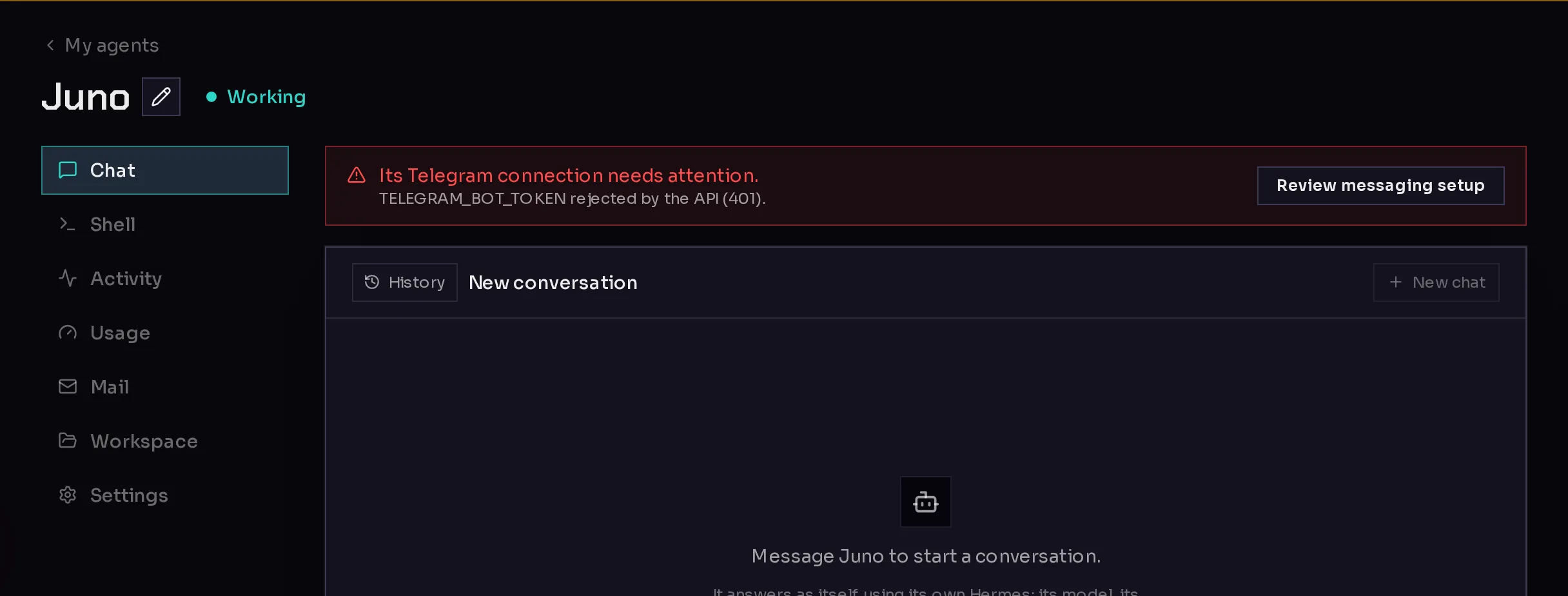
If the agent does not answer on Telegram, Slack or Discord but does answer in Qoren, the connection is the problem. A red strip above the agent's tabs names it (2):
- Its Telegram connection needs attention. (or Slack, or Discord), with the reason underneath, such as a bot token that was rejected.
- Slack hasn't connected yet. It's been trying for a while. (or another channel), when a new connection never came up.
 123
123Click Review messaging setup (3) to open the connection and fix it, usually by pasting a new token. See Chat channels.
4. Check its health#
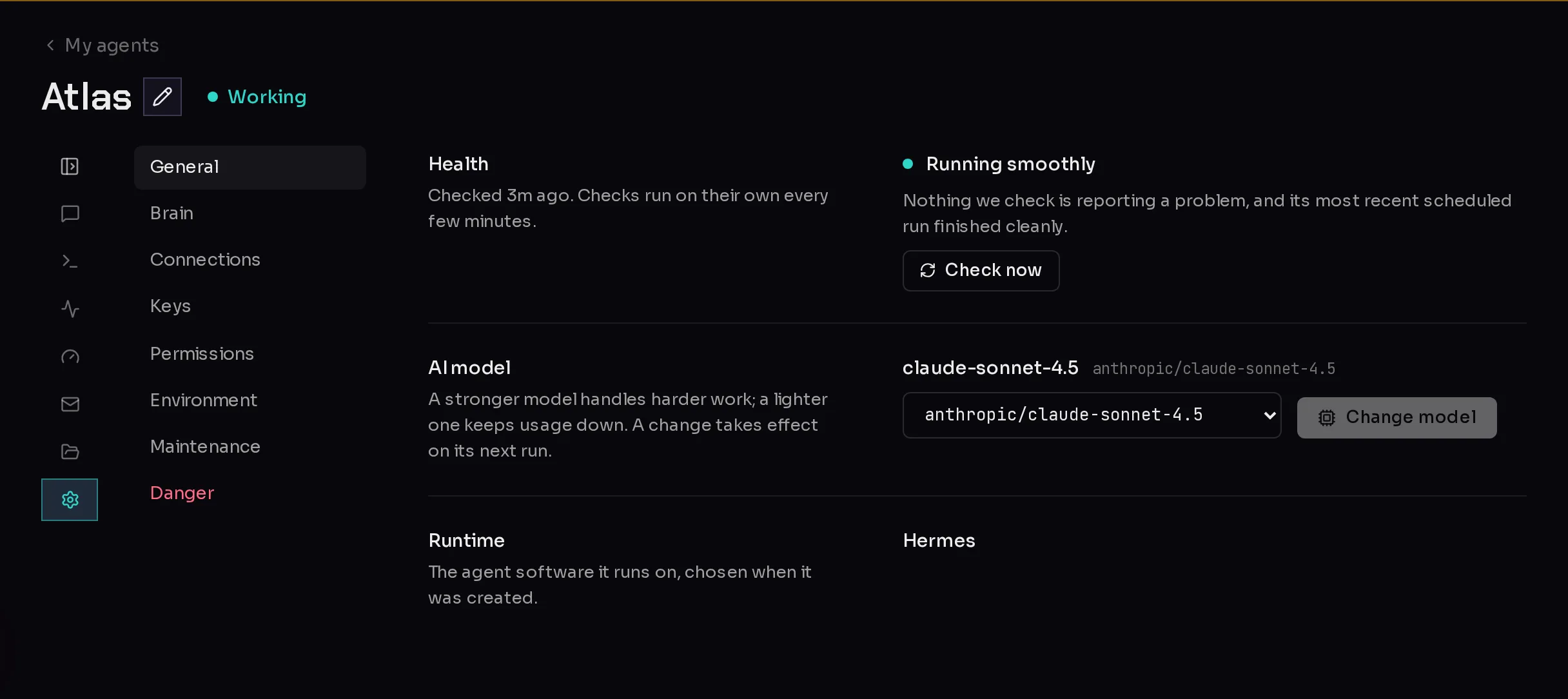
- Open the agent's Settings tab. General opens first.
- Read Health (1). Qoren checks every agent on its own every few minutes, and shows when it last checked.
- Click Check now (2) to run a check straight away.
 12
12What the health reading means:
- Running smoothly: nothing Qoren checks is reporting a problem. Go to step 5.
- Paused: this month's usage budget is used up. See step 2.
- Gone quiet or Needs a look: it is up, but something about its recent work needs a look. The reason is shown underneath. Check its activity (step 5).
- Can't be reached or Part of it has stopped: it is not working right now. A repair usually brings it back (step 6).
- Something went wrong: it did not finish setting up. A repair reinstalls it (step 6).
- Still setting up: health checks start once it is running.
5. Check what it has been doing#
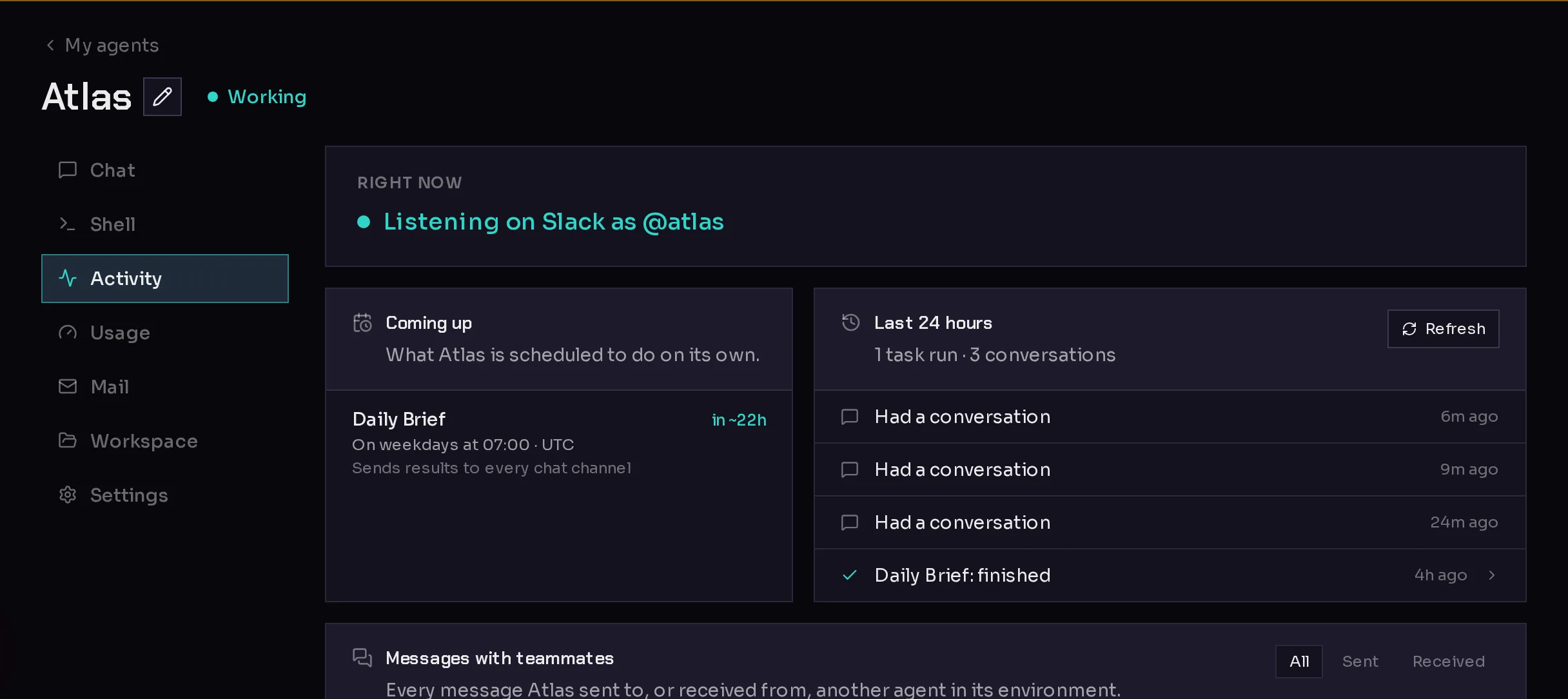
Open the Activity tab.
- Right now (1) says what the agent is doing at this moment, such as listening on a chat channel, working on a task, or needing attention, with the reason.
- Coming up (2) lists its scheduled tasks and when each runs next.
- Last 24 hours (3) lists its conversations and task runs. A failed run says so here.
 123
123Further down, The full log shows every line the agent recorded. Filter by how serious a line is, or turn on Live and send the agent a message to watch what happens. See Agent activity and logs.
6. Repair the agent#
If the agent is unreachable, has errors, or does not answer even though everything above looks fine, repair it.
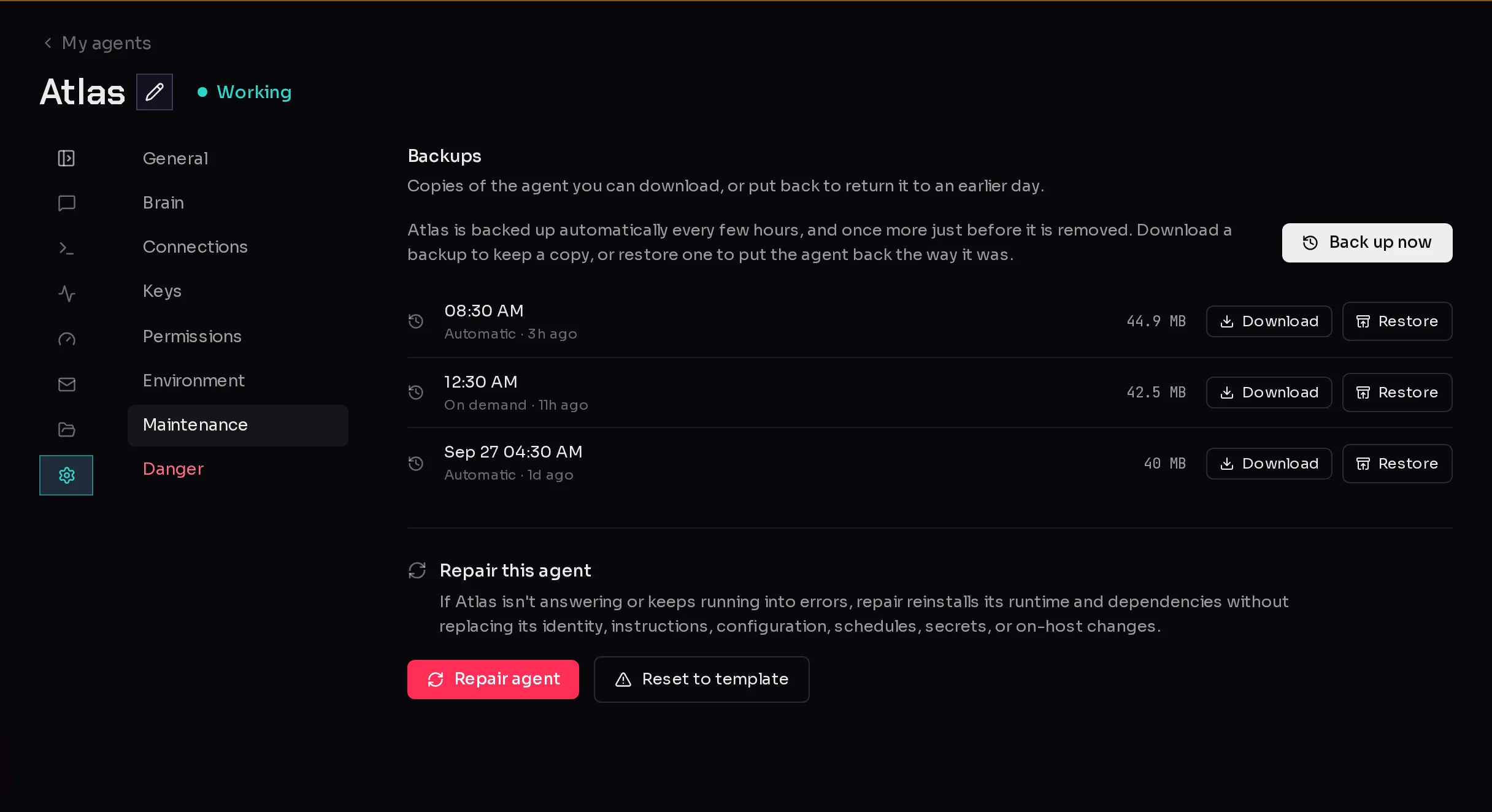
- Open the agent's Settings tab and choose Maintenance.
- Under Repair this agent, click Repair agent (1), then confirm.
 12
12A repair reinstalls the agent's runtime and dependencies. It keeps its identity, instructions, configuration, schedules, keys and conversations. It usually takes a few minutes, and the agent stays available while it runs. After a repair, you can run another one five minutes later.
If the agent's instructions or configuration have drifted, Reset to template (2) puts the template's versions back and reruns its setup. It keeps conversations, schedules and keys, but changes made to those files on the agent may be lost. See Repair an agent.
Chat errors#
Some problems only show up in the chat itself:
- This conversation got too long for the model to process in one request. Click New chat to start a fresh conversation.
- Your last message is too long for the model to process in one request. Shorten the message, or split it into smaller ones.
- Replies can take a while, because the agent does the work before it answers. A reply that is slow is not always a stuck one; check Right now on the Activity tab.
Still stuck?#
Click Report a bug at the foot of the sidebar and describe what happens. Your browser, account and page details are attached for you. See Report a bug.
Frequently asked questions#
Does a paused agent lose its work?
No. When credits or your budget run out, agents pause, but their environment and files stay in place. They carry on once you top up, raise the budget or the new period starts.
Will a repair delete my agent's memory or keys?
No. A repair keeps the agent's identity, instructions, configuration, schedules, keys and conversations. Only Reset to template replaces its instructions with the template's.
The agent answers in Qoren but not on Telegram. Why?
Its Telegram connection is broken, often because the bot token was changed or revoked. Look for the red strip above the agent's tabs and click Review messaging setup.