
Control what an agent can do on your account
Use Settings, Permissions to let an agent work with teammates, choose which Qoren tools it may call, allow public file links, and replace its access token.
On this page
Every agent on Qoren can talk to Qoren itself: look up its own status, message a teammate, share a file, or, if you allow it, manage other agents and environments. Settings, Permissions is where you decide how much of that each agent may do. An agent can always look at itself; everything beyond that is your choice.
Open the Permissions page#
- In the sidebar, click Agents and open the agent.
- Click the Settings tab, then Permissions.
 1234
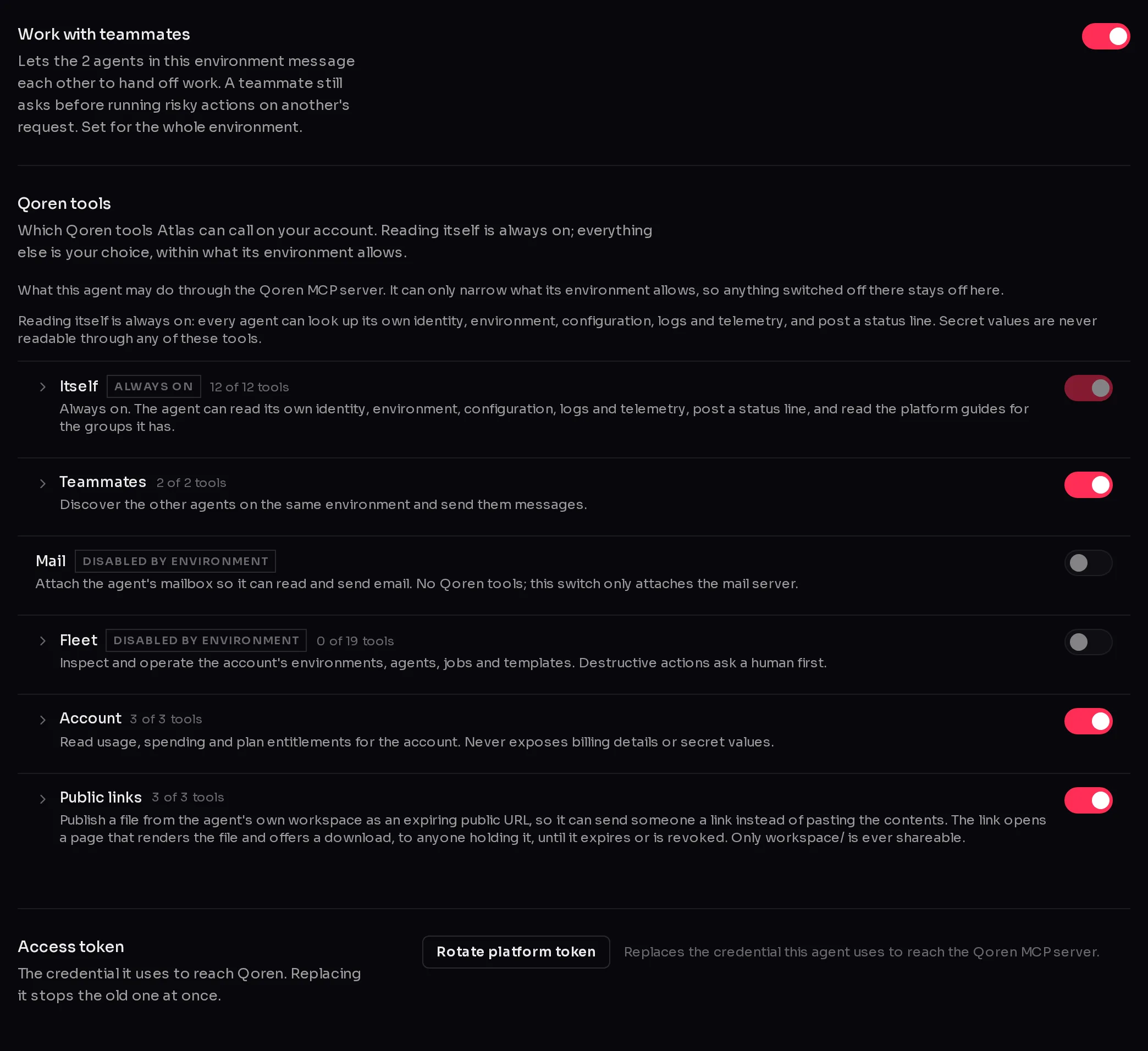
1234The page has three rows: Work with teammates, Qoren tools and Access token.
Work with teammates#
The Work with teammates switch (1) lets the agents in the same environment message each other to hand off work. It is set for the whole environment, not just this agent: turning it on here turns it on for every agent that shares the environment. A teammate still asks before running risky actions on another agent's request.
How teammates talk to each other, and where to read what they said, is covered in agents working together.
Choose the Qoren tools the agent may call#
Qoren tools lists what the agent can do on your account, in groups. Each group has a switch on the right; click a group's name to open it and see, and switch, each tool on its own.
| Group | What it lets the agent do |
|---|---|
| Itself | Always on. Read its own identity, environment, configuration, logs and activity, post a status line, and read Qoren's guides for the groups it has. |
| Teammates | See the other agents in the same environment and send them messages. |
| Use its own mailbox to read and send email. This group adds no Qoren tools; it only connects the mailbox. | |
| Fleet | See and operate your environments, agents, jobs and templates: create agents, change another agent's settings, message any agent, and more. |
| Account | Read your account's usage, spending and what your plan allows. It never sees billing details or secret values. |
| Public links | Share a file from its own workspace as a link that expires, list the links it shared, and switch a link off. |
To change what the agent may do:
- Flip a group's switch (2) to allow or block the whole group.
- To fine-tune, click the group's name, then flip individual tools inside it.
Changes save as soon as you flip a switch. No tool in any group can read the value of a secret: agents only ever see secret names.
Tools that ask for approval#
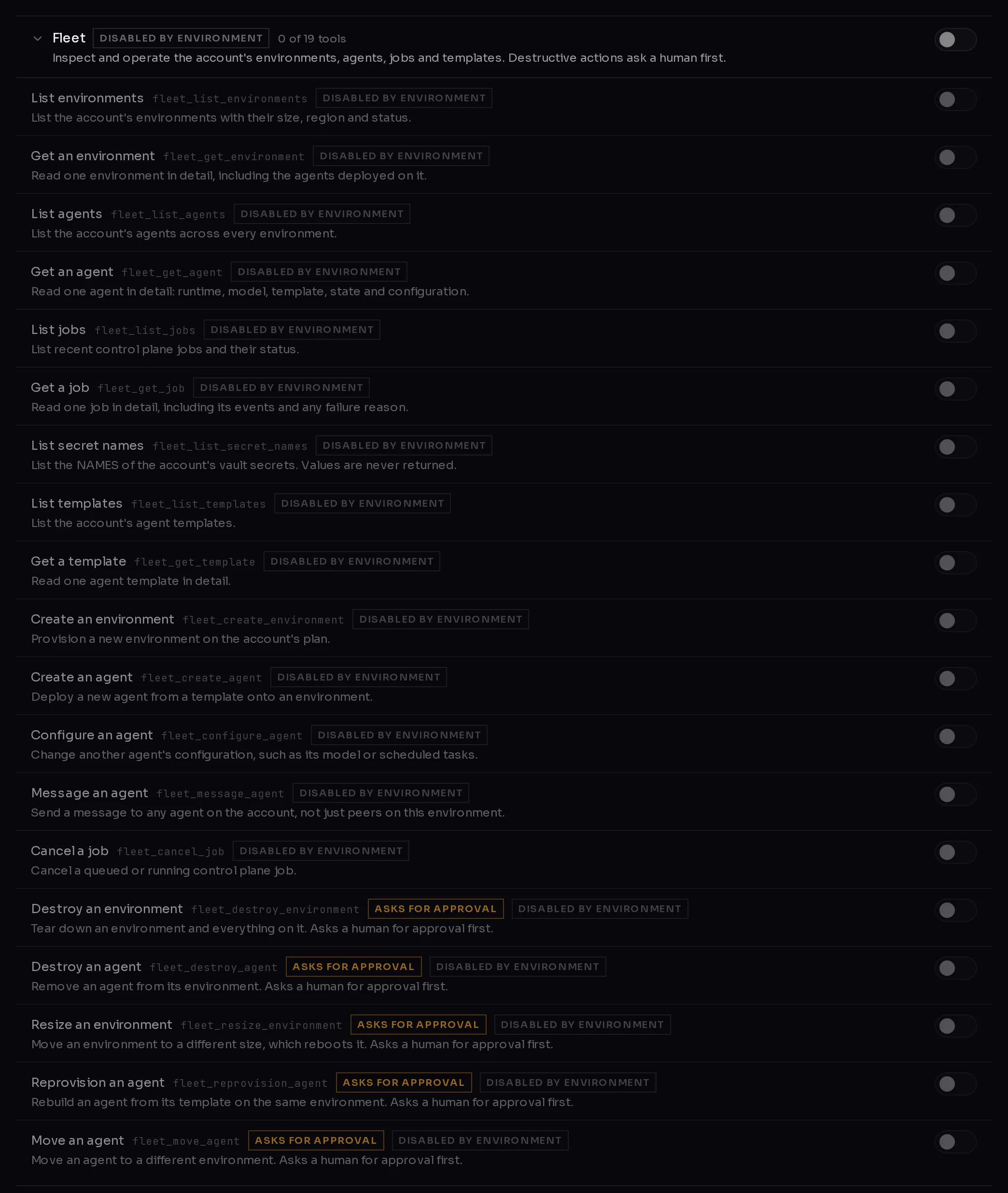
Some Fleet tools can do lasting damage: destroying an environment or an agent, resizing an environment, rebuilding an agent, or moving one. These carry an Asks for approval tag. When the agent calls one, nothing happens straight away: the request waits on the Approvals page for a person to approve it, and the agent is told so. Approving runs the action as you. See approve what your agents ask to do.
 1
1What "Disabled by environment" means#
The environment an agent runs in sets the limit for every agent on it. An agent can be given less than its environment allows, never more. A group or tool the environment has switched off shows Disabled by environment (3), and its switch cannot be turned on here.
To raise the limit, open the environment (sidebar Environments, then the environment), go to its Settings tab and change Platform access there. See environment settings. The Teammates group follows the Work with teammates switch for the environment.
Public file links#
With Public links on, the agent can publish a file from its workspace as a web link instead of pasting its contents into a message. Anyone holding the link sees a page that shows the file and offers a download, until the link expires or is switched off. Only files in the agent's workspace/ folder can ever be shared, and the agent has to set an expiry for each link. If your environment has not allowed the group, it shows Disabled by environment.
Replace the access token#
The Access token row holds the credential the agent uses to reach Qoren. Replace it if you think it leaked:
- Click Rotate platform token (4).
- Read the prompt, then click Rotate.
The old token stops working at once. The agent picks up the new one once its configuration is rewritten, which Qoren does for you. Until then, calls it makes to Qoren tools fail.
For developers, the platform MCP article lists every tool by its technical name and explains how the server works.
Frequently asked questions#
Is anything on by default?
The Itself group is always on and cannot be switched off. Everything else starts at what the agent's environment and template allow.
Does switching a group off stop work already under way?
The check happens each time the agent calls a tool, so the next call after you switch something off is refused.
Why is the Mail switch off even though the agent has a mailbox?
The Mail group is what connects the mailbox to the agent. If the environment has not allowed it, it shows Disabled by environment. Allow it on the environment first, then here. Setting up the mailbox itself is in agent email.
Can an agent approve its own risky requests?
No. Tools tagged Asks for approval wait for a person on the Approvals page. The agent cannot run them itself.