
Create an agent from a template
Pick a template, name your agent, choose its runtime, fill in the keys it needs and click Create agent. What each step asks and what can stop you.
On this page
An agent starts from a template: a ready-made blueprint that already knows its job, its scheduled tasks and the files it starts with. You pick one, give the agent a name, and Qoren sets it up on one of your environments. If no template fits, you can design your own with AI from the same page.
Before you start#
- You need an active plan. See plans and the free trial.
- You need an environment for the agent to run on. If you have none yet, the page offers to set one up and brings you back. The last section of this page lists everything that can stop you.
Pick a template#
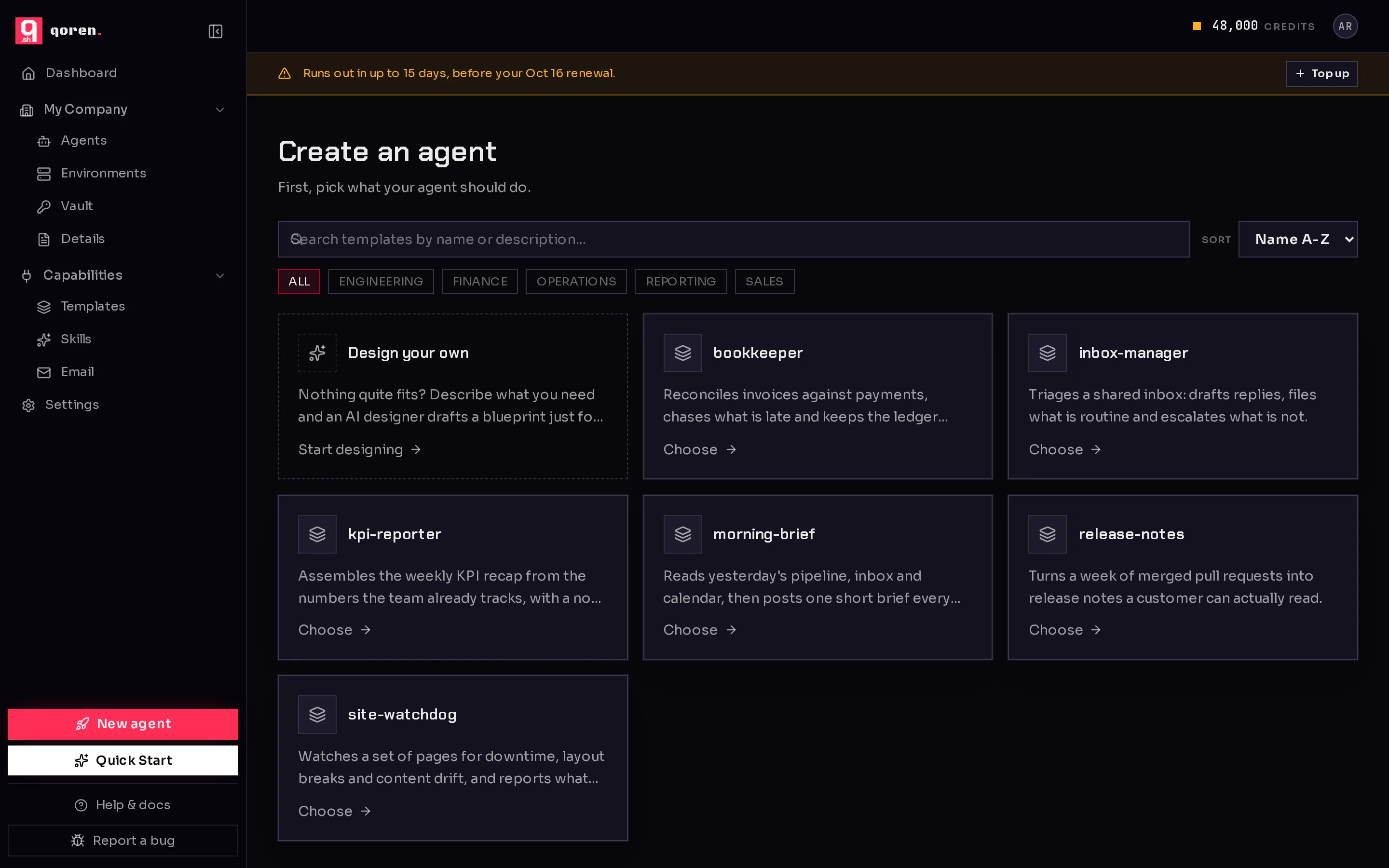
- In the sidebar, click New agent (1). The Create an agent page opens on the template gallery.
- Find the template that fits the job:
- Type in the search box (2) to match a template's name or description.
- Use the Sort menu (3) to list templates Name A-Z or Name Z-A.
- Click a category (4) to show only that kind of template. Click All to see every one again.
- Click the template's card to choose it.
 12345
12345Nothing fits? The first card, Design your own (5), opens an AI designer that drafts a template with you. It is covered in Design an agent with AI.
Name it and choose a runtime#
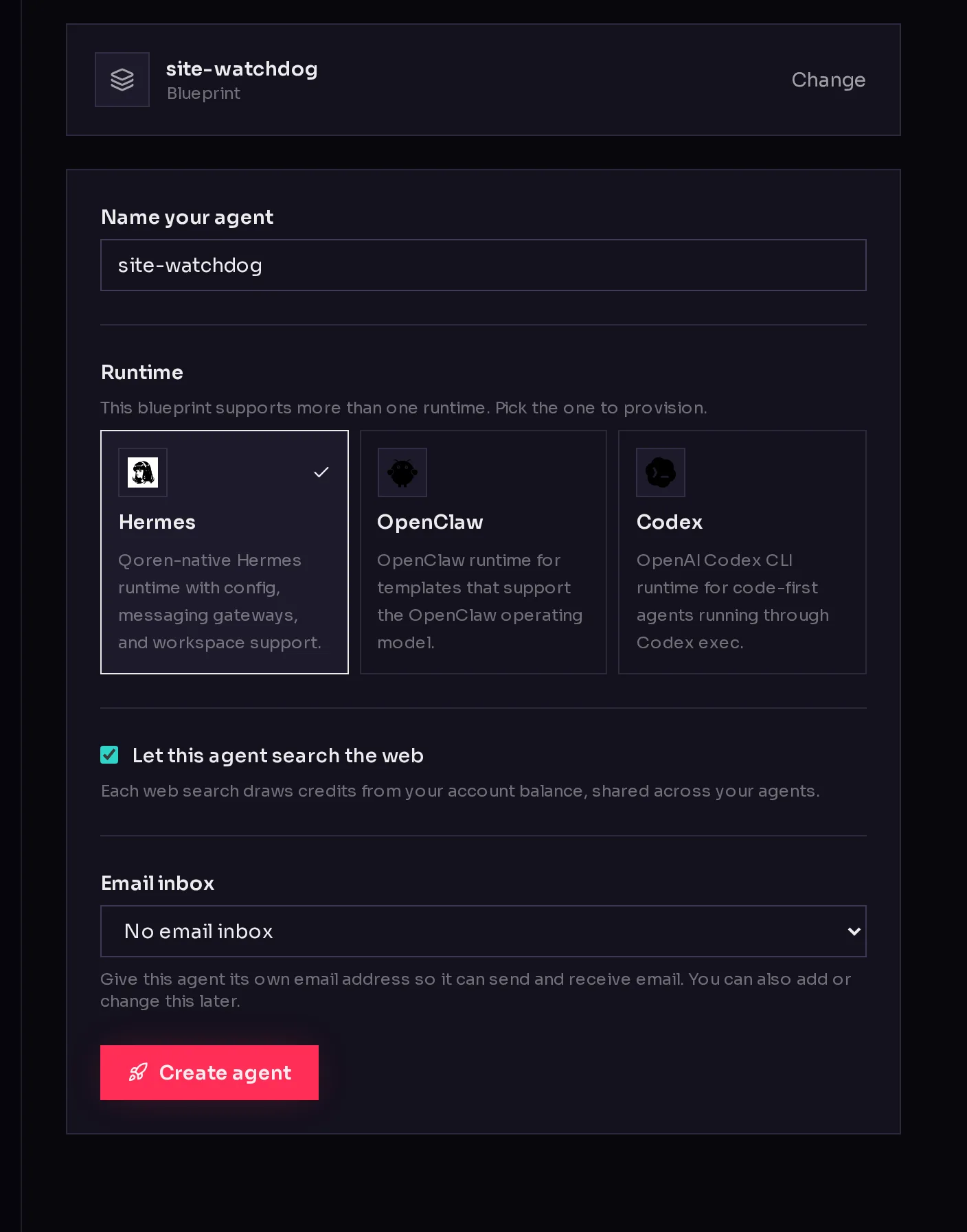
The next screen shows the template you picked, with a Change button (1) to go back to the gallery.
- Under Name your agent (2), type a name. It starts filled with the template's name.
- Under Runtime (3), check the selected card. The template decides the default:
- If the template supports more than one runtime, the page says so and you pick the one to use.
- If it is built for one runtime, that card is selected and the page notes you can still run it on another.
 1234
1234Not sure which runtime to pick? Keep the one the template chose. Runtimes explains how OpenClaw, Hermes and Codex differ.
If you pick a runtime the template does not officially support, a warning explains what happens next. For a template from the catalog, Qoren saves a copy of it with that runtime added, named after the original with -custom at the end, and runs your agent from the copy. For a template your organization made, the runtime is added to the template itself.
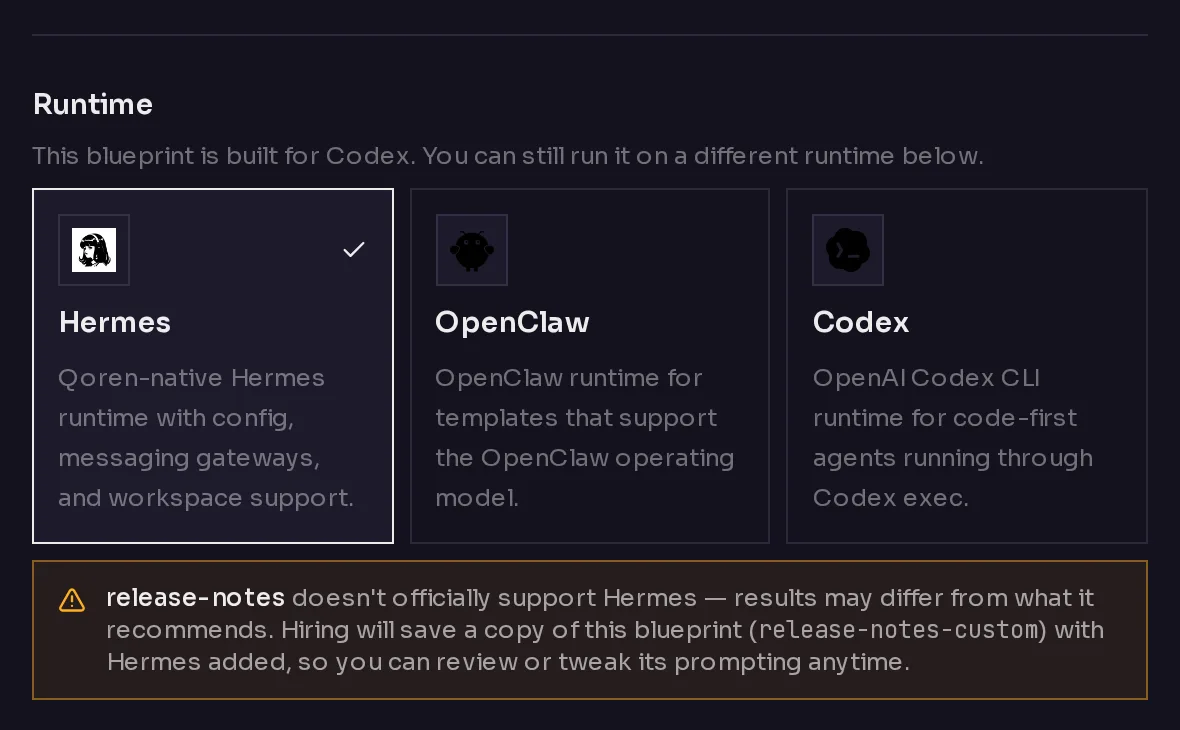
After the agent is created, a Your agent is ready card offers View & edit this blueprint so you can review the copy, or Continue to go to your agent.
If the template has scheduled tasks and the runtime you picked cannot run them, a red note says so and Create agent stays off. Pick another runtime, or follow the link in the note to remove the scheduled tasks from the template.
Fill in the keys it needs#
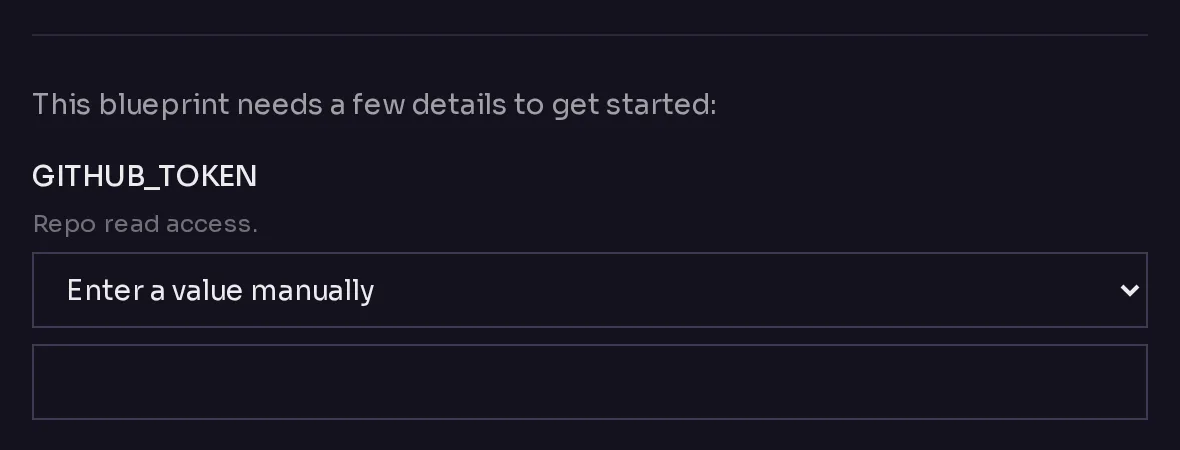
Some templates need a key or a password to reach another service, such as a GitHub token. They appear under This blueprint needs a few details to get started:, each with a short line on what it is for.
For each one, either type the value, or open the menu (1) and choose Use ... from your vault to use a key you already saved in the vault. The value of a vault key is filled in on Qoren's side and never passes through your browser.
 1
1You do not have to enter every key a template can use:
- The model key is provided for you, either Qoren's managed key or your own key if you connected one.
- A key whose name matches a key already in your vault is filled in automatically and is not shown.
- Keys the template marks as optional are left out here. You can add them later in the agent's settings.
Choose web search and an inbox#
Two more options can appear, depending on your account:
- Let this agent search the web is on by default. Each web search draws credits from your account balance, shared across your agents. See how credits work.
- Email inbox gives the agent its own email address. Choose No email inbox, one of your organization's unused inboxes, or Add a new inbox, which shows its monthly price. If your plan does not include inboxes, this option is not shown. You can also add or change the inbox later. See give an agent an email inbox.
Choose the client (agencies)#
If your account uses clients and you have at least one, the page asks Which client is this for?. Pick the client, or No client. The agent goes on one of that client's environments. If the client has no environment ready yet, you can set one up from here.
Create the agent#
- Click Create agent.
- Qoren picks one of your active environments with enough room for this template and starts setting the agent up.
- You land on the agent's page. Its status reads Setting up while it installs.
Setup takes a while, often 10 to 15 minutes. You do not have to wait on the page: the Chat tab uses the time to ask you a few questions about the job, so the agent already knows them when it comes online. See chat with an agent. Once it is running, the Finish setting up checklist shows what is left to connect.
If you chose Add a new inbox and it is your organization's first inbox, a checkout page opens first. When you finish, you return to the agent with its inbox.
If something stops you#
The page tells you when it cannot create the agent yet, and what to do:
| What you see | What it means | What to do |
|---|---|---|
| Choose a plan first | Your account has no active plan. | Click Choose a plan and pick one. You can create the agent right after. |
| Set up an environment first | You have no environment that is ready for an agent. | Click Set up an environment. When it is created you come straight back to this agent, with your template still chosen. |
| This client needs an environment first | The client you picked has no ready environment. | Click Set up an environment to create one for that client. |
| Your environment is being set up | An environment is on its way. | Keep filling in the form. The button reads Waiting for your environment… and the agent launches as soon as the environment is ready, usually within a minute or two. |
| This blueprint needs a bigger environment | The template requires a larger size than any environment you have. | Click Manage environments to resize one or add a bigger one, then come back. |
If a template only recommends a size, you can still create the agent on a smaller environment. A tip under the form says it runs best on a larger one. See environment sizes.
Frequently asked questions#
Can I change the template after the agent is created?
No. The template is used once, to set the agent up. Afterwards you change the agent itself: its instructions, its model, its keys and its connections, all from its Settings tab.
Can I change the runtime later?
No. The runtime is chosen when the agent is created, and Settings only shows it. To run the same job on another runtime, create a new agent from the same template and pick the other runtime.
Which environment does the agent go on?
Qoren picks the first active environment that is big enough for the template, among the environments of the client you chose if you use clients. To put it somewhere else afterwards, move the agent.
The agent was created but the inbox failed. Did I lose the agent?
No. The agent is kept. The button changes to Try the inbox again, and Continue without the inbox takes you to the agent. You can add an inbox later from the agent's settings.