
Connect Claude Code and other AI apps with MCP
Add the Qoren MCP server to Claude Code, Claude, VS Code, Cursor or Codex, approve it in your browser, and see or disconnect connected apps in Settings.
On this page
The Qoren MCP server lets the AI apps you already work in use your Qoren agents. From Claude Code, Claude, VS Code, Cursor or Codex you can list your agents, send one a task, follow the job and read the reply and the files it wrote, without opening the console.
MCP (Model Context Protocol) is the standard way AI apps discover and call tools. You add Qoren to an app once, approve it in your browser, and from then on you can ask that app things like "Ask my research agent for this week's competitor report and show me the reply."
Before you start#
- Your organization needs a plan that includes API access: Ultimate, Business or Enterprise, the same plans as access tokens, the CLI and the SDK. On other plans the connection is refused. Compare plans on the pricing page.
- Your account must belong to an organization. A connected app always works inside the organization you connected it from.
- You need the server URL:
https://qoren.sh/api/mcp. It is also on the MCP tab in Settings, with a copy button.
There is no key or token to copy. Each app signs in through your browser the first time it connects.
Find the setup steps in Settings#
- In the sidebar, click Settings, then the MCP tab.
- Copy the Server URL (1).
- Under Connect an app, pick the app you use (2). The steps below it, with their copy buttons, are the same ones this page gives.
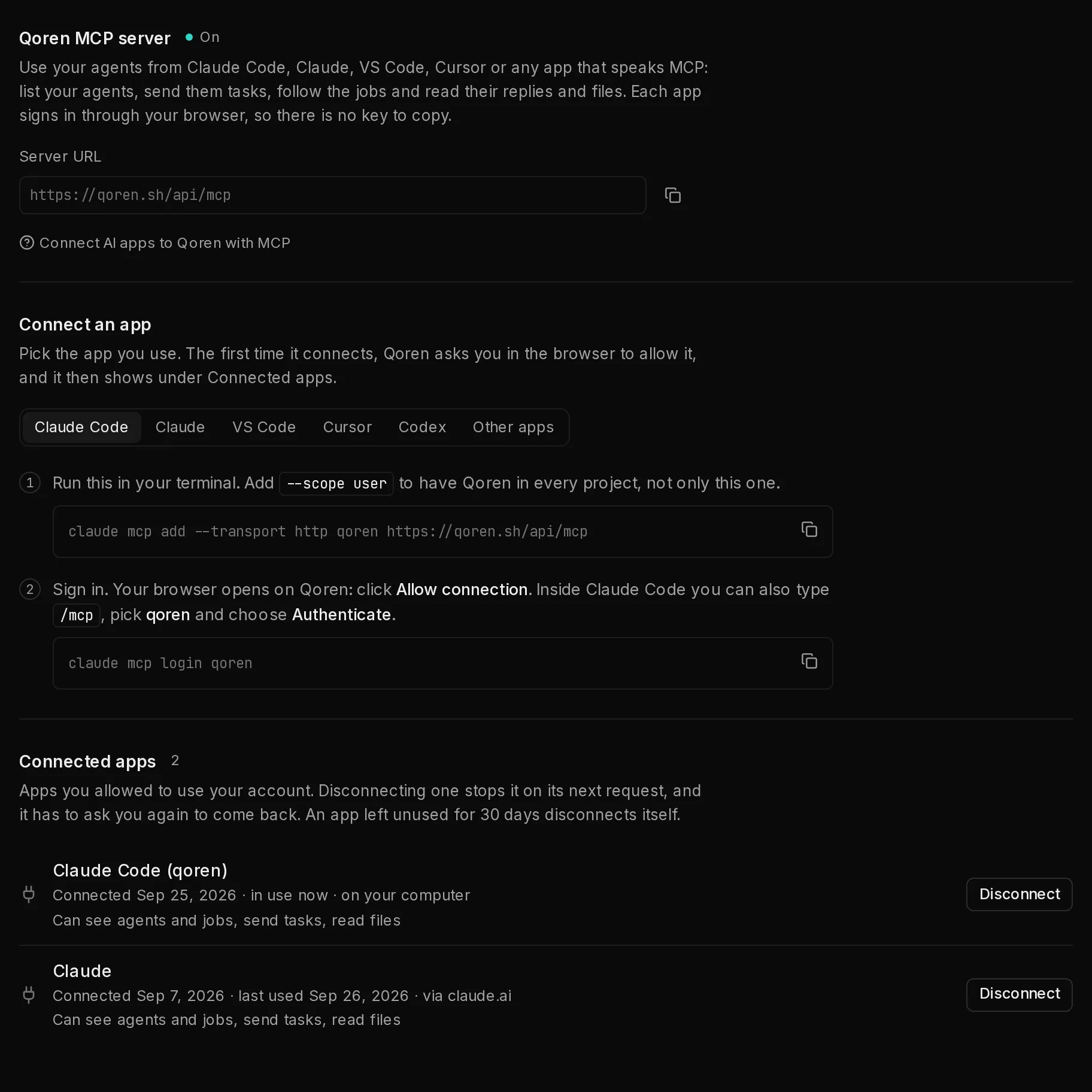 123
123Connect Claude Code#
Add Qoren and sign in from a terminal. The first command adds Qoren to the project you are in; add --scope user to it to have Qoren in every project.
claude mcp add --transport http qoren https://qoren.sh/api/mcp
claude mcp login qoren- The second command opens a Qoren page in your browser titled Connect Claude Code (qoren) to Qoren. If you are signed out, sign in first and you land back on it.
- Check the account and the permissions it lists, then click Allow connection.
- Start Claude Code and ask something like "List my Qoren agents" to check it works.
Inside Claude Code, typing /mcp, picking qoren and choosing Authenticate does the same as claude mcp login. See the Claude Code MCP docs for its other options.
To remove Qoren from Claude Code, run claude mcp remove qoren. That only forgets it on your computer: also disconnect it in Settings to cut off its access.
Connect Claude on the web or desktop#
- In Claude, open Customize, then Connectors, and add a custom connector.
- Name it
Qorenand pastehttps://qoren.sh/api/mcpas the URL. - Click Connect on the new connector. A Qoren window opens: check the permissions and click Allow connection.
On a Claude Team or Enterprise plan, an owner adds the connector once in the organization settings, and each member then clicks Connect and allows it with their own Qoren account. The connector also works in the Claude desktop and mobile apps. See Anthropic's guide to custom connectors.
Connect VS Code#
Add Qoren to .vscode/mcp.json in your workspace:
{
  "servers": {
    "qoren": {
      "type": "http",
      "url": "https://qoren.sh/api/mcp"
    }
  }
}- Click Start above the server in the file. VS Code asks to open your browser for the sign-in.
- On the Qoren page, click Allow connection.
See the VS Code MCP configuration reference for user-wide servers.
Connect Cursor#
Add Qoren to ~/.cursor/mcp.json, or to .cursor/mcp.json in a project:
{
  "mcpServers": {
    "qoren": {
      "url": "https://qoren.sh/api/mcp"
    }
  }
}- In Cursor's MCP settings, click Connect beside qoren.
- On the Qoren page that opens in your browser, click Allow connection.
See Cursor's MCP docs for more.
Connect Codex#
Add the server in a terminal, then sign in:
codex mcp add qoren --url https://qoren.sh/api/mcp
codex mcp login qoren
The second command opens a Qoren page in your browser. Click Allow connection. See the Codex MCP docs for the config file form.
Connect another app#
Any app that supports remote MCP servers with OAuth can connect. Give it:
| Setting | Value |
|---|---|
| URL | https://qoren.sh/api/mcp |
| Transport | Streamable HTTP |
| Authentication | OAuth. Leave any client ID, client secret or API key empty: the app registers itself |
An app that runs on your own computer and signs in through a localhost address works as it is. An app hosted on the web signs in through its own web address, which Qoren has to allow first. Claude, Cursor and VS Code are allowed already; for another hosted app, email hello@qoren.sh with the app's OAuth callback URL.
What a connected app can do#
When you click Allow connection, the page lists what you are allowing:
- See your agents, agency clients, agent health and jobs.
- Send tasks to your existing agents.
- Read the files in your agents' workspaces.
The app gets eight tools:
| Tool | What it does |
|---|---|
qoren_list_clients | List your agency clients. Needs Clients on your account and permission to view them |
qoren_list_agents | List your agents, optionally only one client's |
qoren_get_agent | Read an agent's details and its latest recorded health. It does not run a new health check |
qoren_submit_task | Send a task to an existing agent. It answers straight away with a job ID, not the reply |
qoren_get_job | Follow a job and read the agent's reply when it finishes |
qoren_list_jobs | List recent jobs, including failed ones |
qoren_list_outputs | List the files in an agent's workspace |
qoren_read_output | Read one file from an agent's workspace. Text up to 32,000 characters; other files up to 256 KB |
A task sent from an app is the same as a message you send in the console: the agent works under its own autonomy and approvals, and it uses your credits the same way. An app cannot approve or deny anything, deploy or delete agents, change billing, or read secret values. Approvals stay on the Approvals page in Qoren.
What the app sees follows your own permissions in the organization, checked on every request. If an owner removes a permission from you, the app loses it too.
See and disconnect connected apps#
Every app you allowed is listed under Connected apps on the MCP tab in Settings (3). Each row shows:
- The name the app gave itself, such as Claude Code (qoren).
- When you connected it, and when it last used Qoren, to within about ten minutes.
- Where it runs: on your computer for a local app such as Claude Code, or the site it signs in through, such as via claude.ai.
- What it can do.
To cut an app off:
- Click Disconnect on its row.
- Click Disconnect again to confirm.
The app is refused on its next request. To use Qoren from it again, it has to ask you on the Connect page once more. Disconnecting one app does not touch your other apps, your access tokens or your console session.
An app that goes unused for 30 days disconnects itself and has to ask again.
Security#
- Your password never reaches the app. You sign in to Qoren in your own browser, and the app only receives a short-lived access token. Qoren stores fingerprints of these tokens, never the tokens themselves.
- Tokens are short-lived. An access token lasts ten minutes. The app renews it in the background with a refresh token that works once.
- The sign-in is bound to the app that asked. The app must prove it started the sign-in, so a code seen by anything else is useless.
- One organization per connection. A connection works in the organization you made it in. If you move to another organization, connect the app again.
- Only allow apps you set up. The name on the Connect page is the name the app gave itself; Qoren cannot verify it. If you did not just add Qoren to an app, close the page.
- Rate limited. Each person can make 300 requests a minute through connected apps. Past that, requests are refused until the minute is up.
Frequently asked questions#
Do I need an API key or a token?
No. Each app signs in through your browser and receives its own short-lived tokens. You never copy a key into the app, and you can disconnect each app separately in Settings.
Is this the same as the platform MCP?
No. The platform MCP is the tool server your agents use to work with Qoren. This MCP server is for the AI apps you use, and it acts as you.
Which plans include the MCP server?
The plans that include API access: Ultimate, Business and Enterprise. On other plans the app's requests are refused, and the MCP tab in Settings says so with a link to upgrade.
Claude Code says Qoren needs authentication. What do I do?
Type /mcp in Claude Code, pick qoren and choose Authenticate, then allow the connection in your browser. This happens after you disconnect the app in Settings or leave it unused for 30 days.
Can a connected app spend money or take actions?
It can send tasks to your agents, which use credits like any message. Whatever the agent then does follows its autonomy settings, so actions that ask for approval still wait for a person on the Approvals page. The app itself cannot approve anything.
I lost my laptop. How do I cut off its apps?
Open Settings, MCP and click Disconnect on each app that ran on it. They are refused on their next request. If the laptop also had the Qoren CLI, revoke its token under CLI tokens too.