
Connect Telegram to an agent
Give an agent its own Telegram bot. Create the bot with BotFather, find your user id, paste both into Qoren, then test it and fix a rejected token.
On this page
Connect Telegram when you want to message an agent from your phone and get its scheduled results there. The agent gets a Telegram bot of its own; you chat with that bot.
Before you start#
- A Hermes or OpenClaw agent that has finished setting up. Codex agents cannot use chat channels yet.
- The Telegram app, signed in to your own account.
Create the bot in Telegram#
Telegram bots are made by chatting with Telegram's own bot, BotFather. Telegram's guide is BotFather in the Telegram bot documentation.
- In Telegram, open a chat with @BotFather and send
/newbot. - Choose a display name, then a username. The username must end in
bot. - BotFather replies with an HTTP API token that looks like
123456789:ABC-DEF…. Copy it. Treat it like a password: anyone with it can control the bot. - Find your own numeric Telegram user id: message @userinfobot and it replies with your
Id.
Connect the bot in Qoren#
- Open the agent, click Settings, then Connections.
- Under Channels, pick Telegram from Add a gateway…. The Telegram form opens.
- Paste the token into Bot token (1). To use a token you saved in the Vault instead, click Use vault (2) and pick it.
- Type your numeric id into Your Telegram user id (3).
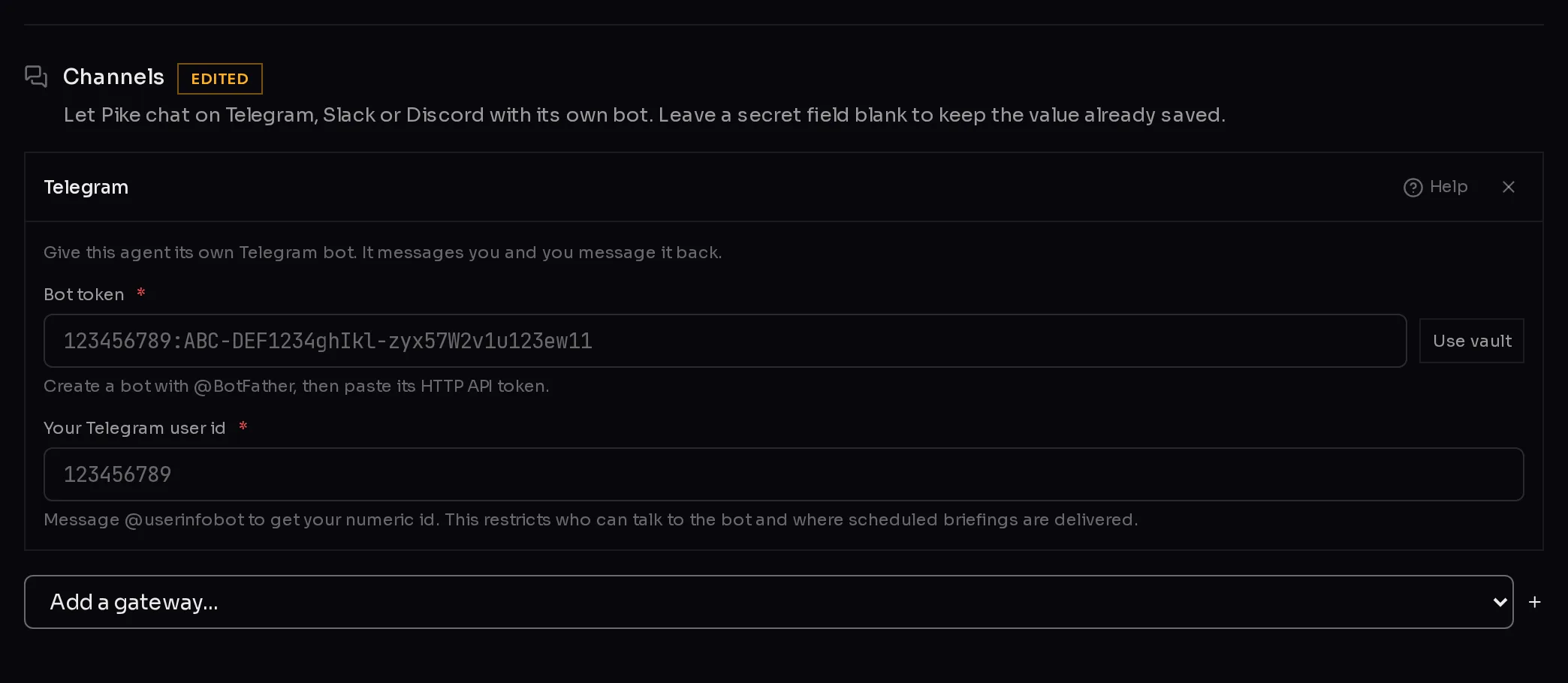 1234
1234- Click Save changes at the bottom of the page.
Both fields are required. The form checks their shape as you type: a token that does not look like a Telegram token, or an id that is not all digits, shows "Not in the expected format." and Save changes stays off until it is fixed. Help (4) opens the same steps in a dialog.
What your user id does#
The id does two jobs. It restricts who can talk to the bot, so a stranger who finds it cannot use your agent. And it is where the agent sends things on its own, such as the results of its scheduled tasks.
Test it#
- Wait for the panel to say Saved. The agent then signs in to Telegram.
- Under Connections, the Telegram card should turn to Connected, with the bot's username underneath.
- Open your bot in Telegram (search for its username) and send it a message. The reply comes from your agent.
Fix a channel that needs attention#
If the card says Needs attention (1), the agent could not sign in, and the reason is shown underneath. A red banner with Review messaging setup also appears across the agent's tabs until it is fixed.
 1
1- The token was rejected. Telegram no longer accepts that token, usually because the bot was deleted or its token was revoked in BotFather. Get a fresh token from BotFather (
/mybots, pick the bot, then API Token), paste it into Bot token and click Save changes. - The bot never replies to you. Check Your Telegram user id is your own numeric id from @userinfobot, not your @username or the bot's id.
- Still Not reported yet after a while. The agent reports when it starts and after every change. If it stays that way, open what to do when an agent is not responding.
To change the token later, type the new one over "•••• set (leave blank to keep)" and save. Leaving the field blank keeps the saved token.
Frequently asked questions#
Can other people on my team talk to the bot?
The form takes one user id, and the bot is restricted to it. If several people need to talk to the same agent, a shared Slack or Discord channel is the simpler fit.
Is my bot token safe in Qoren?
The token is written to the agent's private environment and is never shown back in the console: a saved token appears as "set". For one place to manage it, keep it in the Vault and connect it with Use vault.
Can I connect Telegram to a Codex agent?
Not yet. Chat channels work on Hermes and OpenClaw agents. A Codex agent can still be reached from the console chat, triggers and email.
How do I disconnect Telegram?
Open Settings, Connections, click the × next to Telegram under Channels, and click Save changes.