
Sign-in, password and security
How to sign in to Qoren with Google, GitHub or a password, reset a forgotten password, change or add one, and stay signed in on your own device.
On this page
You can sign in to Qoren with Google, with GitHub, or with your email and a password. This page covers the sign-in options, how to reset, set or change your password, and how sessions work.
Ways to sign in#
On the sign-in page you can choose:
- Continue with Google
- Continue with GitHub
- Your email address and password, then Sign in
A new password account is confirmed with a six-digit code sent to your email: enter it and click Verify email. If the code does not arrive, click Resend code. New to Qoren? See create an account.
Stay signed in#
Under the sign-in form, Keep me signed in for 30 days is ticked by default. Leave it ticked on your own computer so you do not have to sign in every day. Untick it on a shared computer: you are then signed out when the browser closes.
Reset a forgotten password#
If you sign in with an email and password and cannot remember the password, reset it from the sign-in page.
- On qoren.sh/login, click Forgot password? (1) under the password field.
 1
1- Enter the email you sign in with (1) and click Email me a code (2).
 12
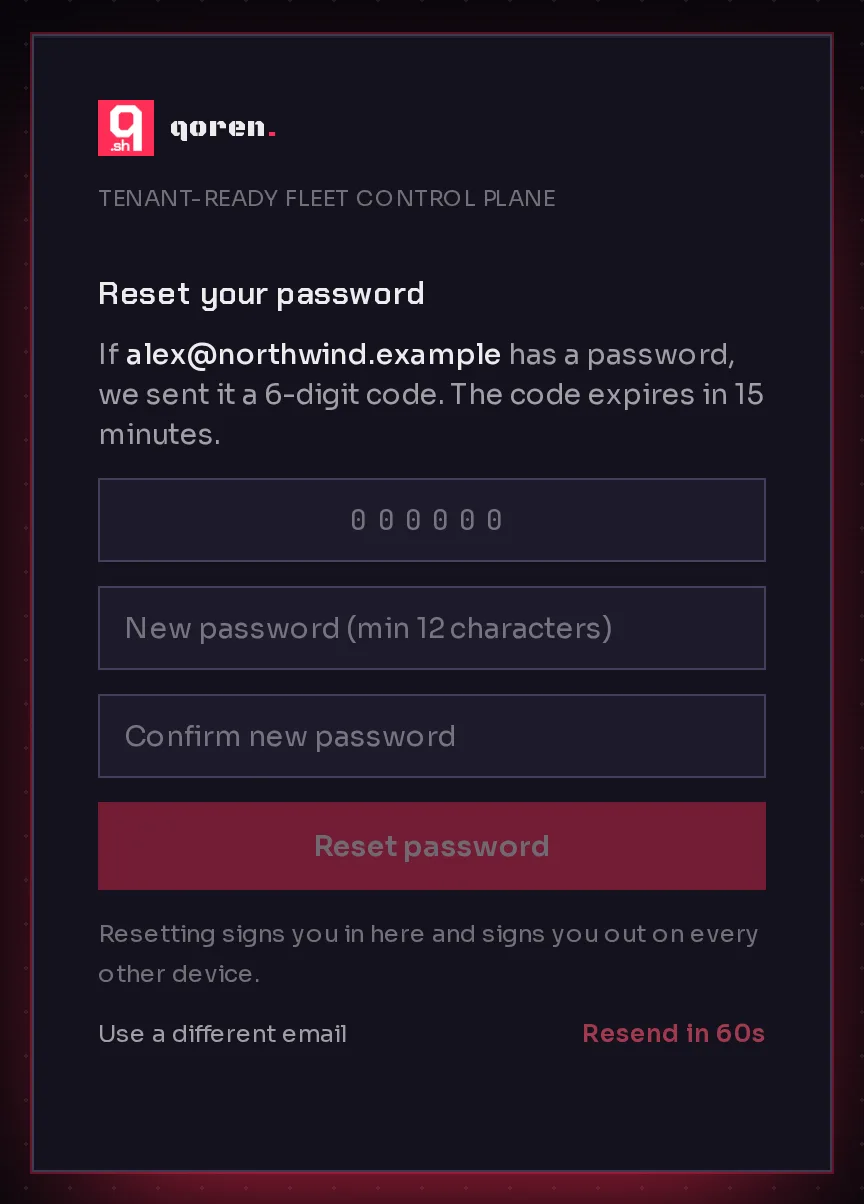
12- Open the email from Qoren and copy the 6-digit code. It expires in 15 minutes.
- Type the code into the box (1). Enter a New password of at least 12 characters (2) and type it again in Confirm new password.
- Click Reset password (3). You are signed in with your new password.
 1234
1234A reset signs you out on every other device, just like changing your password in Settings.
If the email does not arrive, check your spam folder and that you typed the address you signed up with. The form never says whether an address has an account, so a typo looks the same as a sent code. After a minute, Resend code (4) sends a new one. You can ask for a code up to five times an hour. Each code works once, and it stops working after five wrong tries, so request a new one if that happens.
Change your password#
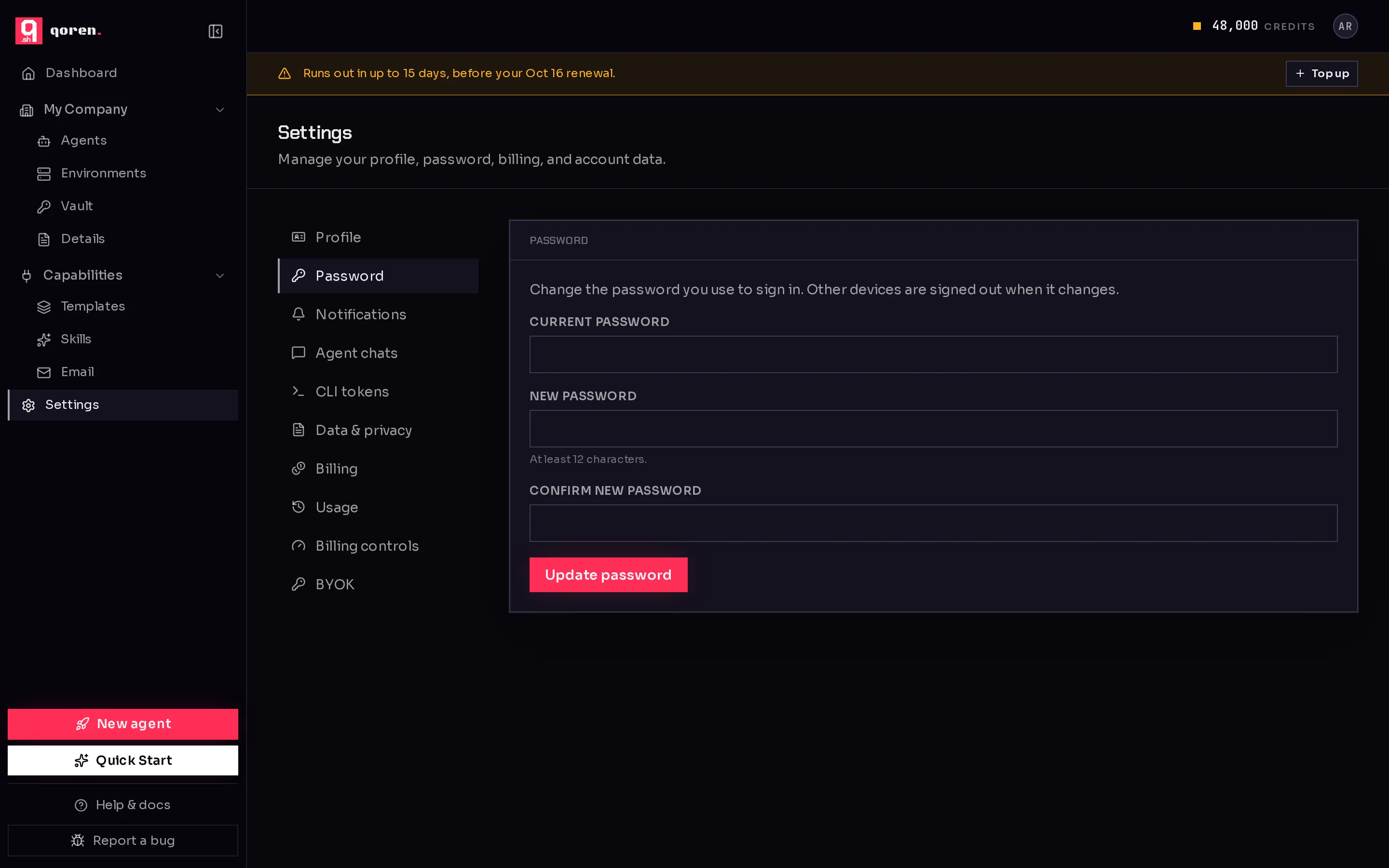
- Open Settings from the sidebar, or from the menu under your avatar.
- In the list of sections (1), choose Password (2).
 12
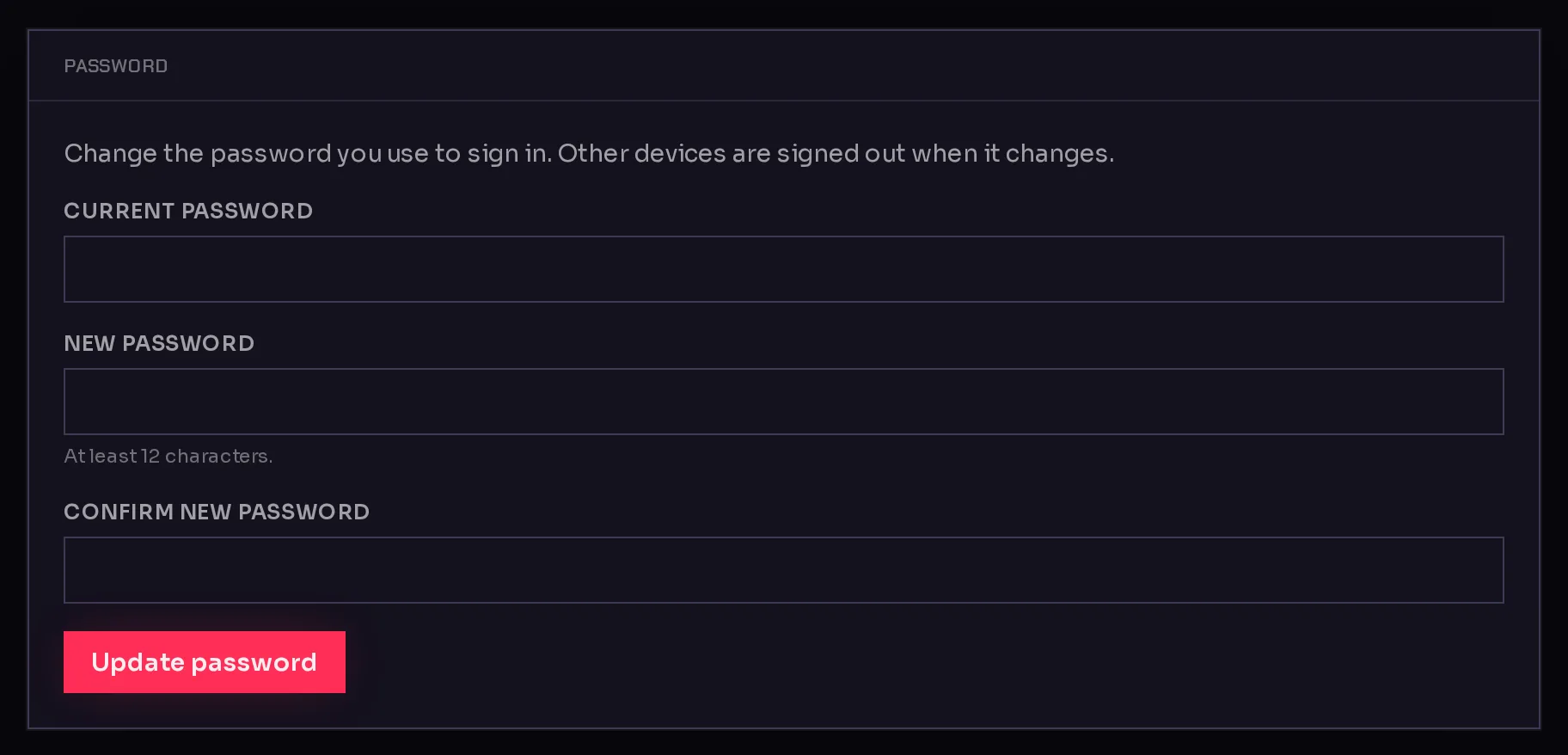
12- Enter your Current password (1).
- Enter the New password (2), at least 12 characters, and type it again in Confirm new password.
- Click Update password (3).
 123
123When the password changes, every other device signed in to your account is signed out. The device you are using stays signed in.
Add a password to a Google or GitHub account#
If you signed up with Google or GitHub, you can also add a password so you can sign in with your email.
- In Settings, open Password. The card says Set a password so you can sign in without Google or GitHub.
- Enter a New password of at least 12 characters and confirm it.
- Click Set password.
You can keep using Google or GitHub as well.
Sign out#
Click your avatar at the top right of the console and choose Log out. On a shared computer, also untick Keep me signed in for 30 days the next time you sign in.
Tokens for the CLI and scripts#
The Qoren CLI and the SDK do not use your password. They use access tokens, which you create and revoke under Settings, then CLI tokens. Treat a token like a password. See access tokens.
Frequently asked questions#
I forgot my password. What can I do?
Click Forgot password? on the sign-in page. Qoren emails a 6-digit code to your address; enter it with a new password and you are signed back in. If you signed up with Google or GitHub, there is no password to reset: use that button to sign in.
How long is a password?
At least 12 characters. Longer passphrases are better.
Does changing my password sign me out everywhere?
It signs out every other device. The browser you changed it from stays signed in.