
Use an agent's Shell tab (terminal)
Open a live terminal inside an agent's workspace from its Shell tab, see what it runs as, stay safe with it, and reconnect when a session ends or drops.
On this page
The Shell tab gives you a real terminal inside your agent's private workspace. It is for the moments when you want to look for yourself: check a file the agent wrote, see whether a tool is installed, or try a command before you ask the agent to run it. Most people never need it; the Workspace tab covers everyday file work without typing commands.
Open the terminal#
- Open the agent and click Shell in its tab rail.
- Wait for the badge next to Terminal to change from Connecting to Live (1).
- Click into the black area and type. Keys work as in any terminal: arrow keys, Tab, Ctrl-C, and full-screen programs such as
vimorhtop.
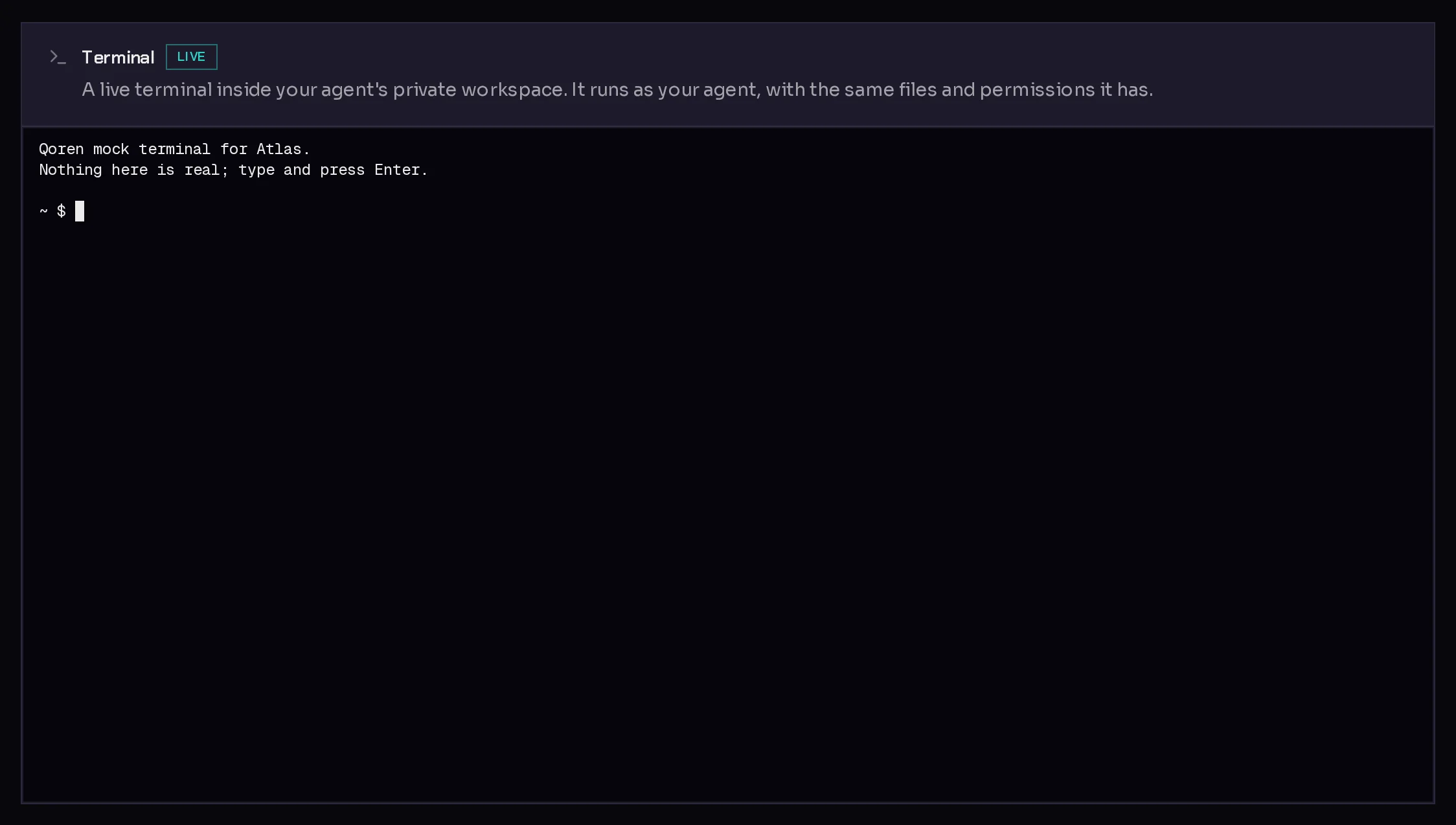 1
1On a phone or tablet, where the on-screen keyboard cannot send control keys, a line under the terminal lets you type a command and press Enter, with buttons for Ctrl-C, Tab, Esc and the arrow keys.
What the terminal runs as#
The terminal runs as your agent, not as an administrator. Each agent has its own system user on the environment, and the terminal opens as that user, with the same files and permissions the agent has and nothing more.
That also means what you do here is real:
- Files you delete or overwrite are gone. The workspace has no undo, although backups can bring an agent back to an earlier state.
- Programs you start use the environment's memory and processor, which the agents on it share.
- Anything you type, including keys and passwords, lands in the agent's files if you save it there. Put keys in the vault instead of typing them into files.
Reconnect when a session ends#
The badge shows the state of the connection:
| Badge | Meaning |
|---|---|
| Connecting | The terminal is opening. |
| Live | You are connected. |
| Reconnecting | The connection dropped and the terminal is getting it back. What was on screen is kept. |
| Ended | The shell was closed, for example because you typed exit or it sat idle. |
| Disconnected | The terminal could not be opened or reached. |
When a session ends, a line under the terminal says why, such as "This session was closed after being idle." Click Start a new session to open a fresh one. If the terminal could not be opened, click Retry.
A session belongs to the page. Leaving the Shell tab or closing the browser tab closes the shell, and anything still running in it stops. For work that must keep going, ask the agent to do it or give it a schedule.
Frequently asked questions#
Can I use the Shell tab while the agent is setting up?
The tab can be opened, but the agent's software is still being installed, so the terminal may fail to start. Wait until the agent's status reads Working.
Why does it say the agent already has terminal sessions open?
Each agent allows only a few terminal sessions at once. Close the Shell tab in your other browser tabs or windows, then try again.
Can I see what the agent itself is running?
Not from here: the terminal is a separate shell. To see what the agent did and is doing, open its Activity tab.