
Create a Qoren account
Sign up for Qoren with Google, GitHub or an email and password, confirm your email with a 6-digit code, and see what happens the first time you sign in.
On this page
You need a Qoren account before you can hire an agent. Signing up takes a minute, and you can look around the whole console before you choose a plan.
Sign up#
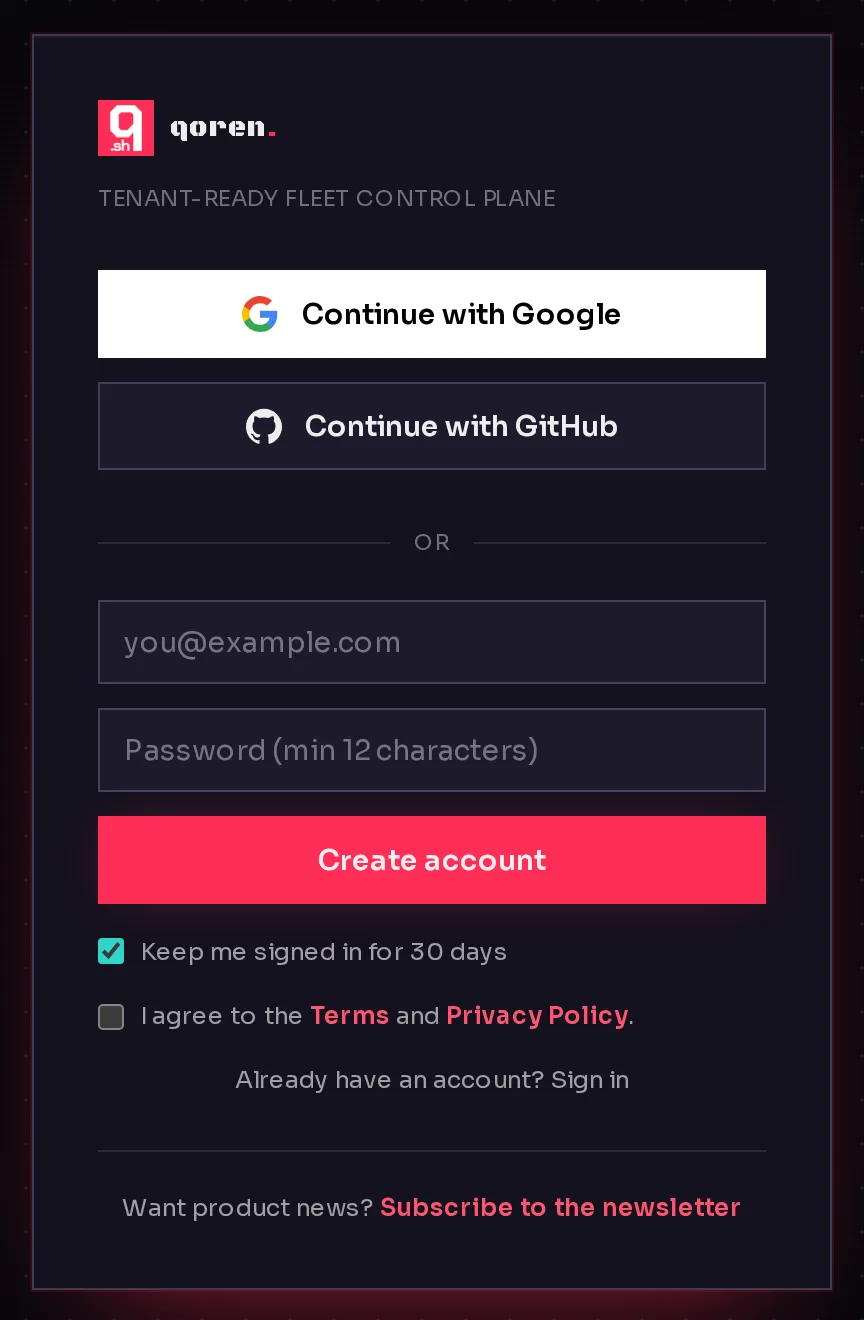
- Go to qoren.sh/login. If the form says Sign in, click No account? Create one under it.
- Tick I agree to the Terms and Privacy Policy (5). You cannot create an account without it, whichever way you sign up.
- Leave Keep me signed in for 30 days (4) ticked on your own computer. On a shared computer, untick it: you are then signed out when the browser closes.
- To sign up with an account you already have, click Continue with Google (1) or Continue with GitHub (2). You come back to Qoren signed in, with no password to remember.
- To sign up with email instead, type your email address and a password (3), then click Create account (6). The password must be at least 12 characters.
 123456
Confirm your email#
If you signed up with an email and password, Qoren sends you a 6-digit code before it opens your account.
- Open the email from Qoren and copy the code.
- Back in Qoren, the form now asks you to Enter the 6-digit code we emailed to your address. Type the code into the box.
- Click Verify email. You are signed in.
If the code does not arrive, check your spam folder, then click Resend code. Typed the wrong address? Click Use a different email and start again. A code that no longer works shows That code is invalid or has expired. Request a new one.
What happens the first time you sign in#
You land on the Dashboard. Behind the scenes, Qoren has set up a private workspace for your account, with you as its owner. Your plan, credits, environments and agents all belong to it.
A Welcome to Qoren dialog then asks three short things: your name, your business, and what your business does. Every agent you hire is handed these answers, so it never has to ask you who you are. You can click Skip for now and fill them in later on Company details. After the dialog, a short product tour shows you where things live. You can replay it at any time from your avatar menu.
The welcome dialog only appears to the owner of a new workspace that has no agents yet.
Choose a plan when you are ready#
You can explore every page without a plan. The first time you create an agent or an environment, Qoren asks you to pick one. The Dashboard also shows a Pick a plan to get started card with a Choose a plan button. Monthly plans start with a 7-day free trial. See Plans and the free trial, then follow Deploy your first agent.
Sign in again later#
Go to qoren.sh/login and use the same button or email and password you signed up with. A wrong email or password shows Invalid email or password. Forgot your password? Click Forgot password? under the password field and Qoren emails you a code to set a new one. For resets, passwords and signing out, see Sign-in and security.
Frequently asked questions#
Do I need a plan to create an account?
No. Creating an account is free, and you can look around the whole console. A plan is only needed when you create your first agent or environment.
How long does my password have to be?
At least 12 characters. The sign-up form refuses anything shorter.
What does "Keep me signed in for 30 days" do?
When it is ticked, you stay signed in on that browser for 30 days. When it is not, you are signed out as soon as the browser closes, which is what you want on a shared computer.
I did not get the 6-digit code. What now?
Check your spam folder first. Then click Resend code on the sign-in page. If you typed the wrong address, click Use a different email and sign up again.