
Chat with an agent in the console
Talk to an agent from its Chat tab: send messages and files, stop a reply, keep past conversations, and see how long chats are compacted to keep going.
On this page
Every agent has a Chat tab where you can talk to it directly, without connecting a chat app. It answers as itself, using its own runtime, model, key and tools, and your conversations are saved to your account. To reach an agent from Telegram, Slack or Discord as well, see chat channels.
Answer the setup interview#
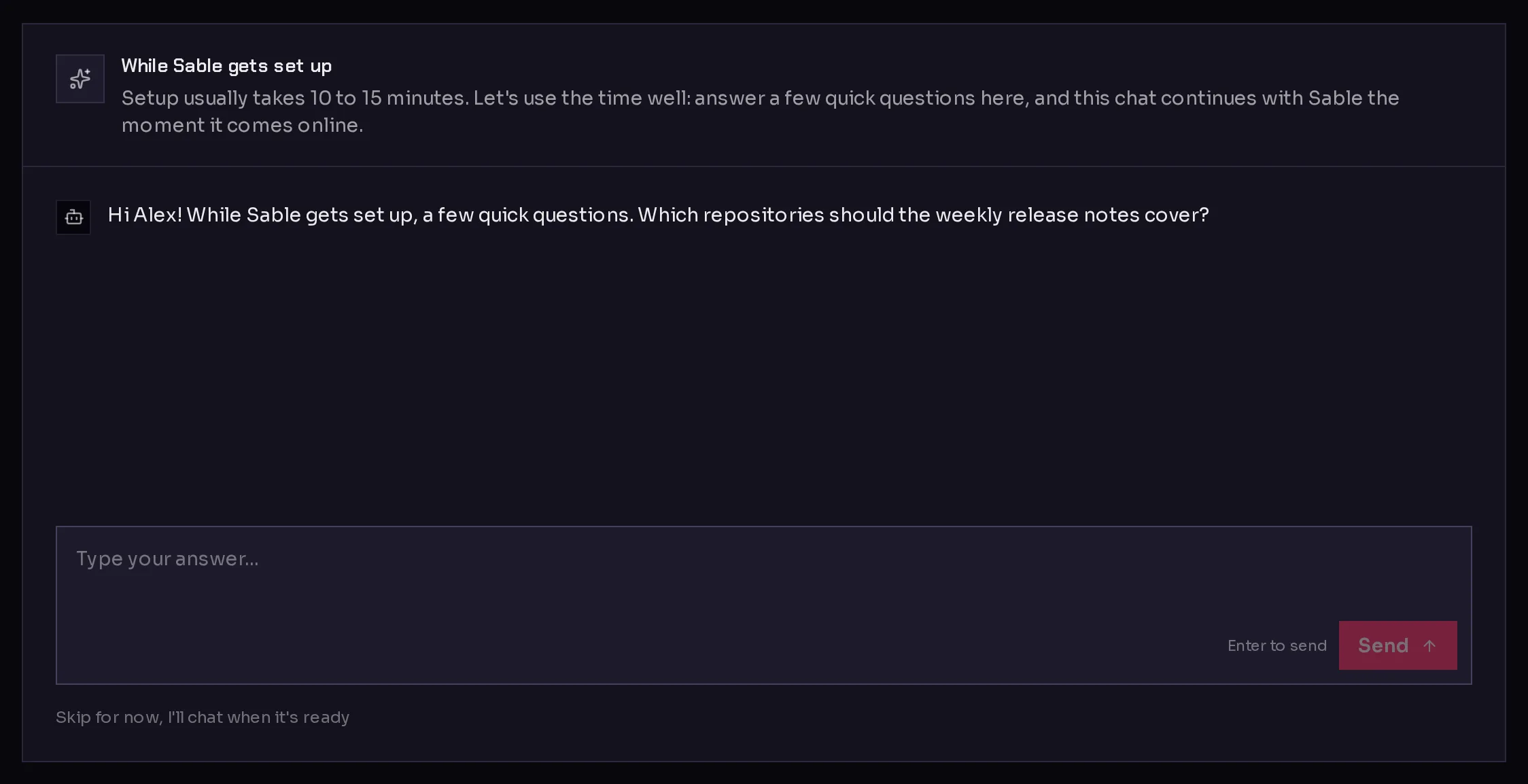
A new agent takes a while to set up, often 10 to 15 minutes. Instead of a chat that cannot answer yet, its Chat tab opens with While (agent name) gets set up: a setup assistant asks a few quick questions about the job, such as what the agent should cover and for whom.
- Type your answer in the box (1) and press Enter, or click Send.
- Keep going until the assistant says it is done: "All done, thank you."
 12
12What you already told Qoren is not asked again: your name, your business details from company details, and your time zone.
When the agent comes online, the chat carries straight on. The interview becomes the start of a conversation called "Getting started", the agent receives your answers, and its first message to you appears in the thread. Your answers are also saved as workspace/SETUP-INTERVIEW.md in its workspace, so it never has to ask again.
Rather not answer now? Click Skip for now, I'll chat when it's ready (2). The tab then waits for the agent, with a button to Answer a few setup questions while you wait if you change your mind.
Send a message#
- Open the agent and stay on the Chat tab.
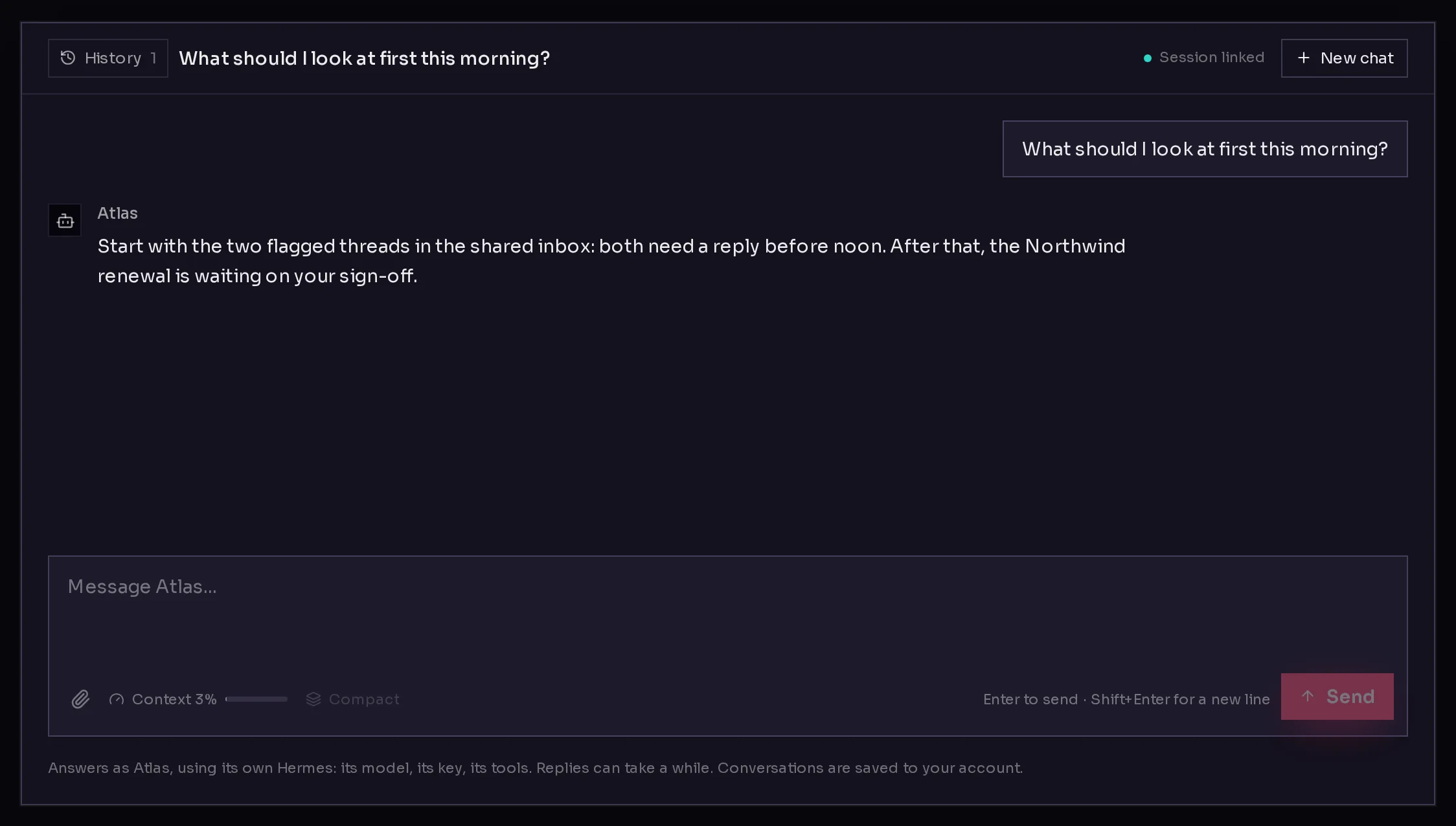
- Type in the box at the bottom and press Enter, or click Send (5). Shift+Enter starts a new line.
- Wait for the reply. While the agent works, the chat says what it is doing, such as "Connecting to Atlas…" or "Atlas is thinking…", with a timer.
 12345
12345Replies can take a while: the agent may be using tools, reading files or searching the web. If you leave the page, the reply still lands in the conversation when you come back to it in the same browser.
To stop a reply, click Stop (it replaces Send while the agent works). Anything it had already written is kept.
To copy a reply, click Copy under it.
Attach files#
Click the paperclip, Attach files (3), to add files to your next message. You can also drag files onto the message box, or paste an image.
- Images, text files (such as .txt, .md, .csv, .json or .html) and PDFs are accepted.
- Each file can be up to 4 MB. A larger file is refused with a note saying so.
- Files upload when you click Send, and the agent can read them on that turn. They are saved in its workspace under
workspace/uploads/.
Keep and find conversations#
Each conversation is saved to your account, so it is there on any device you sign in on.
- Click History (1) to show your previous conversations with this agent. Open one to carry on where you left off, or rename or delete it from the list.
- Click New chat (2) to start a fresh conversation. The agent does not see the other conversations' messages in a new one, but it keeps whatever it saved to its own memory and files.
Next to the conversation title, Session linked means the agent is continuing its own session, so only your new message is sent each turn. No session means the whole conversation is sent again for context.
Keep long chats going#
A model can only read so much at once. The Context meter (4) next to the paperclip shows how full the current conversation is. Hover it to see the numbers behind it.
When the conversation reaches the auto-compaction threshold, your next message first folds the older messages into a summary, keeps the recent ones, and carries on. A Memory summarized line marks the spot in the thread. Click it to read the summary the agent now works from, and the original messages behind it.
To do this yourself before the meter fills up, click Compact next to the meter.
To change when it happens:
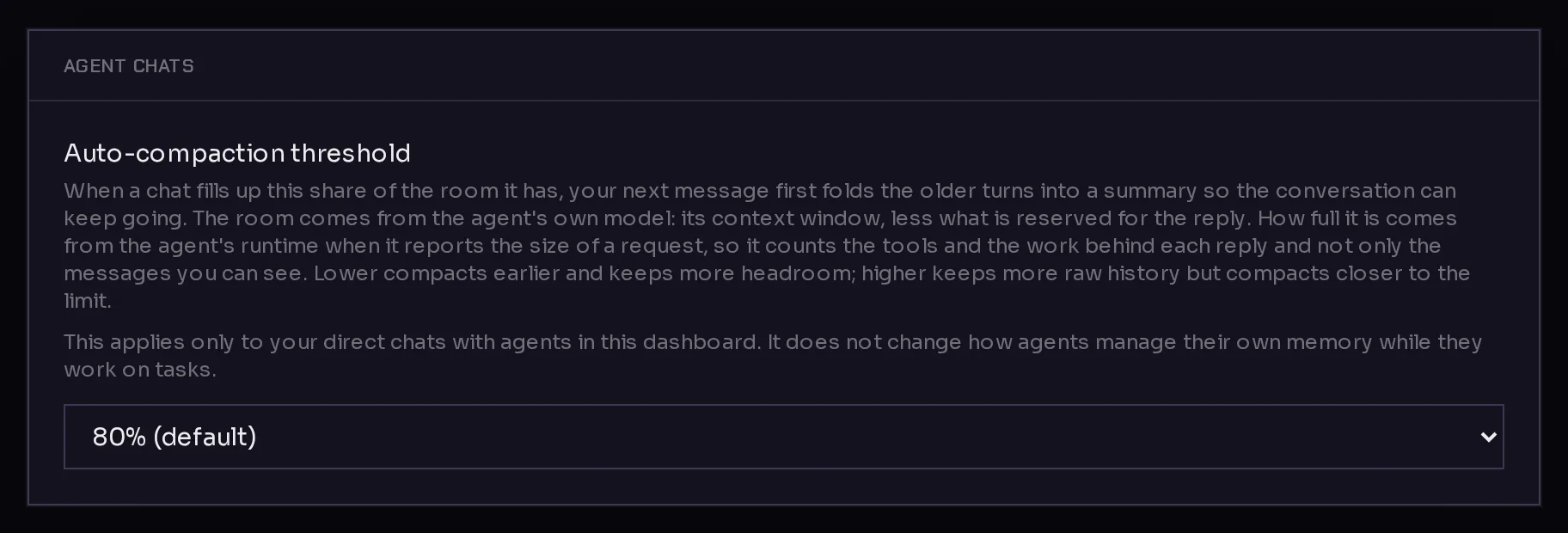
- In the sidebar, click Settings, then the Agent chats tab.
- Choose a value in Auto-compaction threshold (1). The default is 80%, and you can pick from 50% to 90%.
 1
1Lower compacts earlier and keeps more room; higher keeps more of the raw conversation but compacts closer to the limit. The setting applies only to your direct chats with agents in the console. It does not change how agents manage their own memory while they work on tasks.
Frequently asked questions#
Why is the agent not answering?
It may still be setting up, or it may have stopped. Check its status next to its name, then see my agent is not responding.
Can other people in my organization see my chats?
Conversations are saved per person: each signed-in user has their own conversations with an agent.
What file types can I attach?
Images, PDFs and common text files, up to 4 MB each. For larger reference files, or files the agent should keep using, add them to its workspace instead.
Does chatting cost credits?
Yes, when the agent runs on Qoren's managed model key: each reply uses the model, like any other work it does. On your own key, your provider bills you instead. See how credits work.