
Manage an agent's files on the Workspace tab
Give an agent reference files on its Workspace tab: upload text files or a .zip, write a new file, preview, edit, rename, delete and download files as a ZIP.
On this page
The Workspace tab holds the files your agent can read while it works: price lists, style guides, notes, templates for what it writes, and the files it produces itself. Adding a file here is the simplest way to hand an agent reference material without pasting it into a chat. Its instructions and persona live elsewhere, under identity and instructions.
Before you start#
- The agent must have finished setting up. Until then the Workspace tab shows a lock. See finish setting up.
Open the workspace#
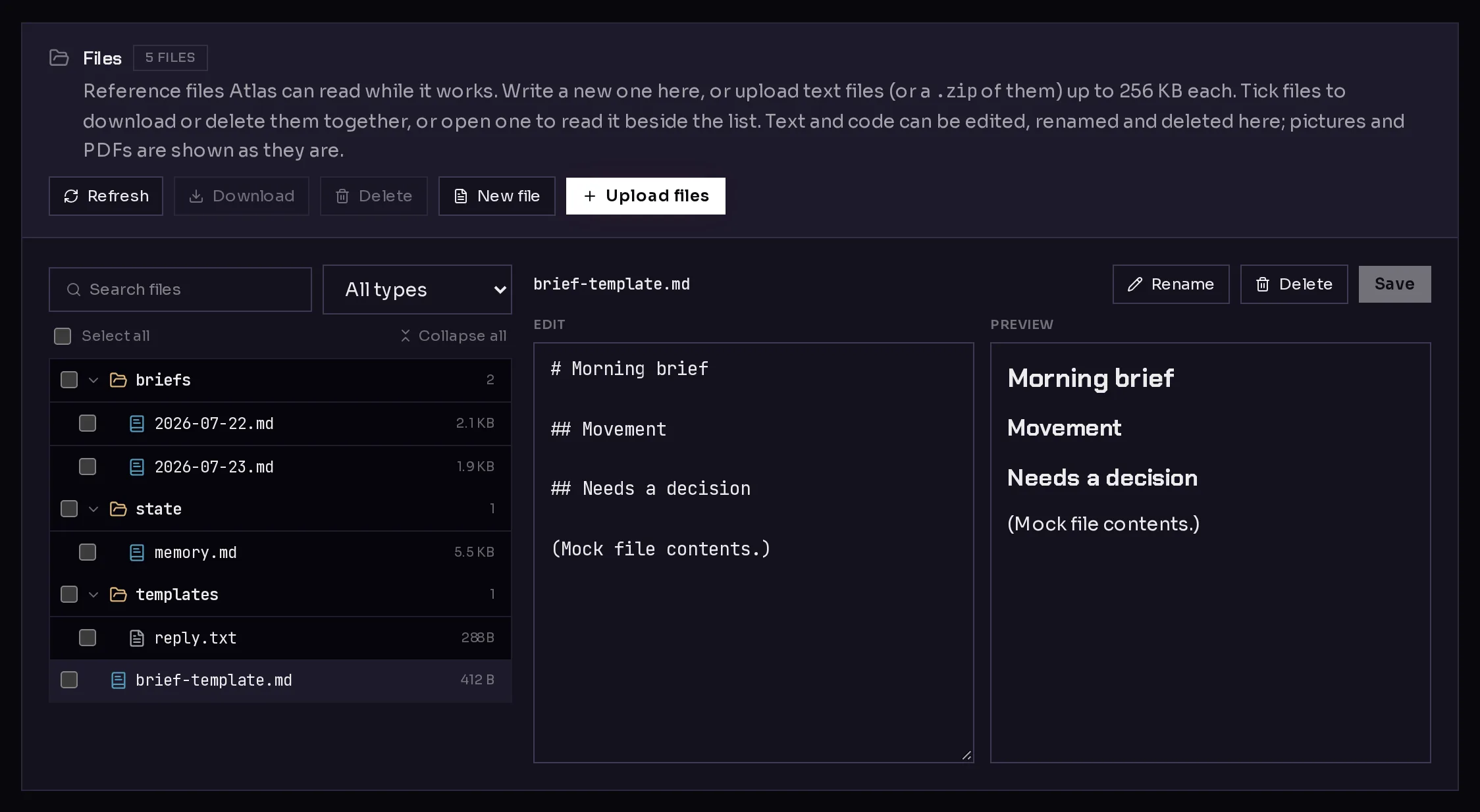
Open the agent and click Workspace in its tab rail. The Files section lists the files in its workspace, grouped in folders, with each file's size. Use Search files and the type menu above the list to find a file, and Refresh to see files the agent has written since you opened the tab.
 1234
1234Add files#
Upload files
- Click Upload files (2).
- Choose one or more text files, such as .md, .txt, .csv, .json or .yaml, or a .zip of them.
- Wait for the note that says how many files were added, and which were skipped and why.
Each file can be up to 256 KB; larger ones are skipped. The files inside a .zip are added one by one at the top of the workspace, without the zip's folders. Characters other than letters, numbers, dots, dashes and underscores in a name become underscores.
Write a new file
- Click New file (1).
- Type a name, such as
notes/monday.md. A/makes a folder. A name ending in.mdgets a formatted editor; any other name gets a plain one. - Type the contents, or leave them empty for a blank file.
- Click Create file.
Open, edit and rename a file#
Click a file in the list to open it beside the list.
- Text and code open in an editor. Make your changes and click Save. A Markdown file shows its preview next to the editor. A file larger than 256 KB shows only its beginning and cannot be edited here.
- Pictures and PDFs are shown as they are, read-only, with a Download button. Files larger than 4 MB are not shown; download them instead.
- Other kinds of files have no preview; download them to open them on your own computer.
To rename the open file, click Rename (4), type the new name and click Rename again, or press Escape to cancel.
Download or delete files#
Tick the boxes next to files in the list (or Select all), then:
- Click Download (3) to save them. One file downloads as it is; several download together as a ZIP.
- Click Delete to remove them. A dialog lists the files and asks you to confirm.
To delete the open file, use the Delete button next to Rename.
Frequently asked questions#
Why is the Workspace tab locked?
The agent is still setting up. The tab opens as soon as setup finishes, so your files cannot clash with the setup job.
Can I upload a Word document or a spreadsheet?
Not here: the Workspace tab takes text files and .zip archives of text files. Save the document as text, Markdown or CSV first. To give the agent a PDF or an image, attach it in the chat instead, where images, PDFs and text files up to 4 MB are accepted.
Does the agent see a new file right away?
Yes. Files are written straight into its workspace, so the agent can read them the next time it works. Tell it about the file in a chat if you want it to use it now.
Can I get to the same files from a terminal?
Yes, the Shell tab opens a terminal in the agent's workspace, as the agent.