
Move an agent to another environment
Move an agent to a different environment, for a bigger size, another region or more room, keeping its memory, files, keys, mailbox and spend history.
On this page
Each agent lives in one environment, the private computer it runs on. You move it when that environment is full, when the agent needs more room than its neighbours leave it, or when you want it closer to where you work. The agent keeps everything it has and takes a short break of a few minutes while it moves.
Before you start#
- You need a second environment to move to. If you only have one, the page says so and links to Environments, where you can create an environment.
- The agent must be settled: running, or switched off. You cannot move an agent while it is still setting up or already moving.
- If you run agents for clients, an agent can only move between environments of the same client.
Check where it runs and how full it is#
- In the sidebar, click Agents and open the agent.
- Click the Settings tab, then Environment.
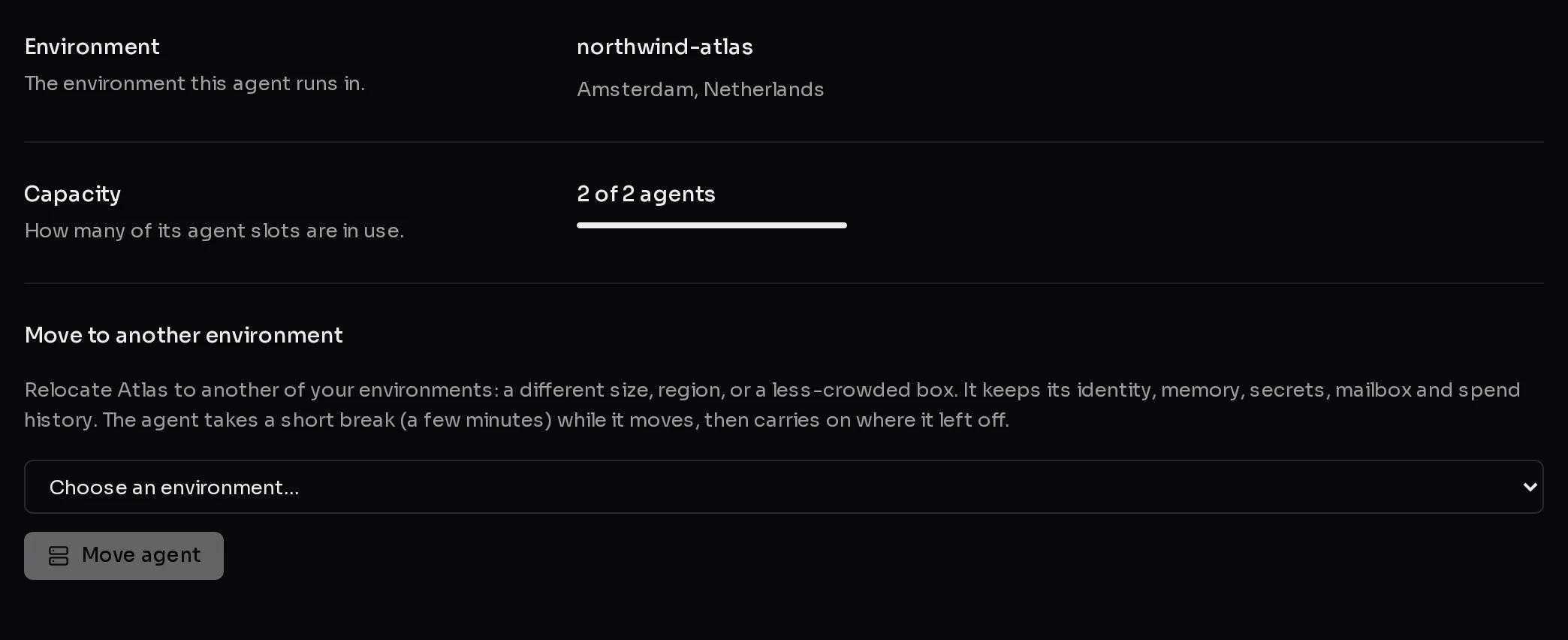 123
123- Environment shows the environment's name and region.
- Capacity (1) shows how many of its agent slots are in use, such as "2 of 2 agents". A full bar means no new agent fits until one leaves or you resize the environment.
Move the agent#
- Under Move to another environment, open the picker (2) and choose an environment. Each entry shows its size and how many agents it holds. Environments with no free slot are marked (full) and cannot be picked.
- Click Move agent (3).
- Click Confirm move to *environment* to start, or Cancel to back out.
The move then runs in the panel, step by step. You can leave the page; it carries on without you. When it finishes, click Done.
What moves with the agent#
Everything that makes the agent yours comes along:
- Its identity and instructions, including edits you made after it was created.
- Its memory, conversations and the files in its workspace.
- Its scheduled tasks and its configuration.
- Its keys and secrets.
- Its mailbox, which keeps working at the same address.
- Its spend history, so usage reports stay continuous.
Its chat connections, such as a Telegram or Slack bot, are stopped on the old environment first and started again on the new one, so the two copies never answer at the same time. That is the short break.
If anything goes wrong before the switch-over, the move is undone and the agent carries on in its old environment as before.
When a move is refused#
Qoren checks the target before it starts, and tells you why if it cannot go ahead:
- The target is full. Pick another environment or make it bigger.
- The agent's template needs a larger environment. Some templates require a minimum size. Pick a larger target.
- The target already has an agent with the same name. Rename or remove the other agent first.
- Your plan is not active. Moving an agent needs an active plan.
Frequently asked questions#
Can I move several agents at once?
Each agent moves on its own: start the move from each agent's Settings, Environment. An agent that is already moving cannot be moved again until that move finishes.
Will my chat bot keep the same name and link?
Yes. The same bot is reconnected on the new environment, so people keep messaging it where they always did.
Can I move an agent to another client's environment?
No. An agent only moves between environments of the same client and the same account.
How long does it take?
Usually a few minutes. The agent is paused for that time and picks up where it left off.